Affiliate Disclosure:
Some of the links in this post are affiliate links. This means I may earn a small commission at no extra cost to you if you choose to make a purchase. I only recommend tools and resources I personally use and trust. Your support helps keep these tutorials free.
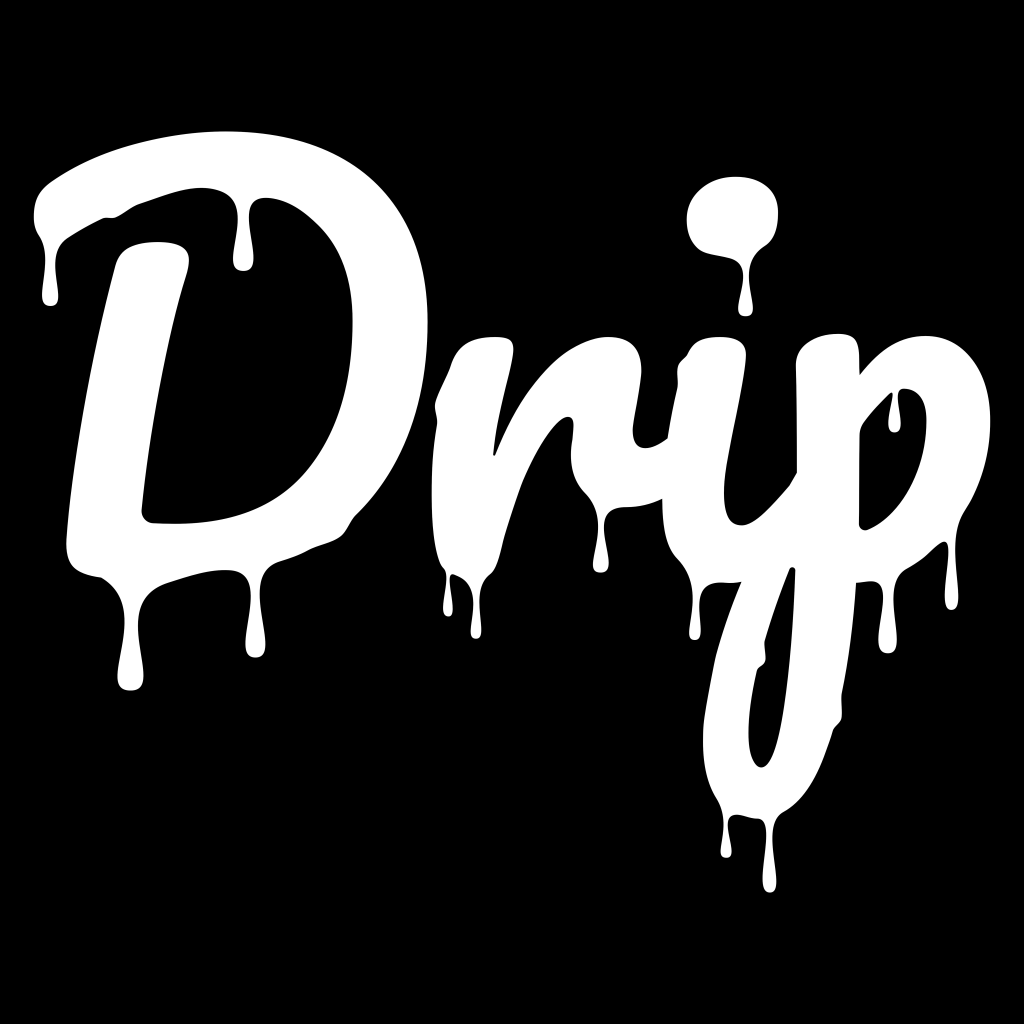
If you’ve ever wanted to give your text a fun, melting, or liquid look — this tutorial is for you. In this step-by-step guide, we’ll walk through how to create a drip effect in Affinity using only two simple tools: the Artistic Text Tool and the Node Tool.
You’ll learn how to:
Type and customize your text
Convert it to editable curves
Sculpt realistic drips using nodes and handles
Merge everything into one clean vector shape
For this tutorial, I’m using the Pacifico font from Google Fonts — Click here to download if you want to use the same font. Feel free to use any bold or script-style font you like; those tend to give the best results.
By the end, you’ll have your own custom drip-style text ready to use on posters, apparel, stickers, or social media graphics.
Materials & Setup
Program: Affinity(Vector Studio)
Tools Used: Artistic Text Tool, Node Tool
Font Used: Pacifico (Google Fonts) — or any bold/script font
Canvas Size: Any — landscape layout works great for text effects
Step 1: Type Your Text
1. Select the Artistic Text Tool from the toolbar.
2. Click on the canvas and type your word.
3. Choose a bold or script font— these styles create the best drips.
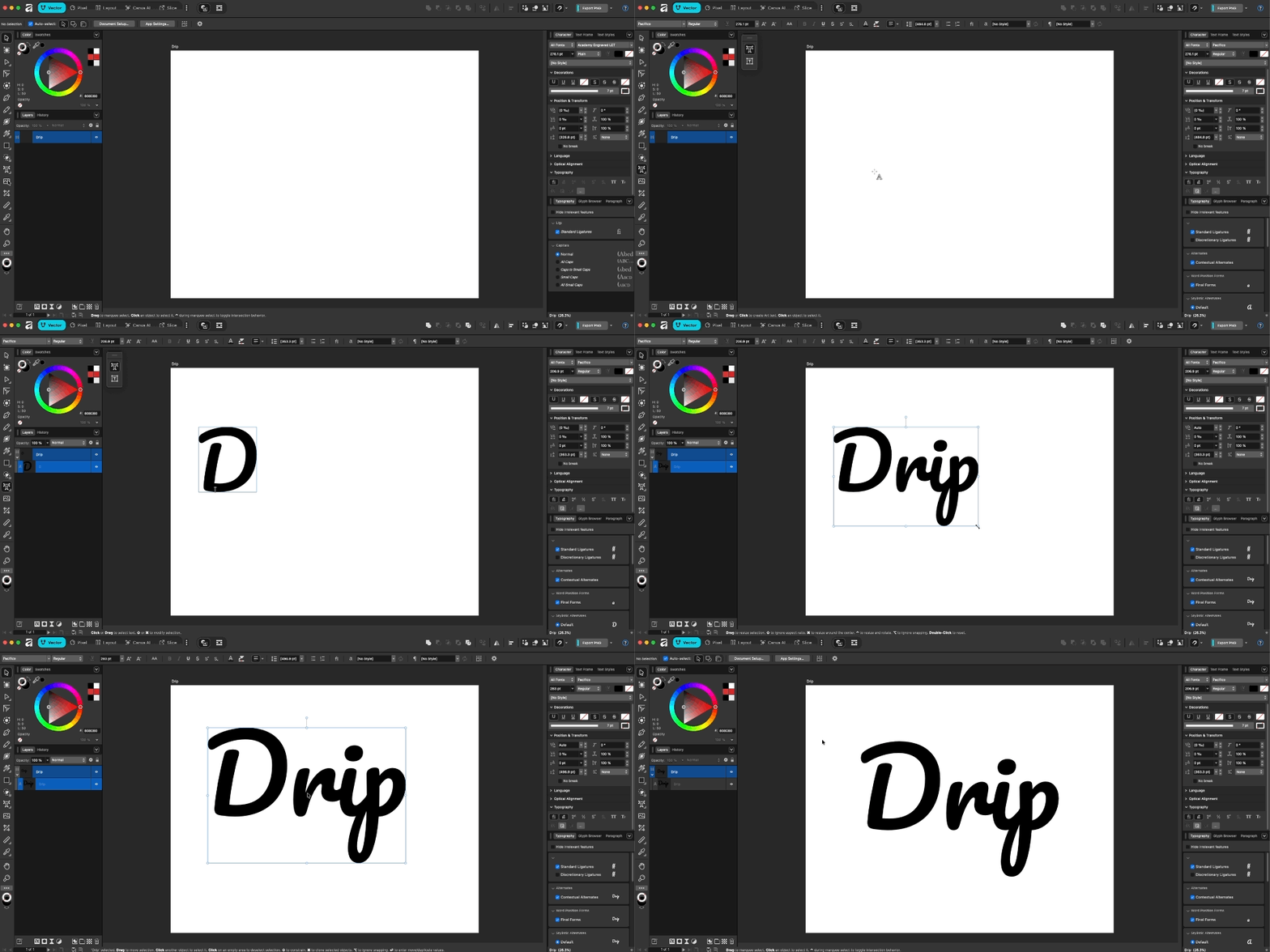
Note: Bold fonts hold up well when you start stretching shapes for drips.*
Step 2: Convert to Curves
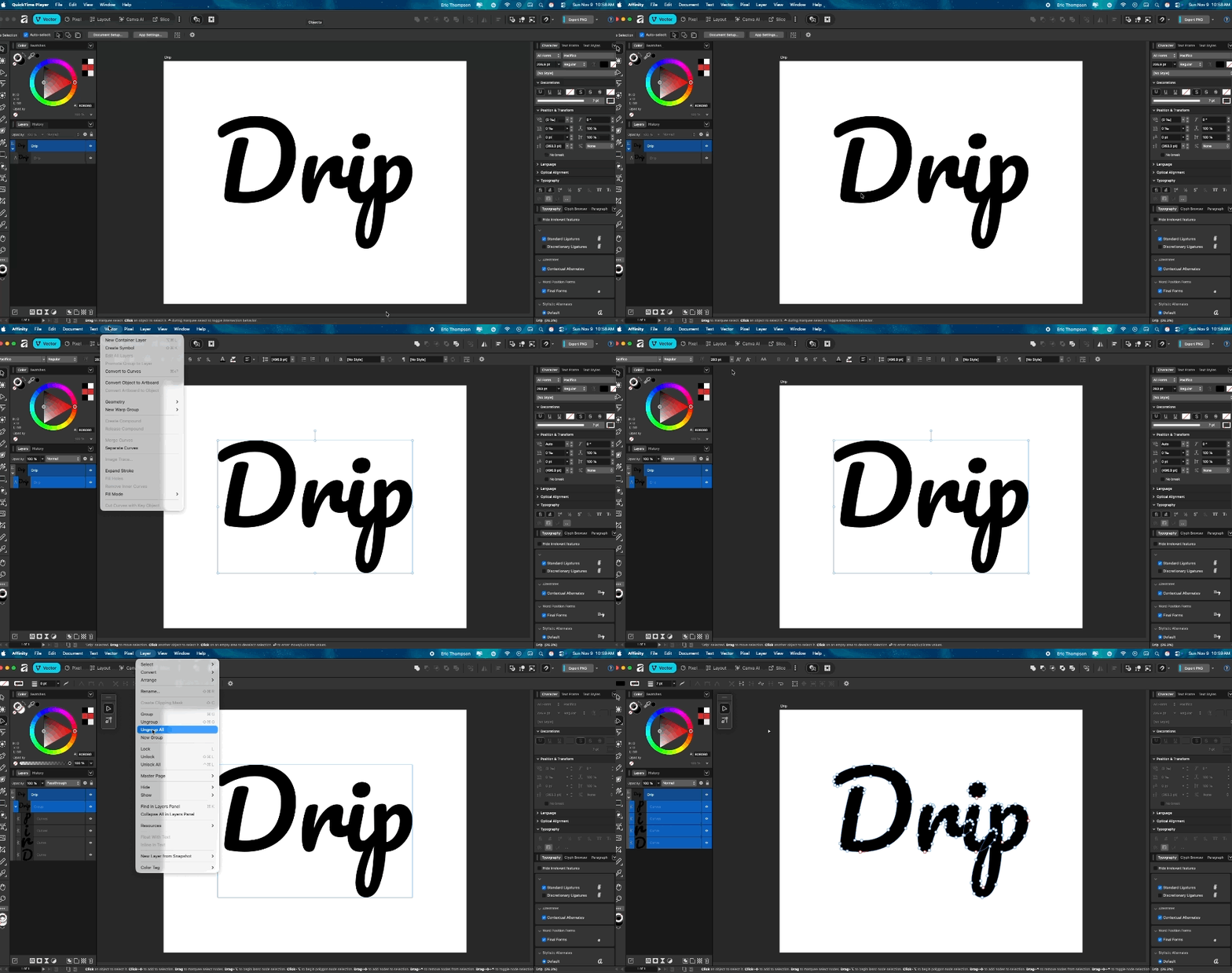
1. With your text selected, go to Vector → Convert to Curves.
2. Ungroup your text so each letter can be edited individually:
Mac:⌘ + ⇧ + G
Windows:Ctrl + ⇧ + G
Or go to Layer → Ungroup in the menu.
Note: Ungrouping gives you full control over each letter’s shape before adding drips.
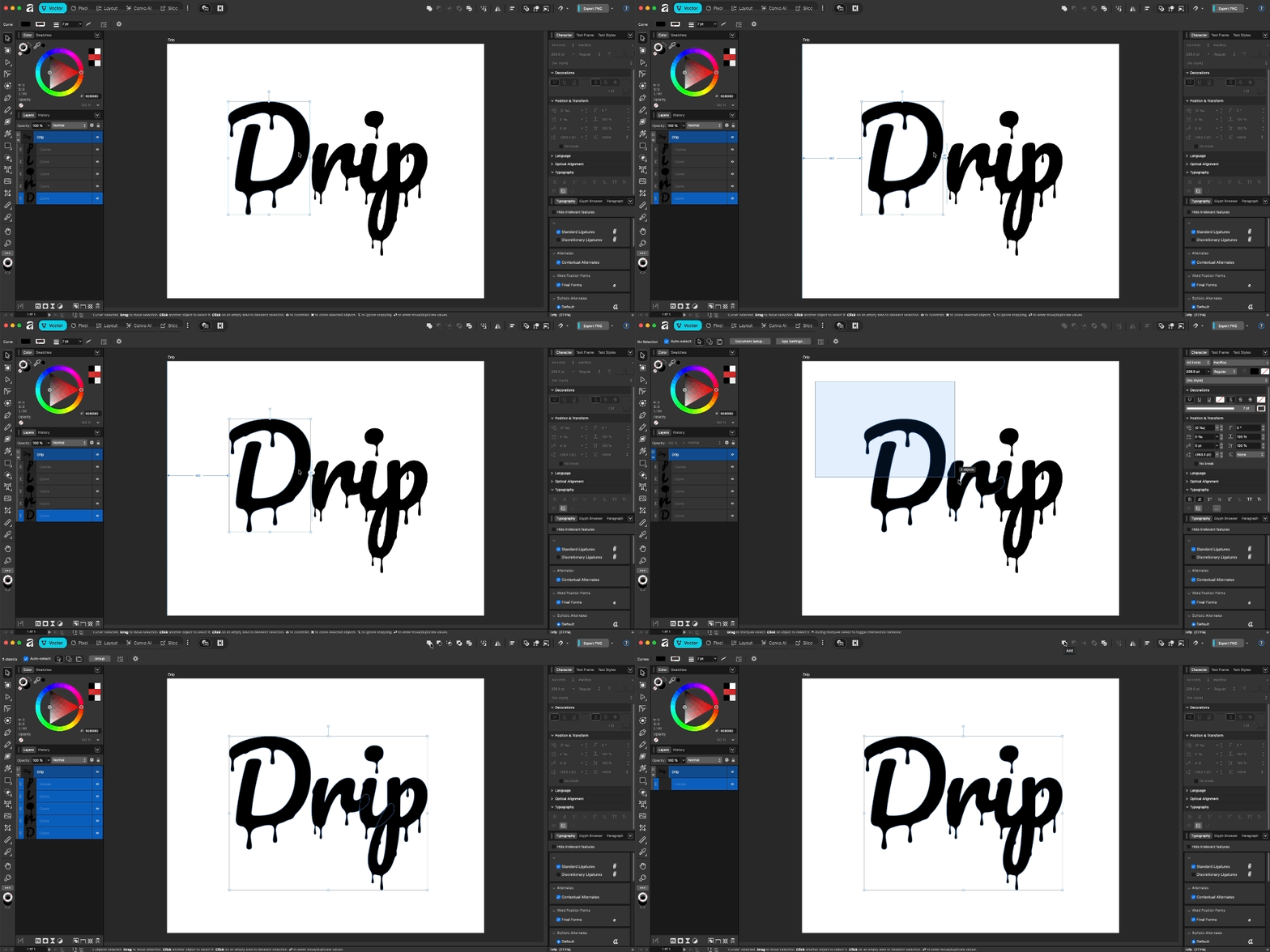
Step 3: Create the Drips
1. Select the Node Tool (A).
2. Click on a letter and place three nodes where you want a drip to form.
3. Drag the center node downward to create the drip shape.
4. Widen the bottom node by pulling the handles left and right.
5. Adjust the top nodes so they taper — thinner at the top, wider at the bottom.
Keep refining the nodes and handles until you get a smooth, natural drip. Repeat this process for other letters or spots as needed.
Step 4: Merge Everything Together
1. Once your drips look right, select everything.
2. Click Add in the Boolean Operations toolbar at the top.
This merges all your shapes into one clean vector — ready to color, export, or stylize!
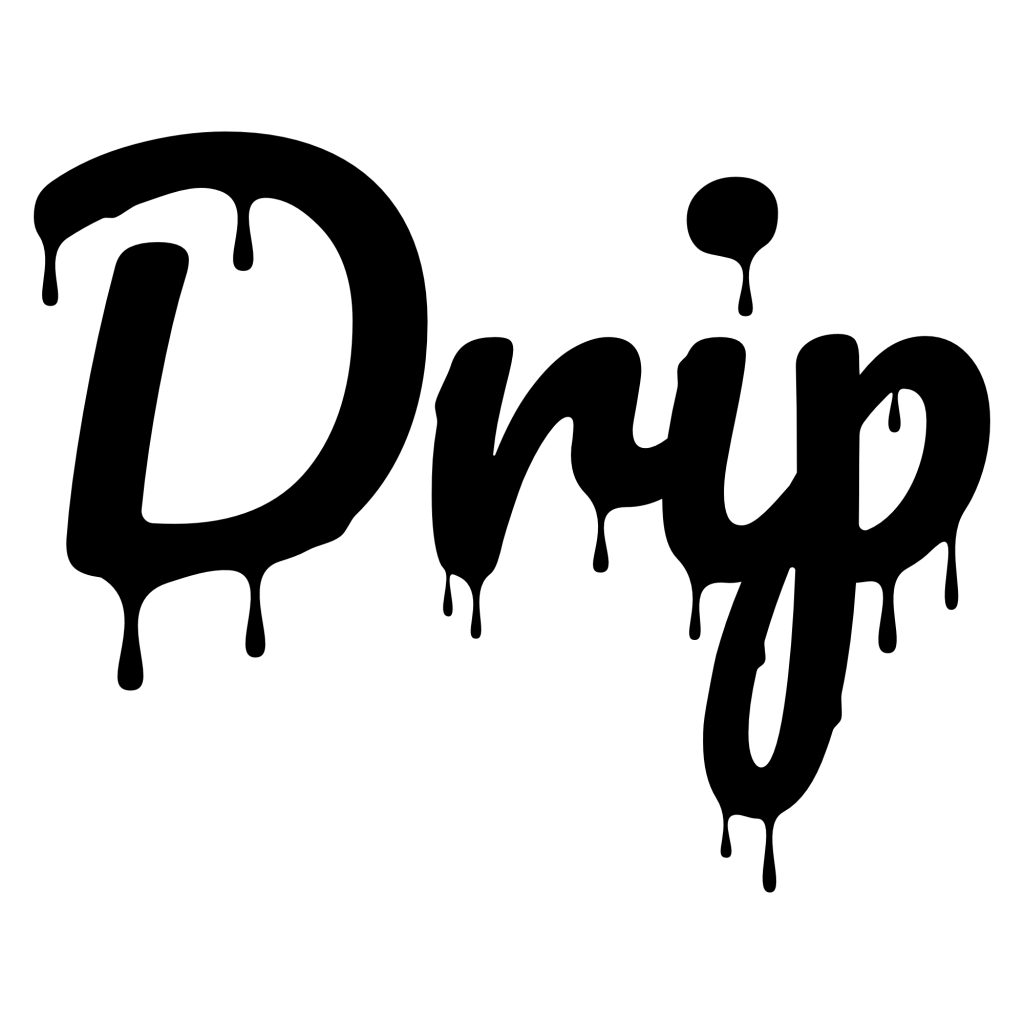
Here’s what my final drip text looks like.
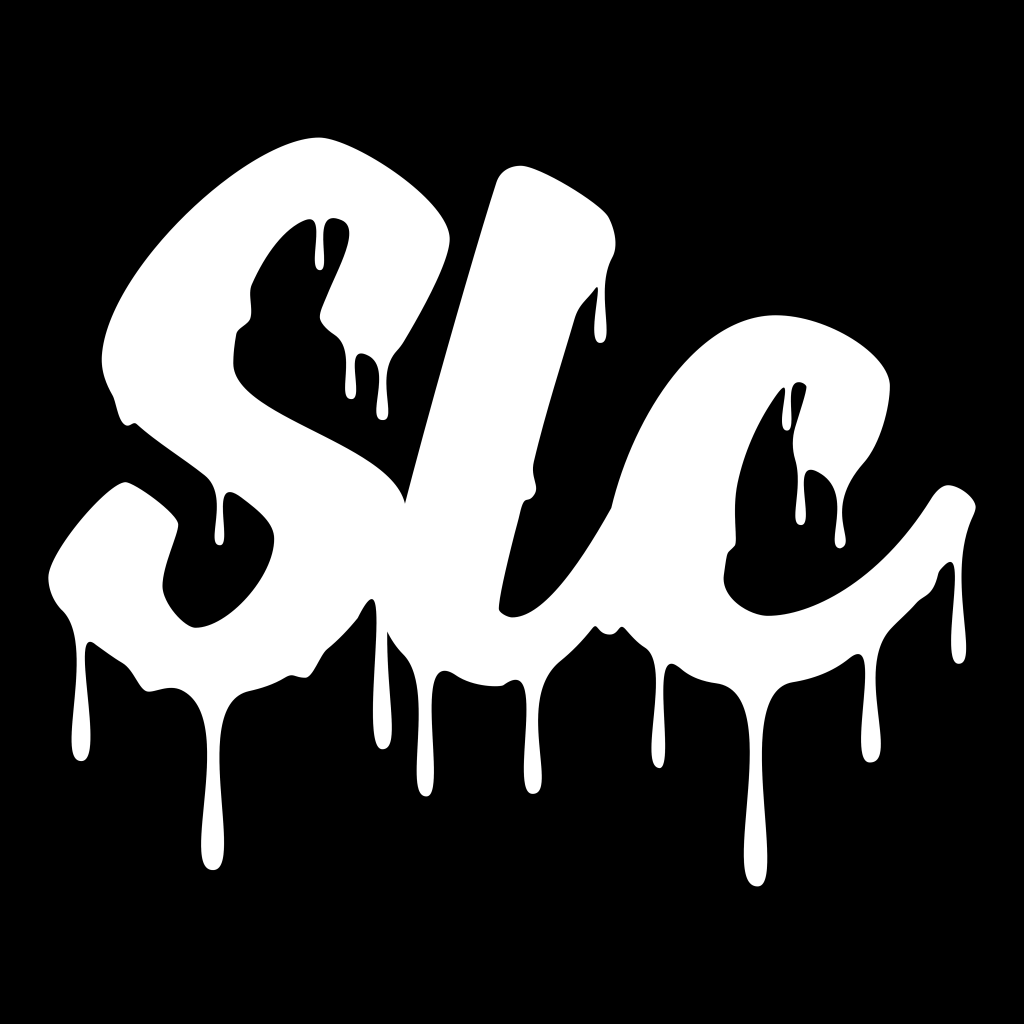
Here’s another drip design I created.
And that’s it — you’ve just created a bold, custom drip effect in Affinity(Vector Studio). This simple vector-based technique gives you tons of flexibility to experiment with colors, shapes, and layers for unique results every time.
Thanks for following along!
If you enjoyed this tutorial, make sure to follow and subscribe for more Affinity(Vector, Pixel, Layout, and Canva AI) tips, and creative design walkthroughs. Your support helps me keep making tutorials just like this one.
Help support my work.
I love creating free tutorials and sharing what I learn along the way.
If this post was useful, you can support my work by buying me a cup of coffee ☕
It helps keep everything free and ad-free for everyone.