Affiliate Disclosure:
Some of the links in this post are affiliate links. This means I may earn a small commission at no extra cost to you if you choose to make a purchase. I only recommend tools and resources I personally use and trust. Your support helps keep these tutorials free.
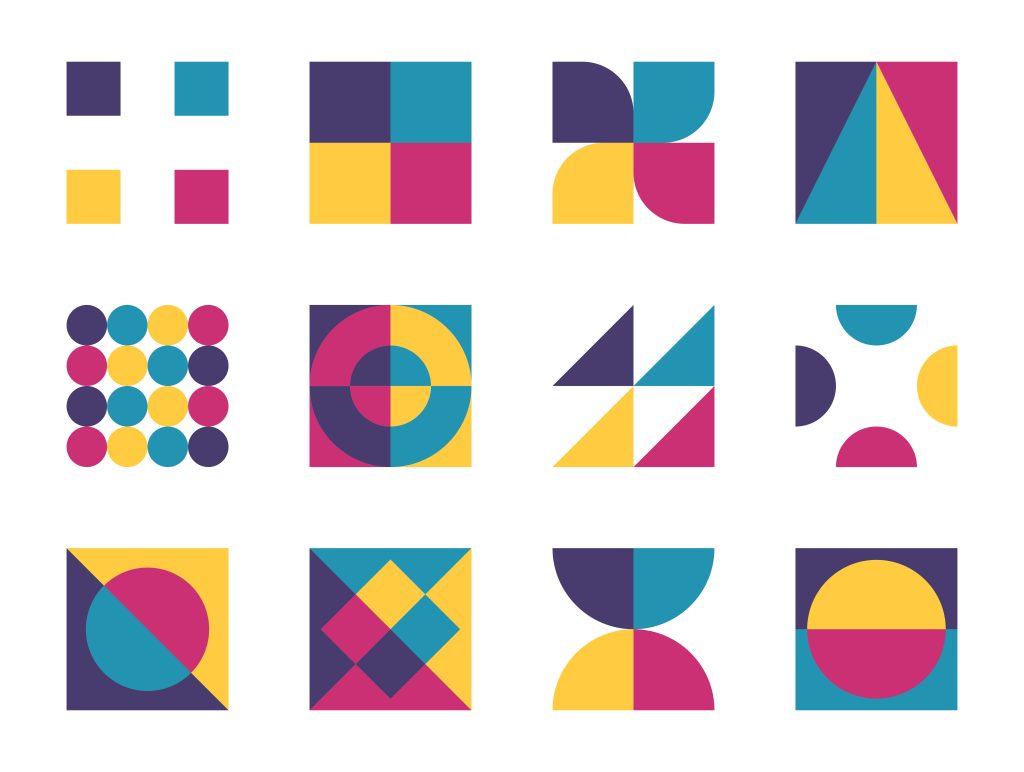
Welcome to this step-by-step follow-along tutorial on creating simple geometric shape patterns in Affinity Designer. If you’re like me, you’ll find joy in the simplicity and creativity of geometric patterns. They’re not just fun and relaxing to make; they’re also an excellent way to hone your design skills. Today, we’ll explore 12 different patterns that utilize basic shapes and tools within Affinity Designer. Whether you’re a beginner with a basic understanding of Affinity Designer’s tools and interface or looking to practice, this tutorial is for you.
Program: Affinity: Vector Studio
Difficulty: Beginner with a basic knowledge of the tools and interface.
Tools We’ll Use:
– Selection Tool
– Node Tool
– Corner Tool
– Shape Tools
– Geometry Tools
Shapes We’ll Use:
– Square
– Rectangle
– Triangle
– Ellipse
Click here to download the follow along for this tutorial. Ive set the blend mode on the Pattern layer to Multiply, and reduce the transparency to about 50%. Adjust the opacity if needed. Use the follow along layer to follow along.
Note: This tutorial assumes you have a basic understanding of Affinity, and the Vector Studio.
Pattern 1:
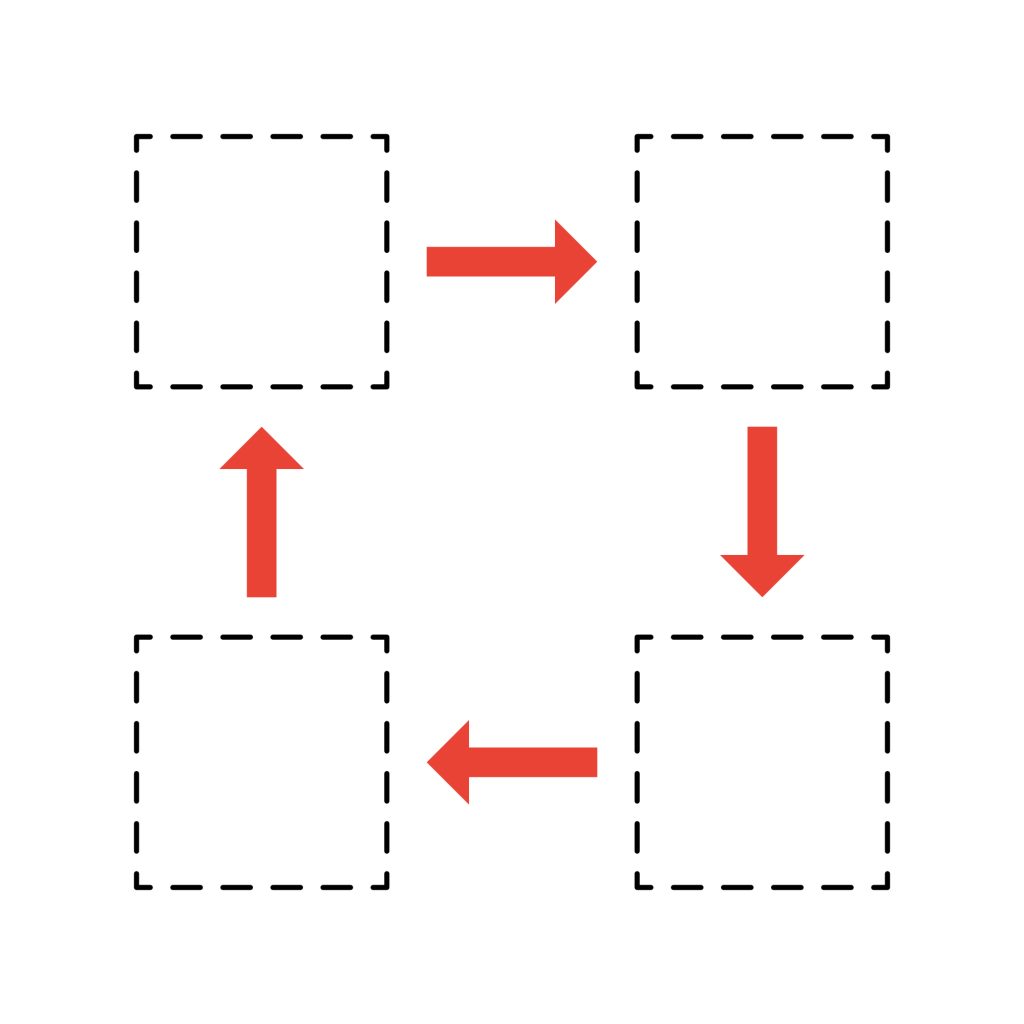
Select the Rectangle Tool [U], and create a square.
Duplicate the square, and place it in the top right.
Duplicate again, and place a square in the bottom right.
Duplicate one last time, and place the final square in the bottom left.
Color in each square.

Pattern 2:
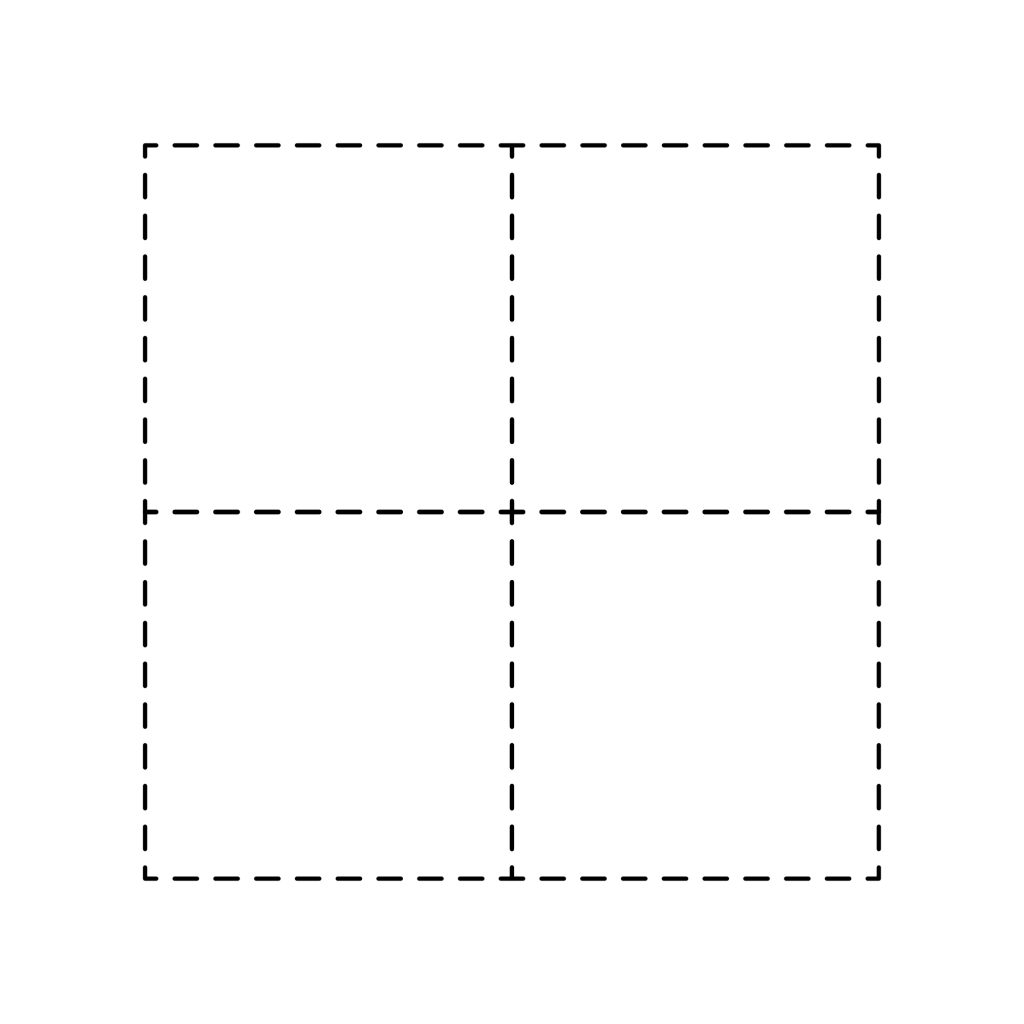
Create a square with the Rectangle Tool[U]. Make three more copies of the square, then place them all together to make a four-square. Add color to the squares.

Pattern 3:
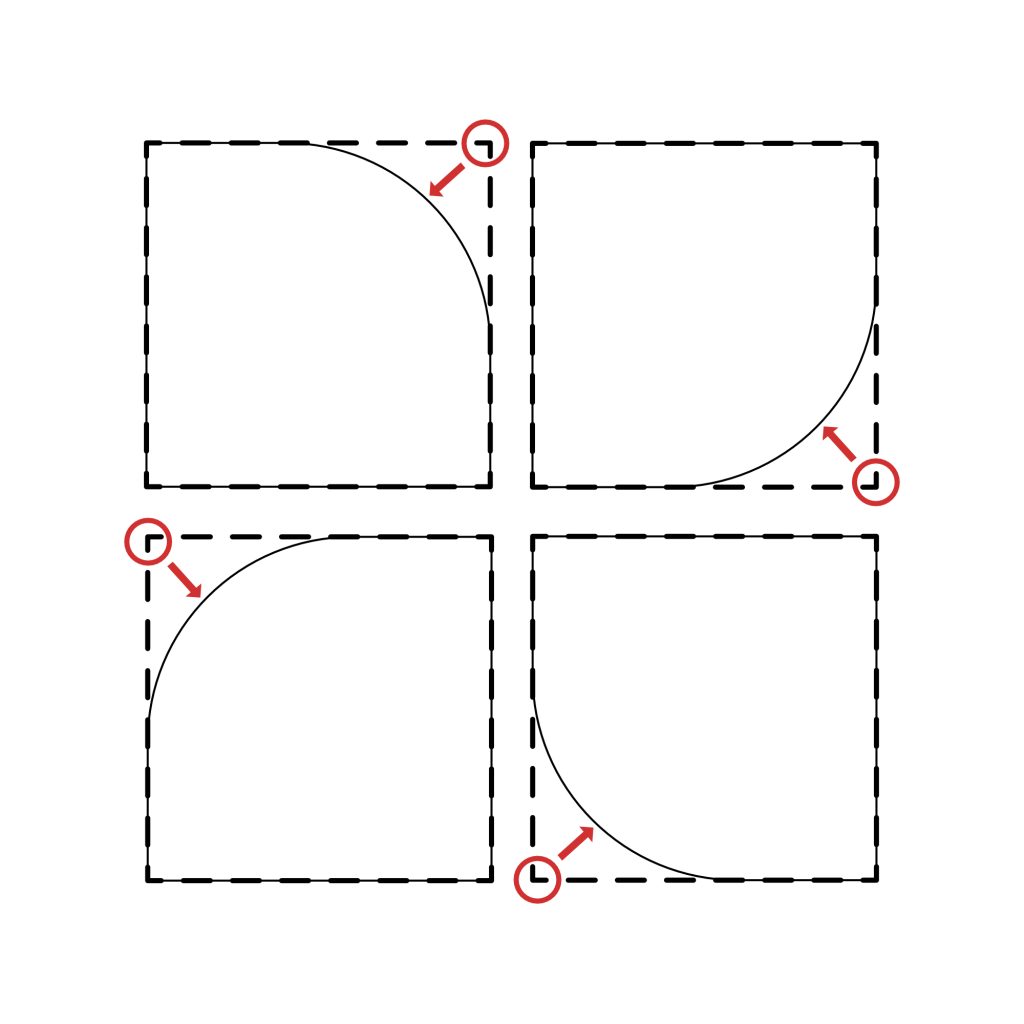
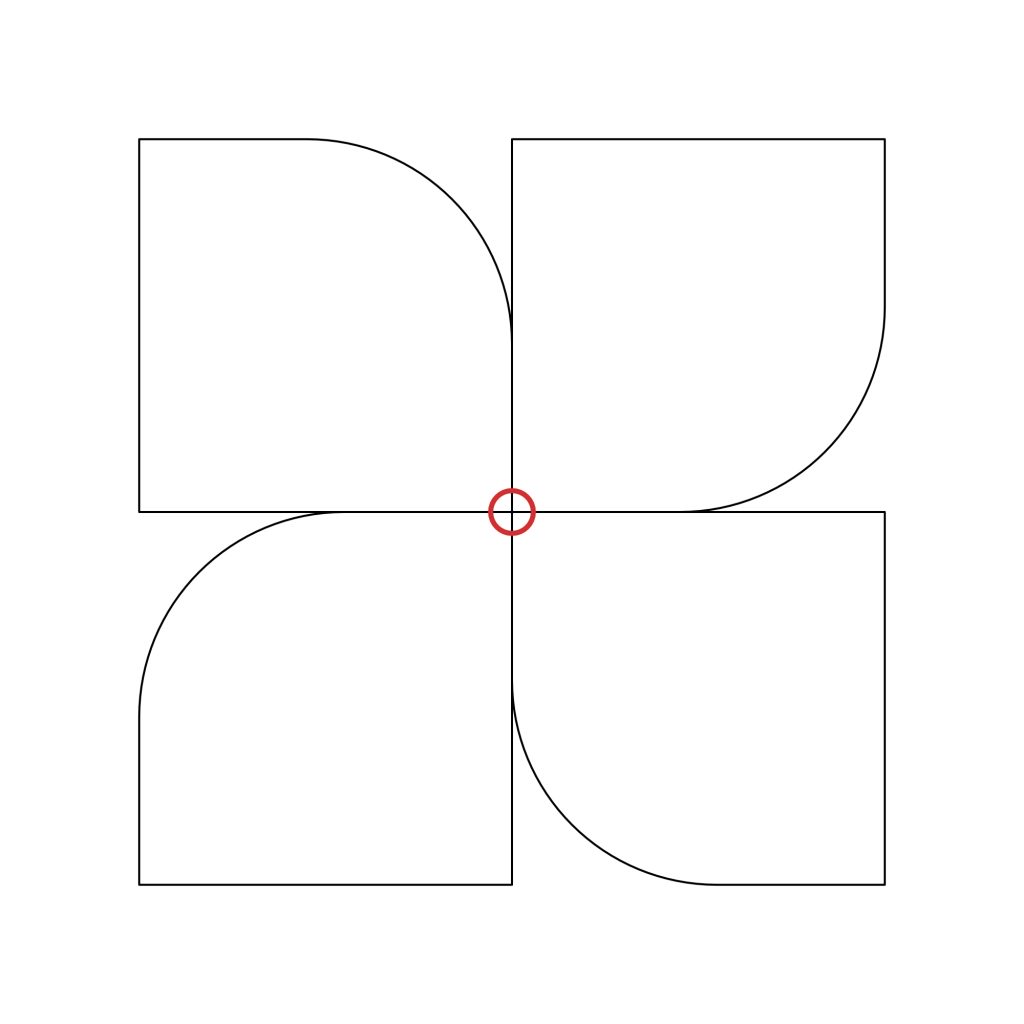
Create four squares with the Rectangle Tool[U], and convert them all to curves.
Select the nodes that are highlighted in red, and with the Corner Tool[C], pull the corners inward. In the menu bar go to Vector → Convert to Curves
Align the four corners in the center.
Add the colors.

Pattern 4:
Create a Square with the Rectangle Tool[U].
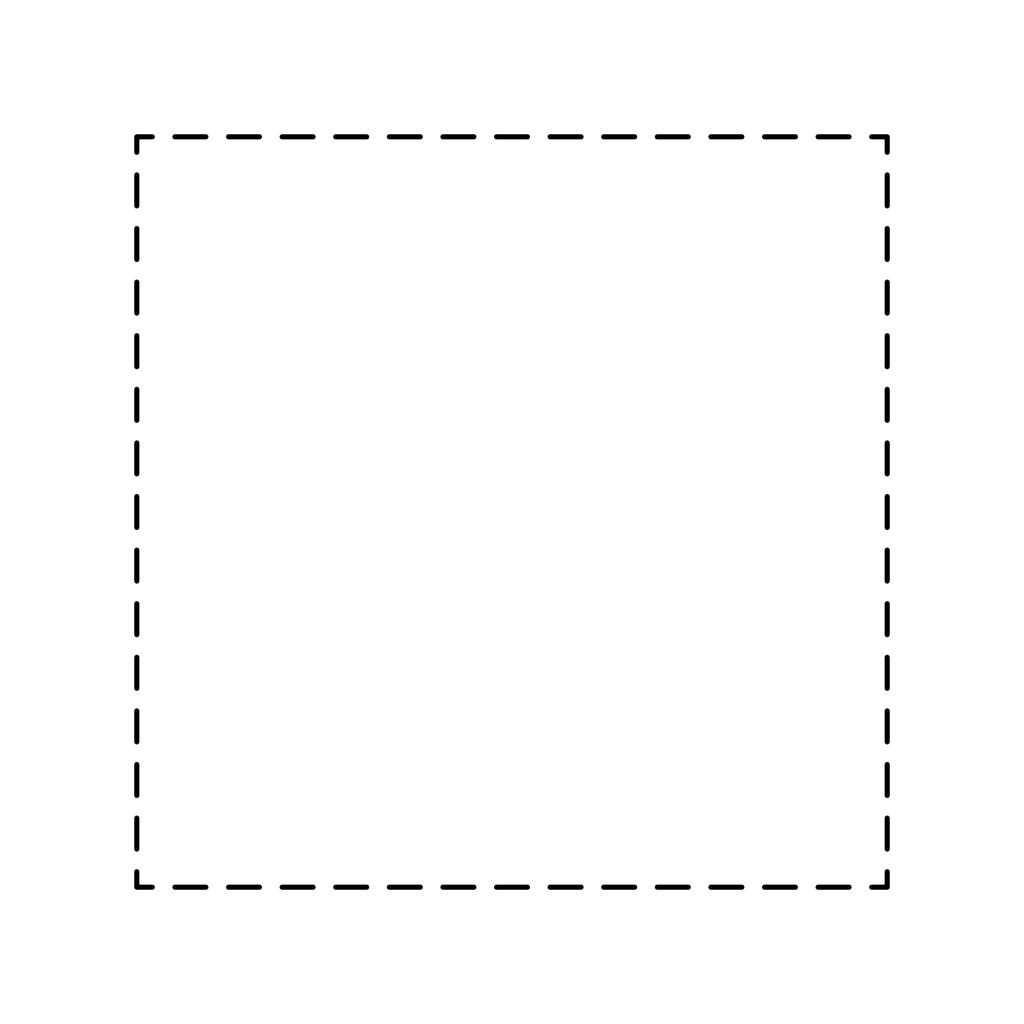
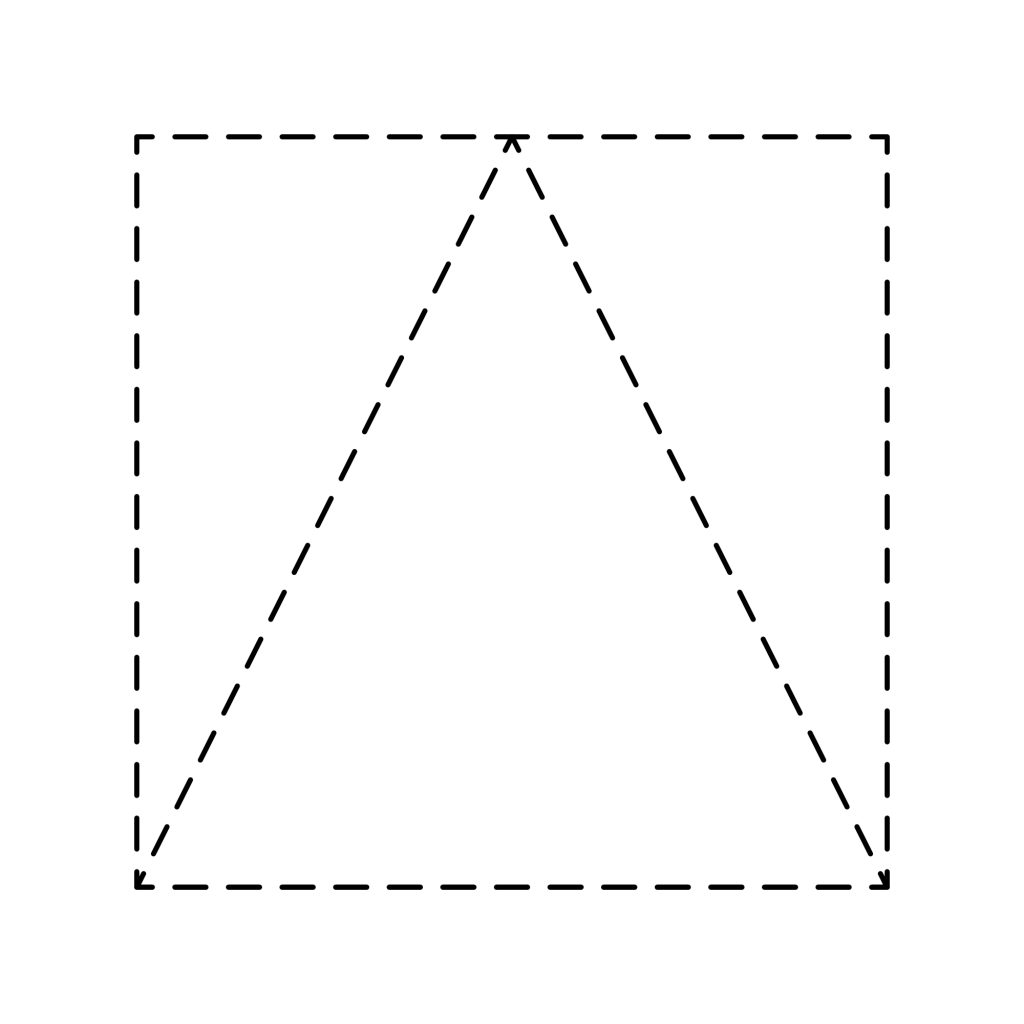
Create a Triangle with the Triangle Tool.
Center the triangle inside the square.
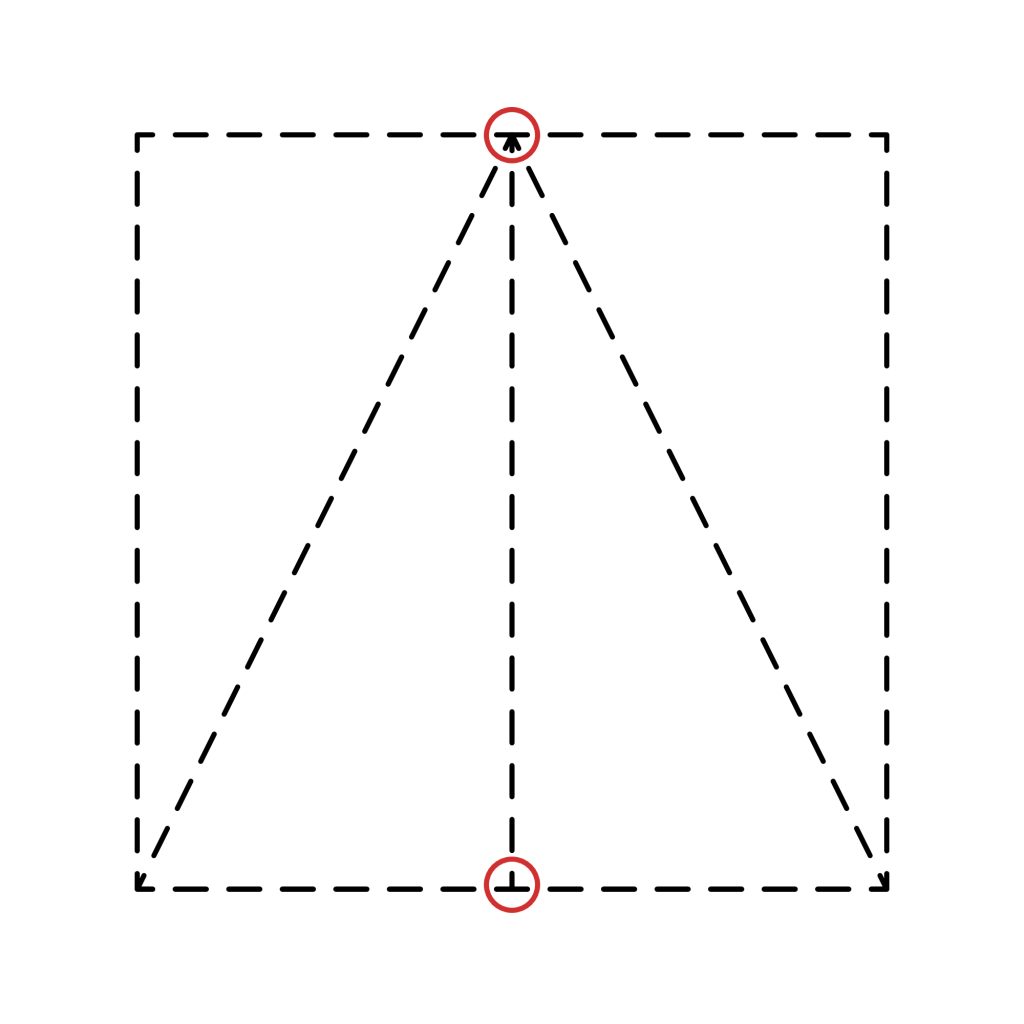
Select the Pen Tool[P]and draw a line from the top of the triangle going down to the bottom.
Select all the shapes
Go to Boolean Operations → Divide to divide the shapes.
Add the colors.

Pattern 5:
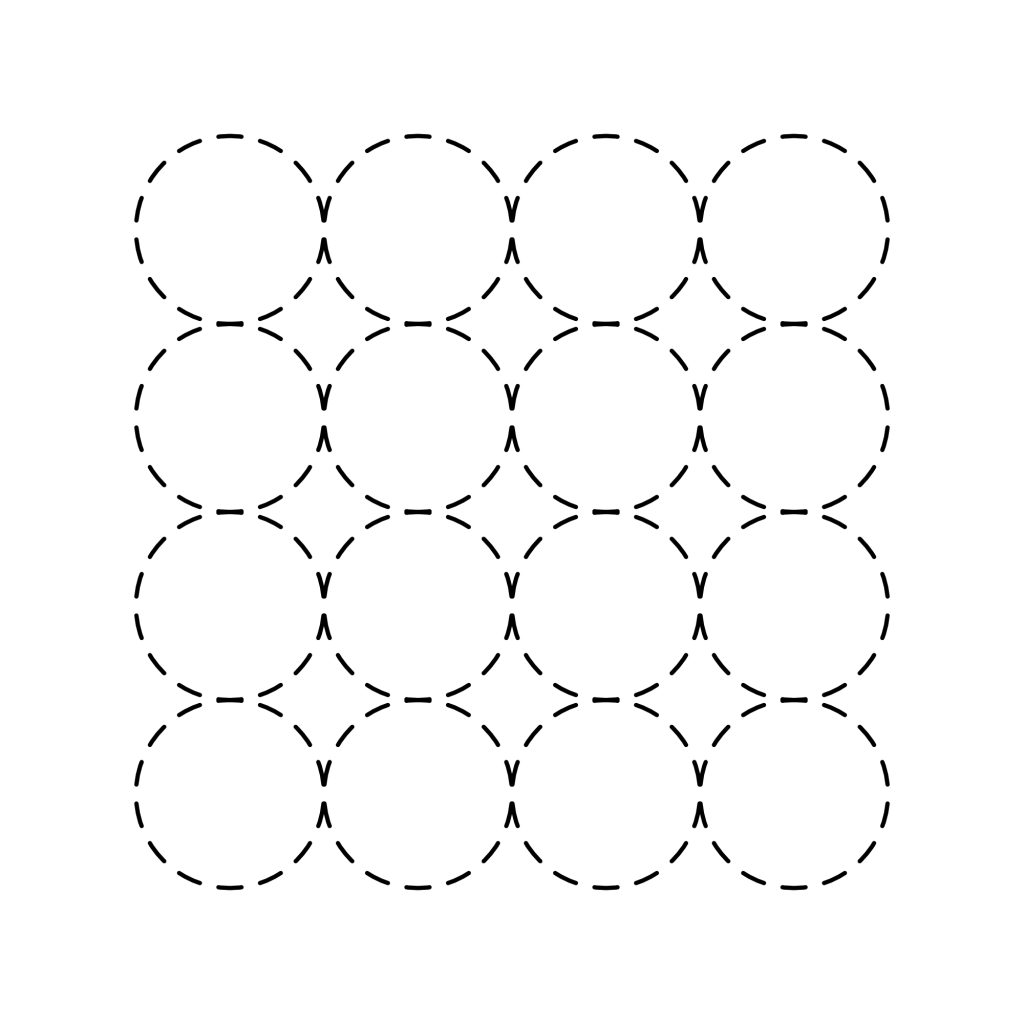
Create a bunch of circles with the Ellipse Tool[U].
Add the colors.

Enjoying this so far?
Buying me a cup of coffee helps keep these tutorials free and ad-free
Pattern 6:
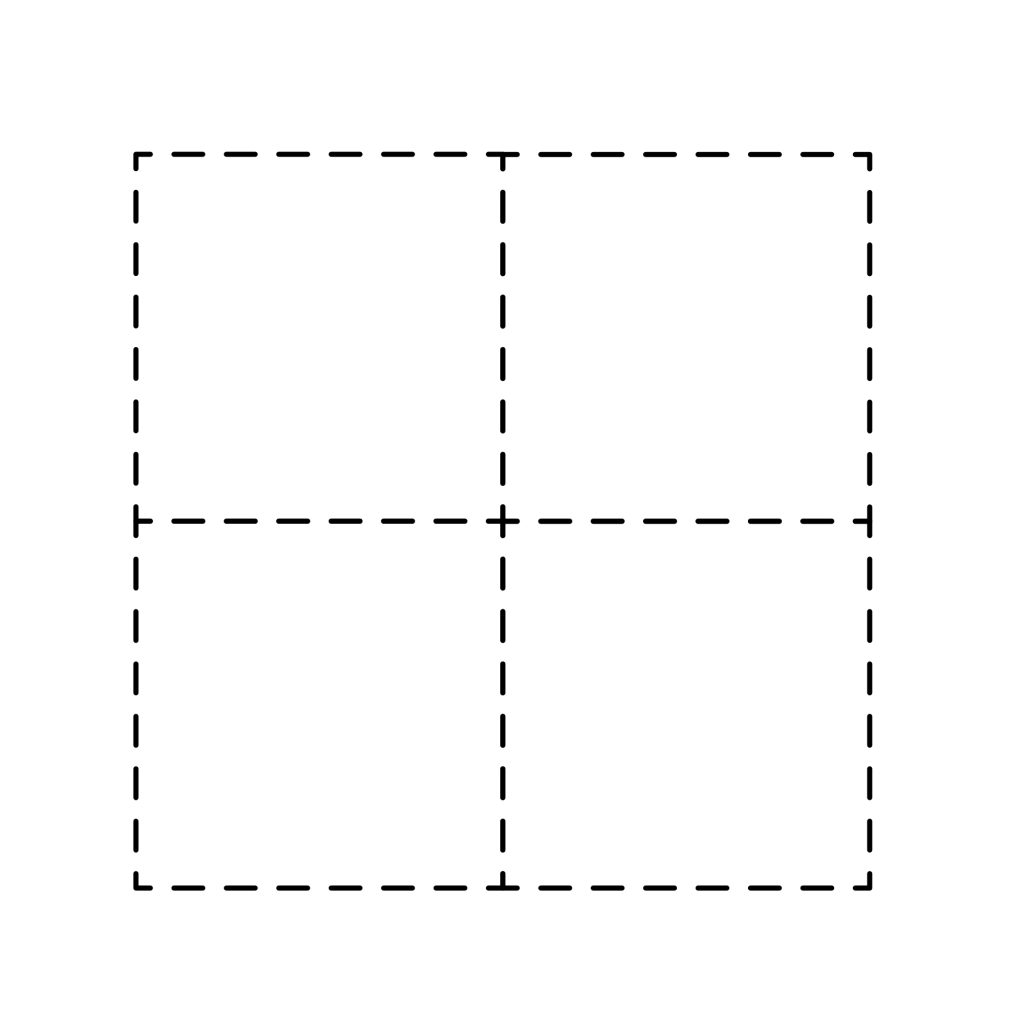
Create four squares with the Rectangle Tool[U].

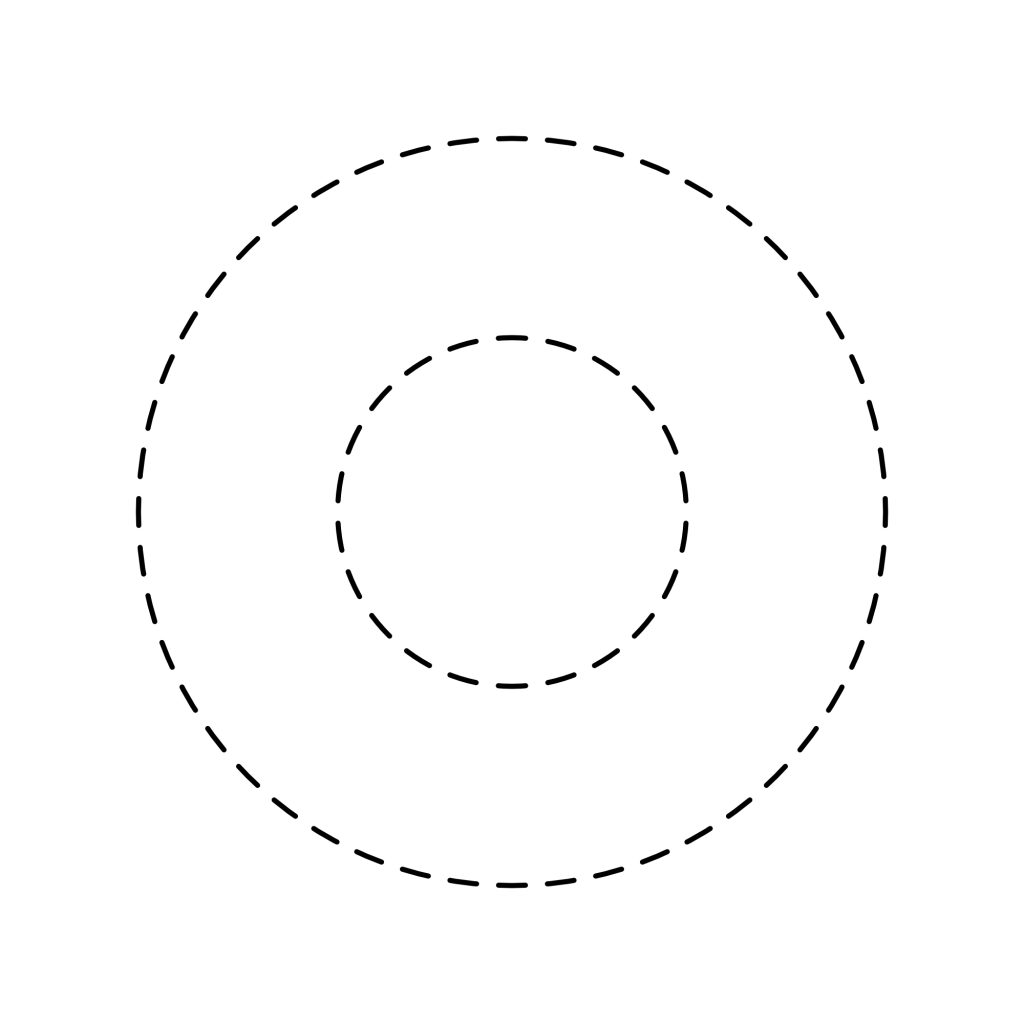
Create a donut with the Donut Tool. In the menu bar go to Vector → Convert to Curves.

Select all, and align the donut inside the squares.
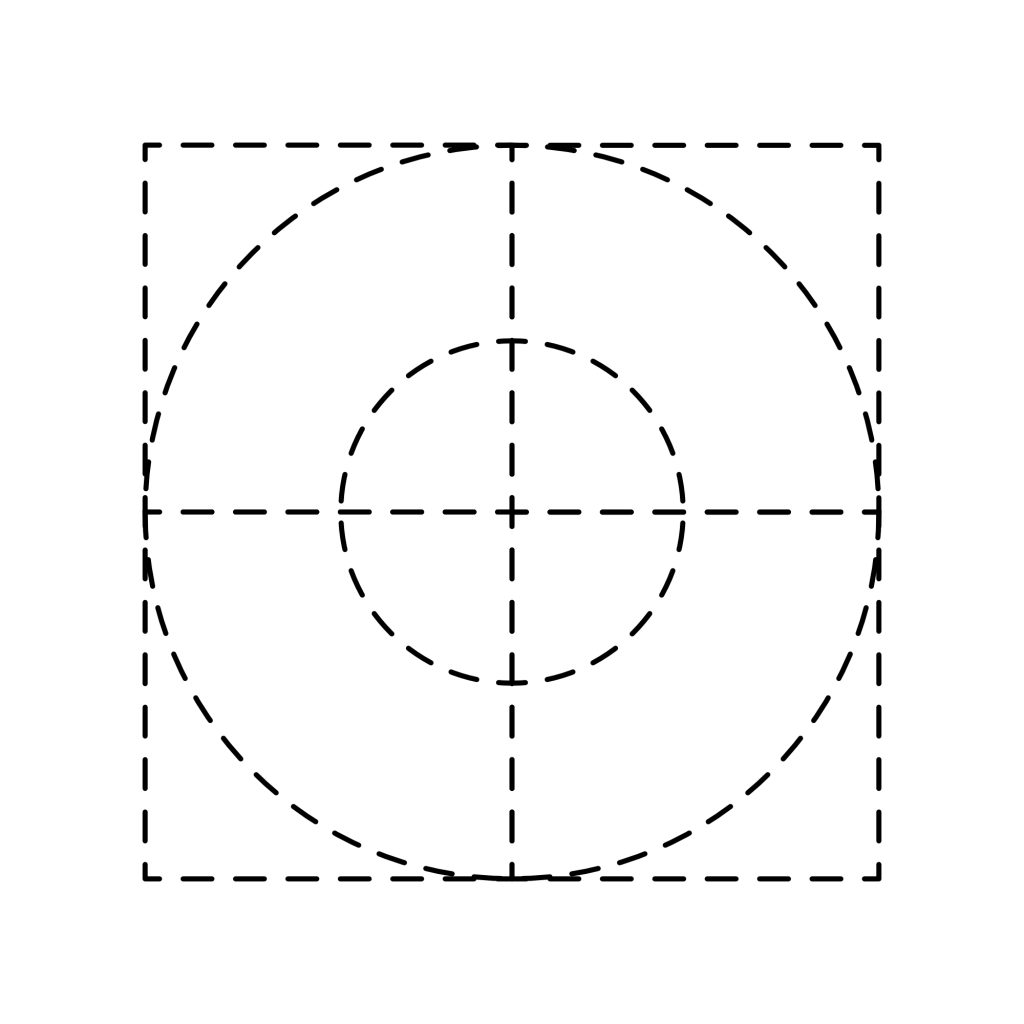
Go to Boolean Operations → Divide to divide the shapes. Fill in the colors.

Pattern 7:
Create a triangle with the Triangle Tool.
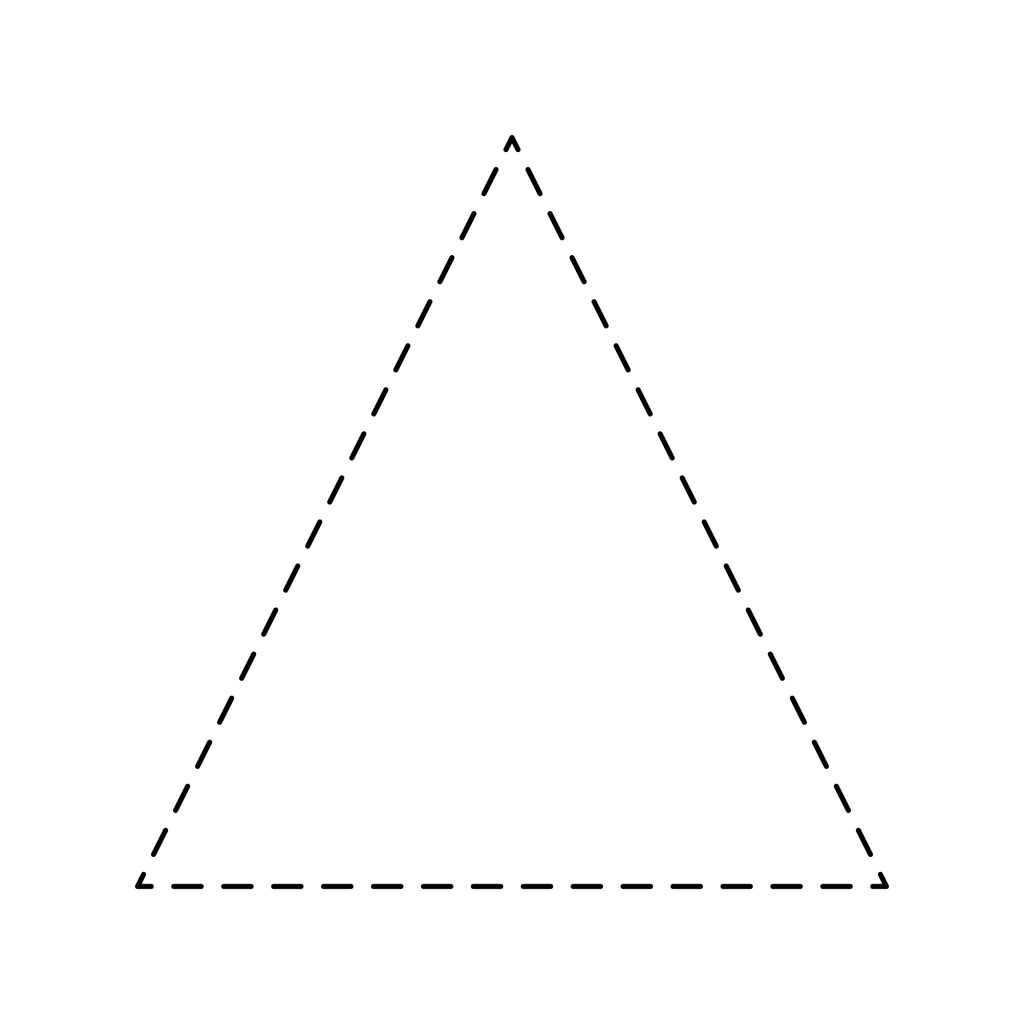
Shear the triangle to the right, Convert to Curves.
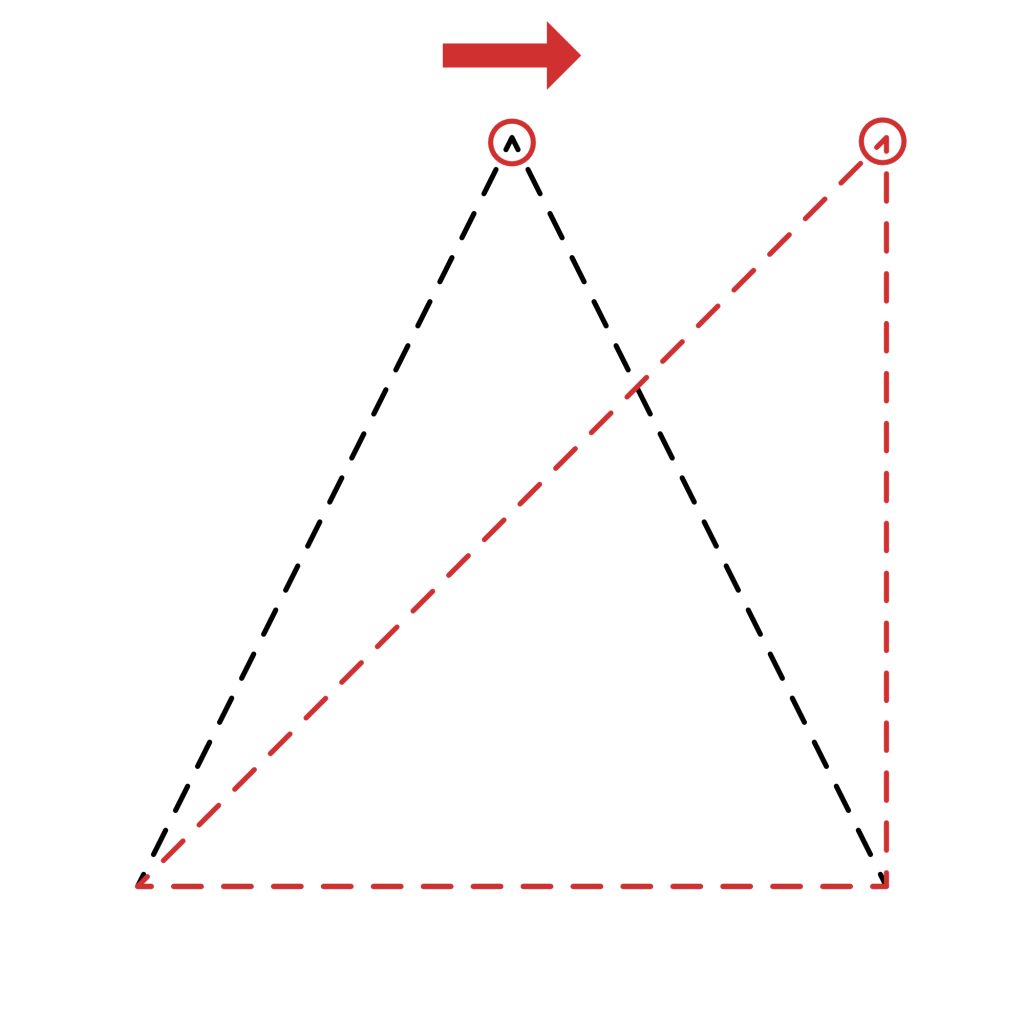
Make three more copies.
Place two on top and two on the bottom, and change the colors.

Pattern 8:
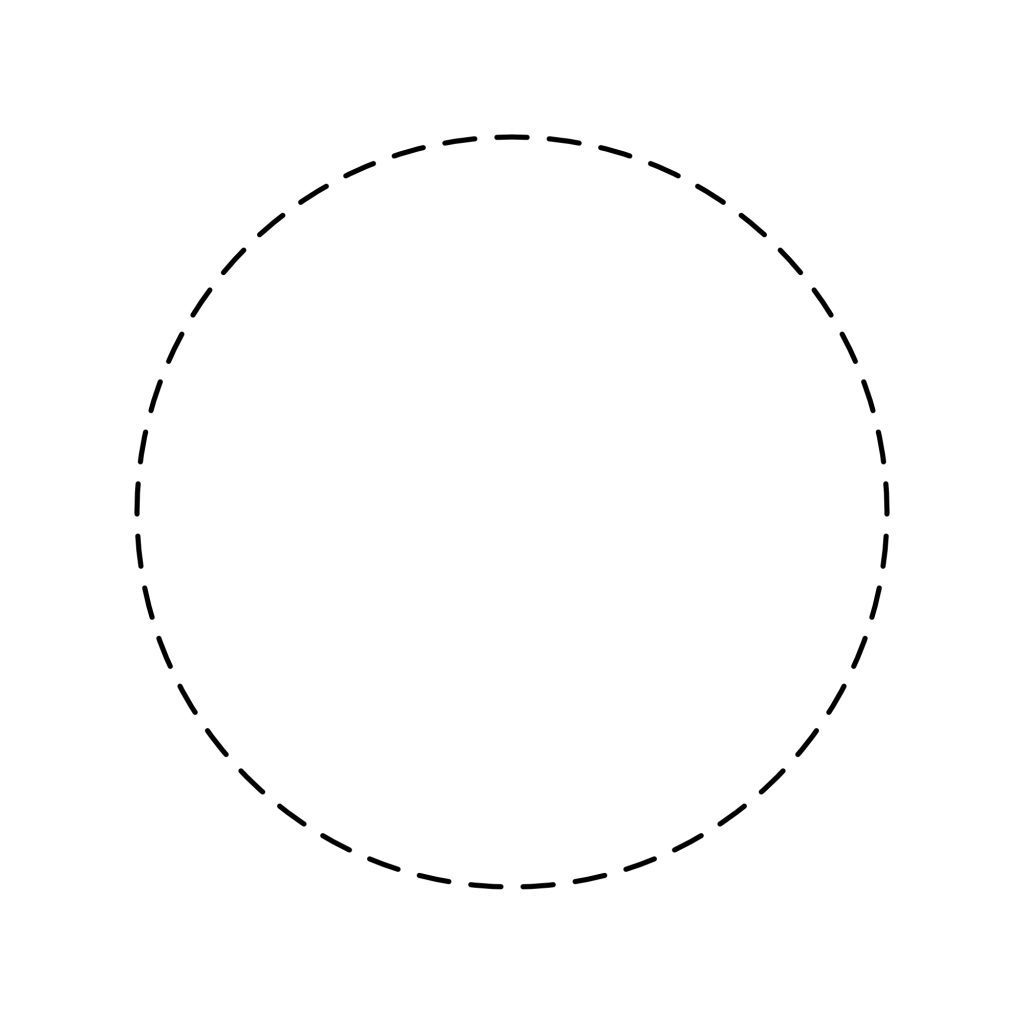
Create an ellipse with the Ellipse Tool[U], and Convert to Curves.

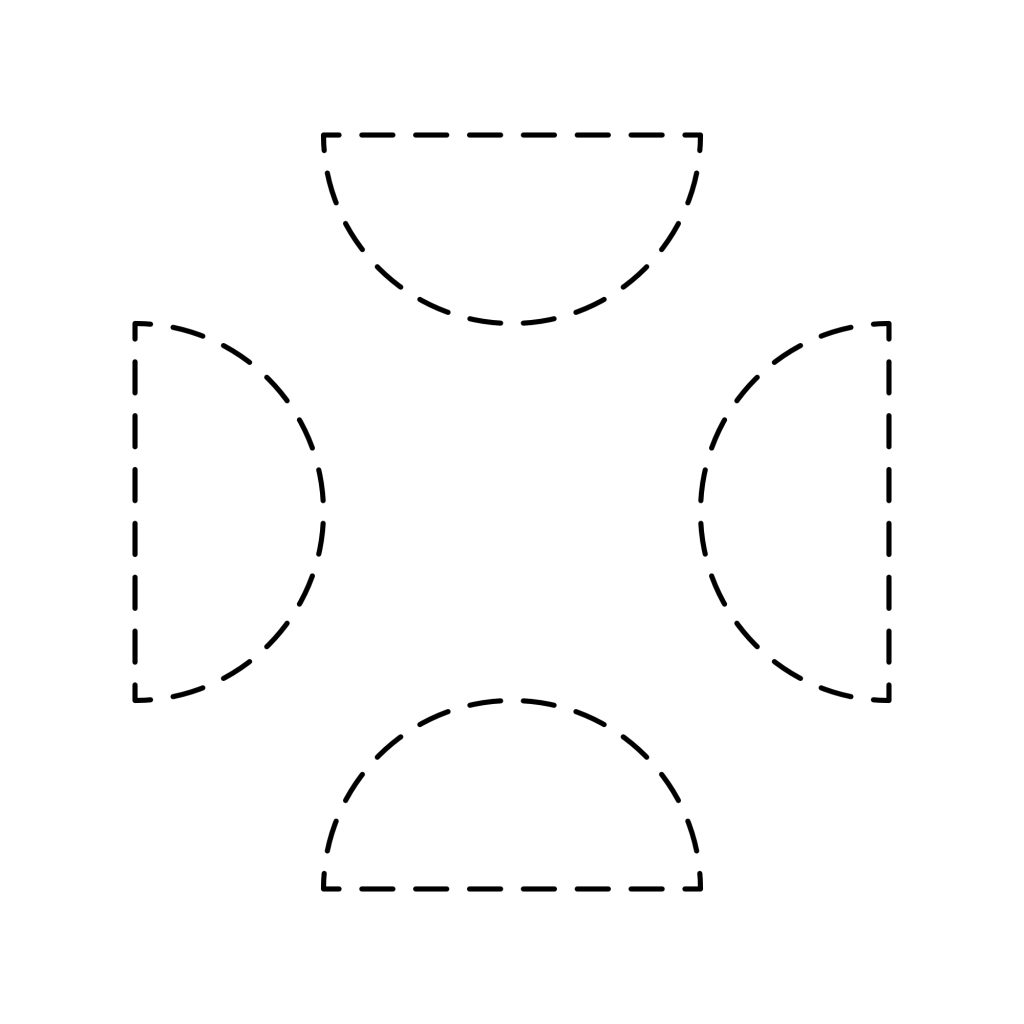
Create a rectangle, and place it over the ellipse, and center it on the bottom half of the ellipse, and Convert to Curves.
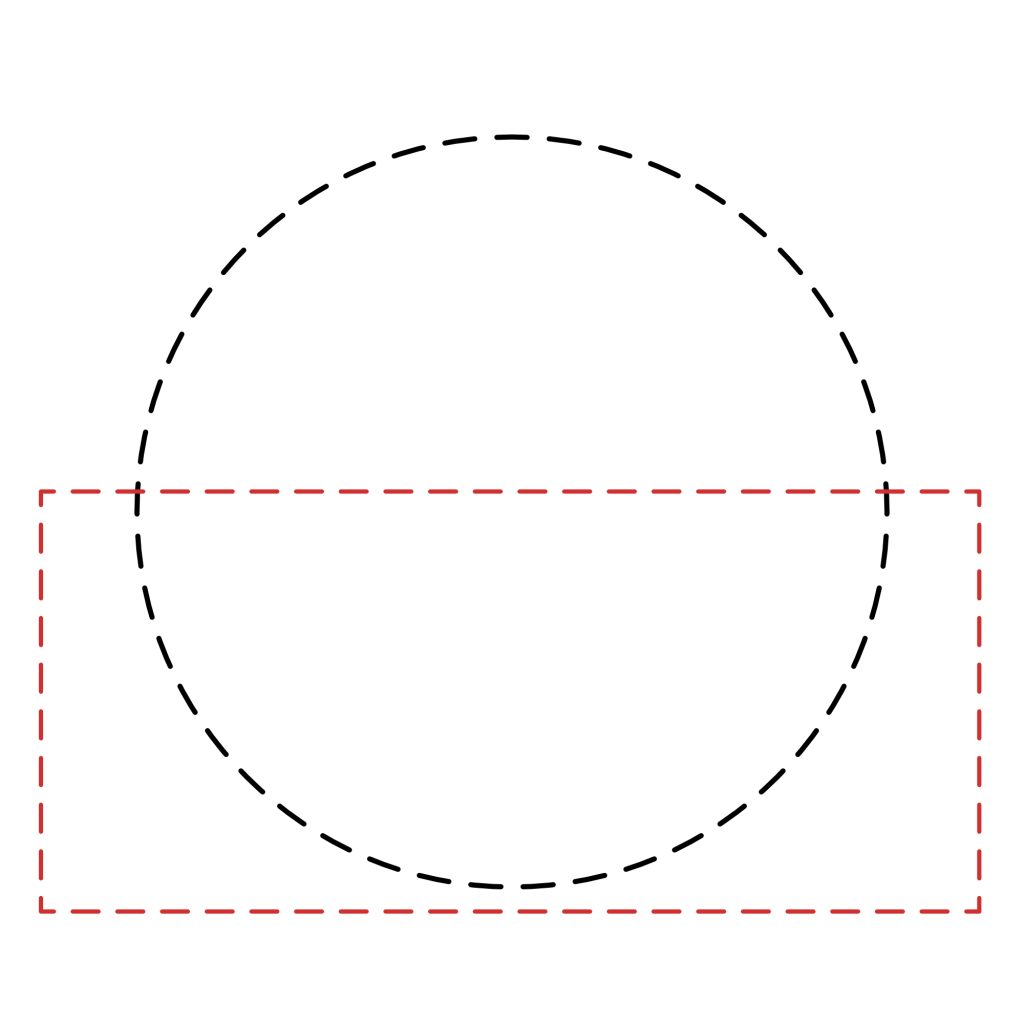

Select all, Go to Boolean Operations → Subtract to subtract the rectangle from the ellipse to make a half-circle.

Place the half circles together just like in the image.
Add the colors.

Pattern 9:
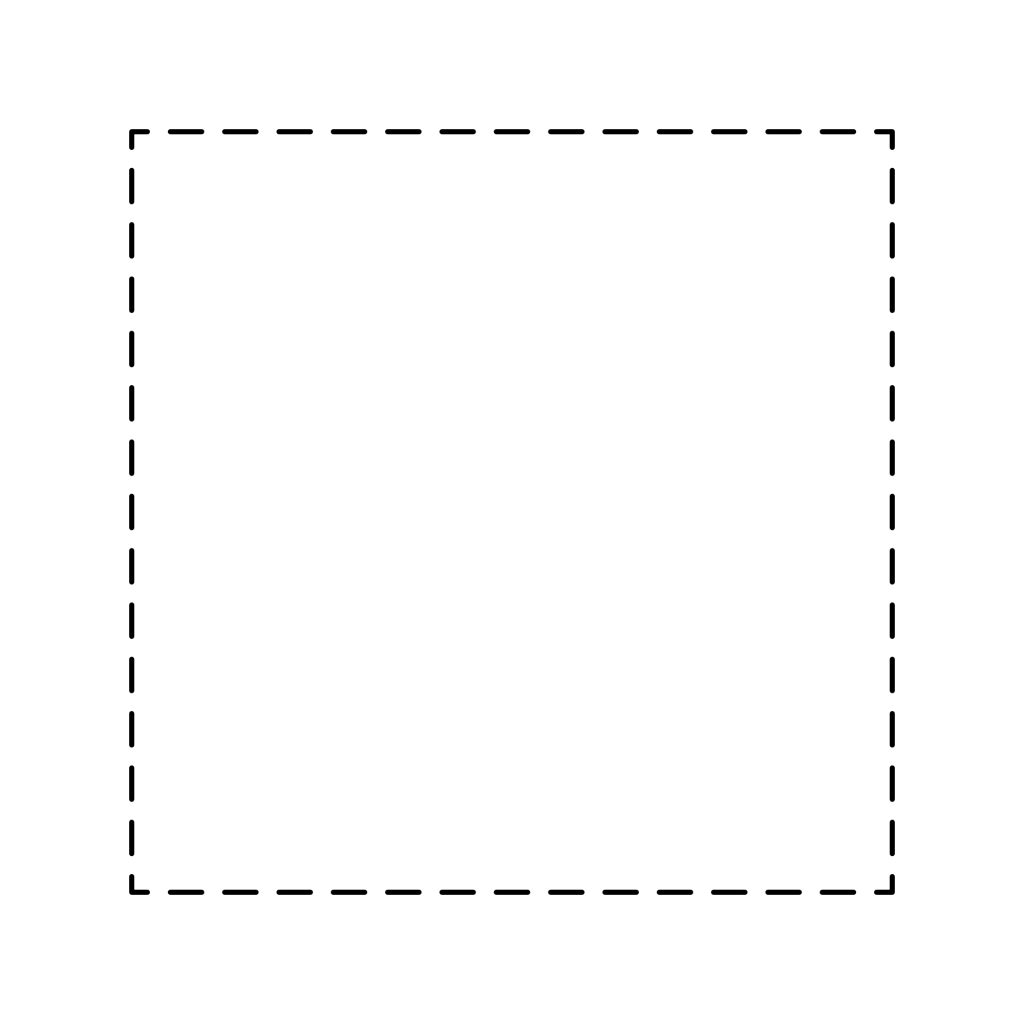
Create a square using the Rectangle Tool[U].

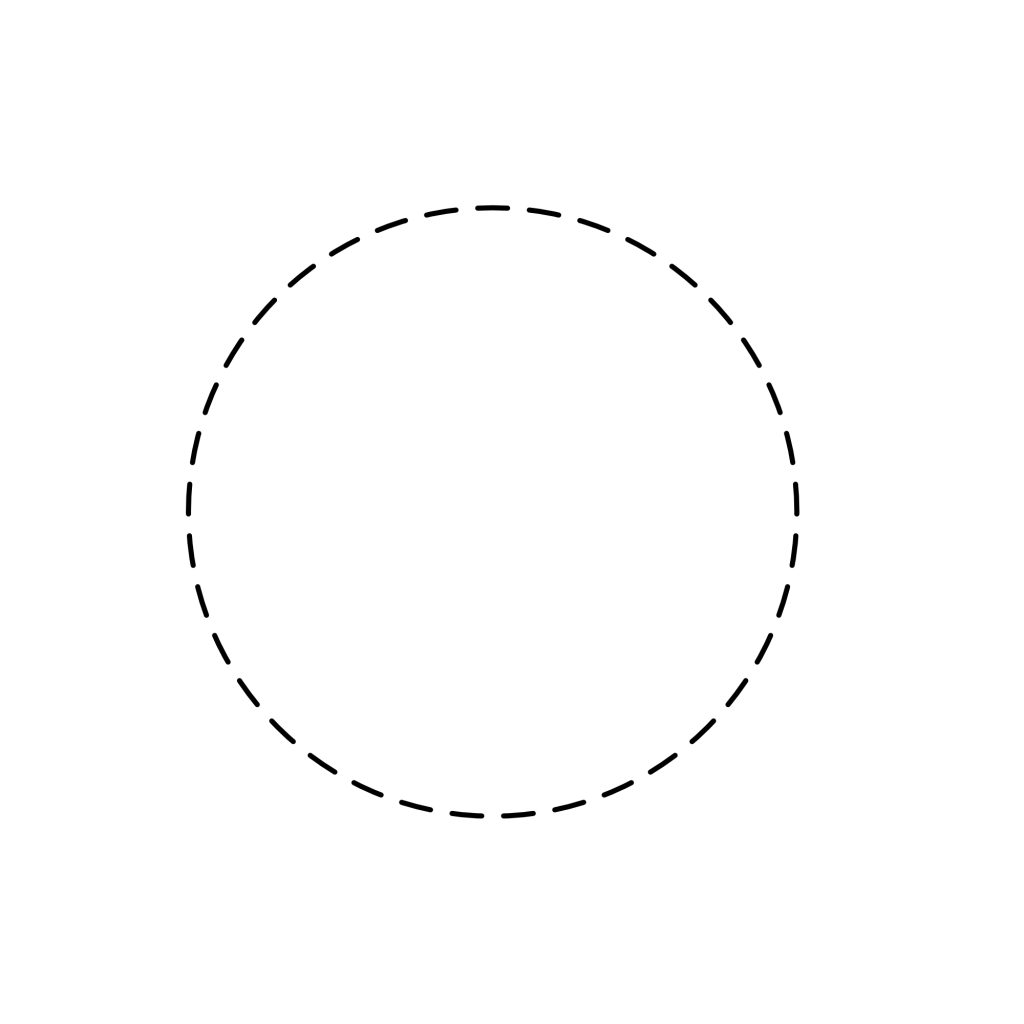
Create an ellipse with the Ellipse Tool[U].

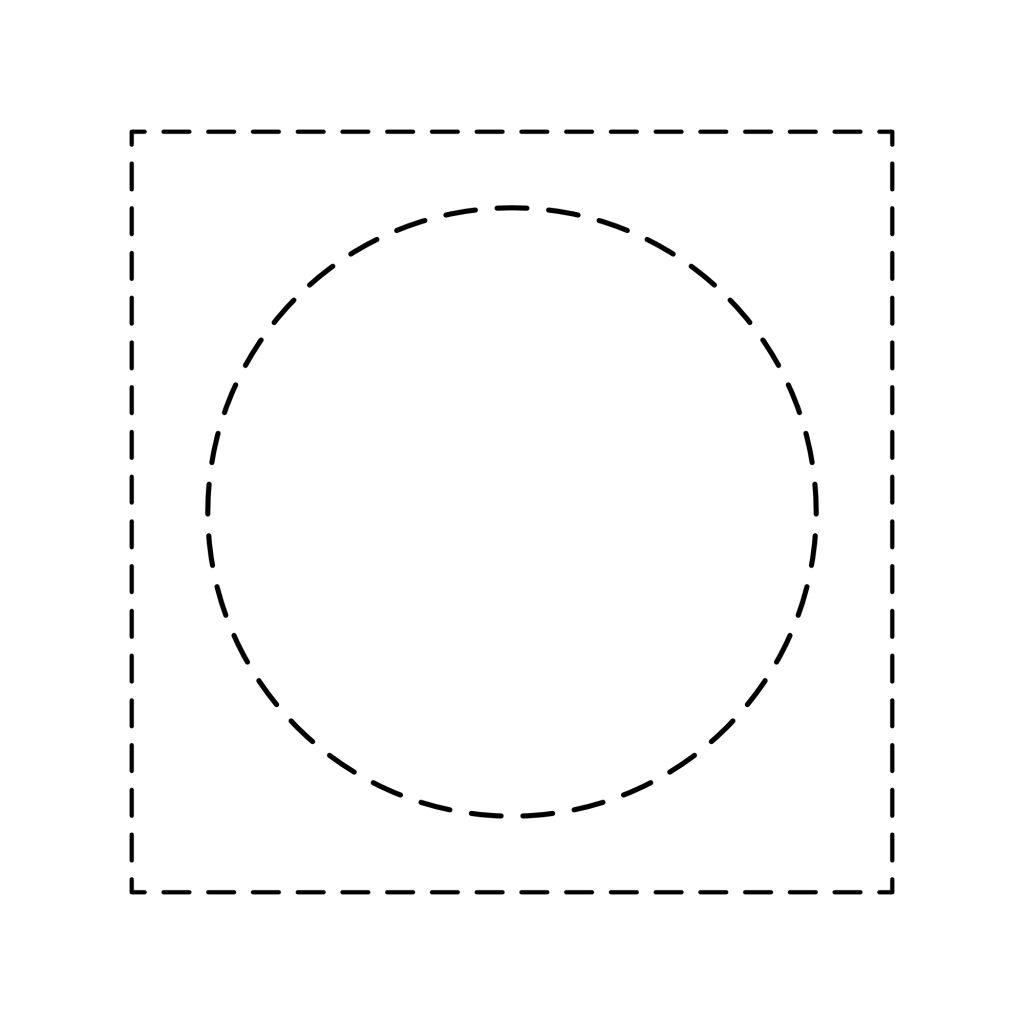
Center the ellipse in the square.
Draw a line with the Pen Tool from one corner to the other.
Select all.
Go to Boolean Operations → Divide to divide the shapes.
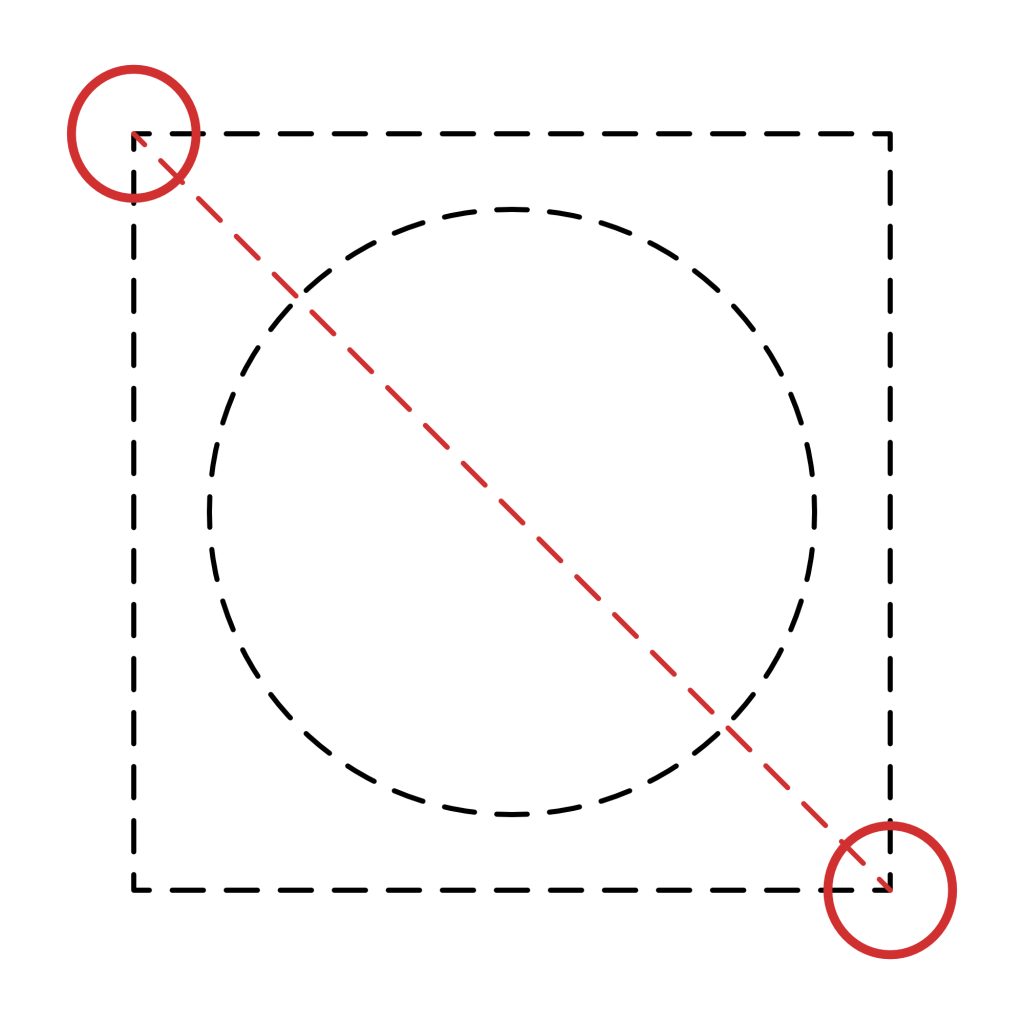

Add the colors.

Pattern 10:
Create a rectangle with the Rectangle Tool[U], and Convert to Curves.
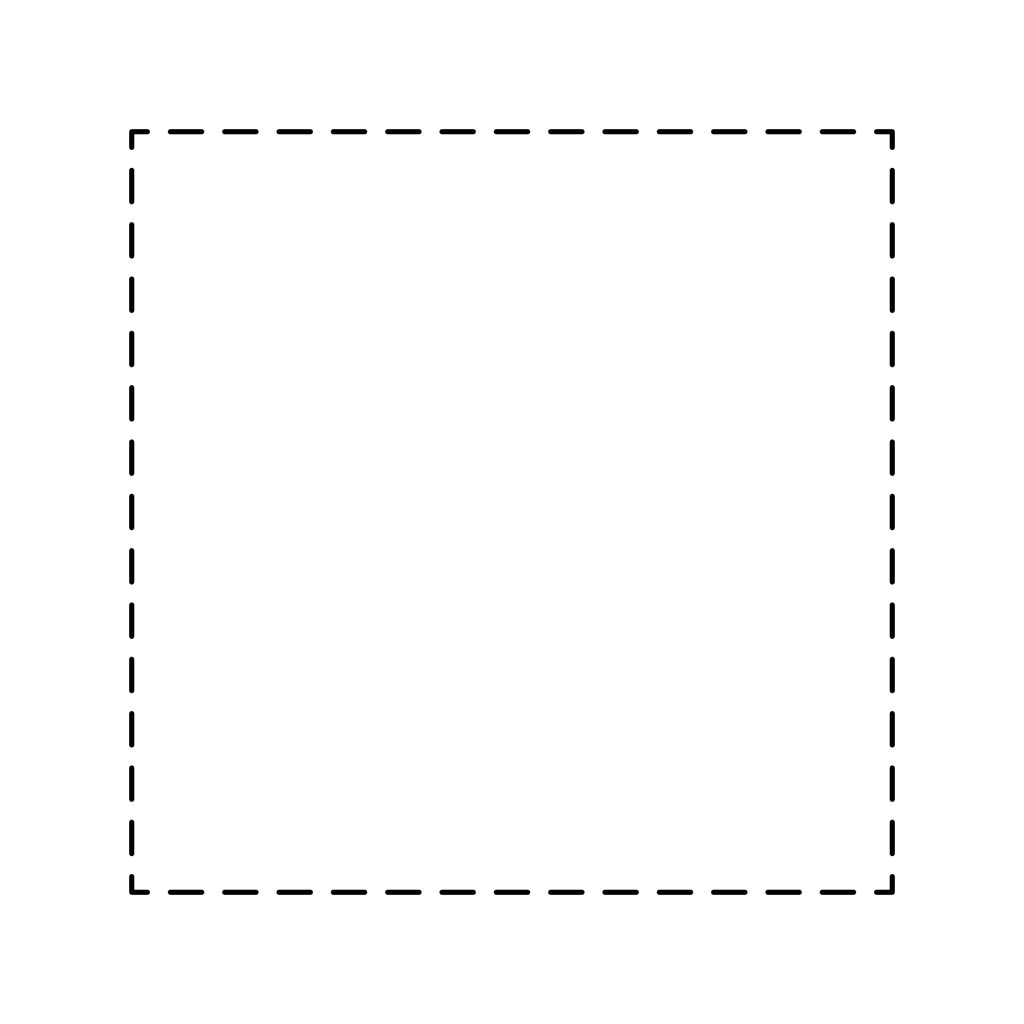

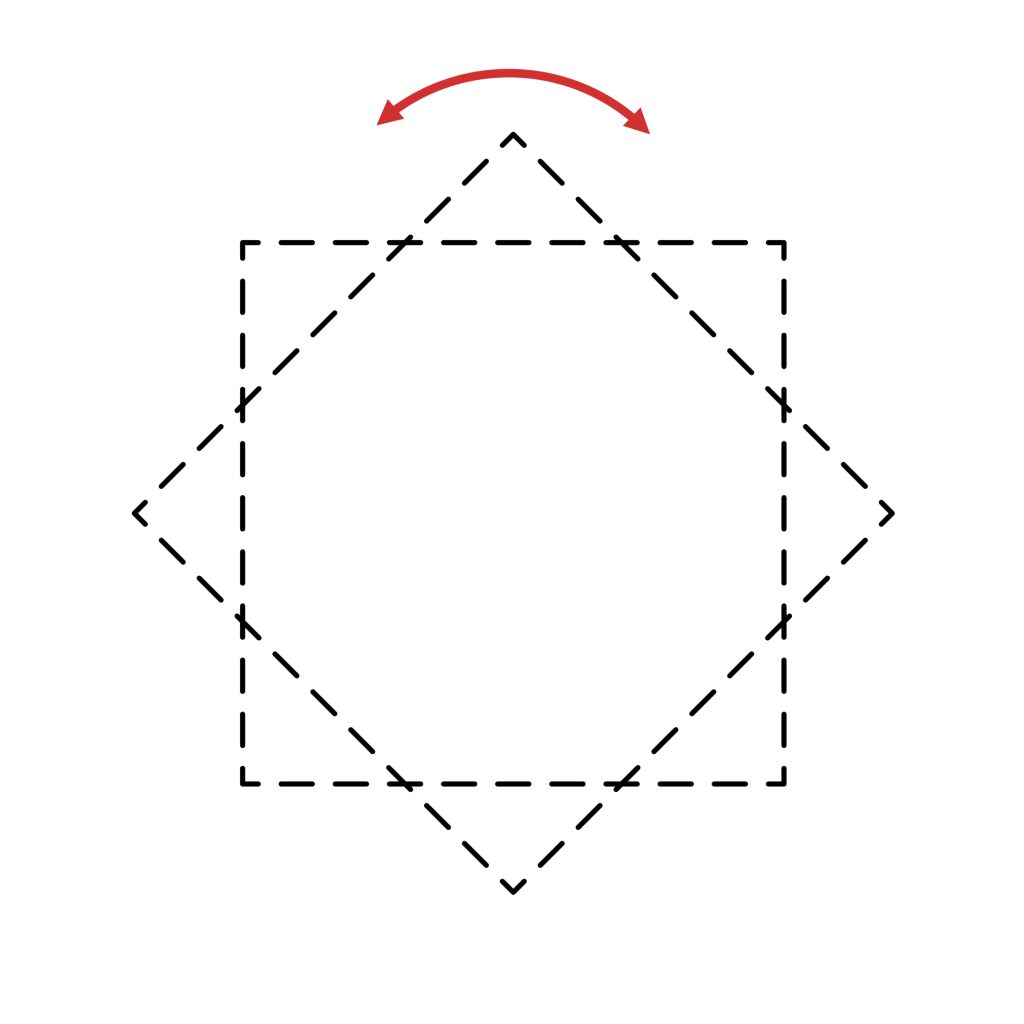
Duplicate the square, and rotate it 45 degrees making a diamond shape.
Scale the diamond inward and center it to the original rectangle.
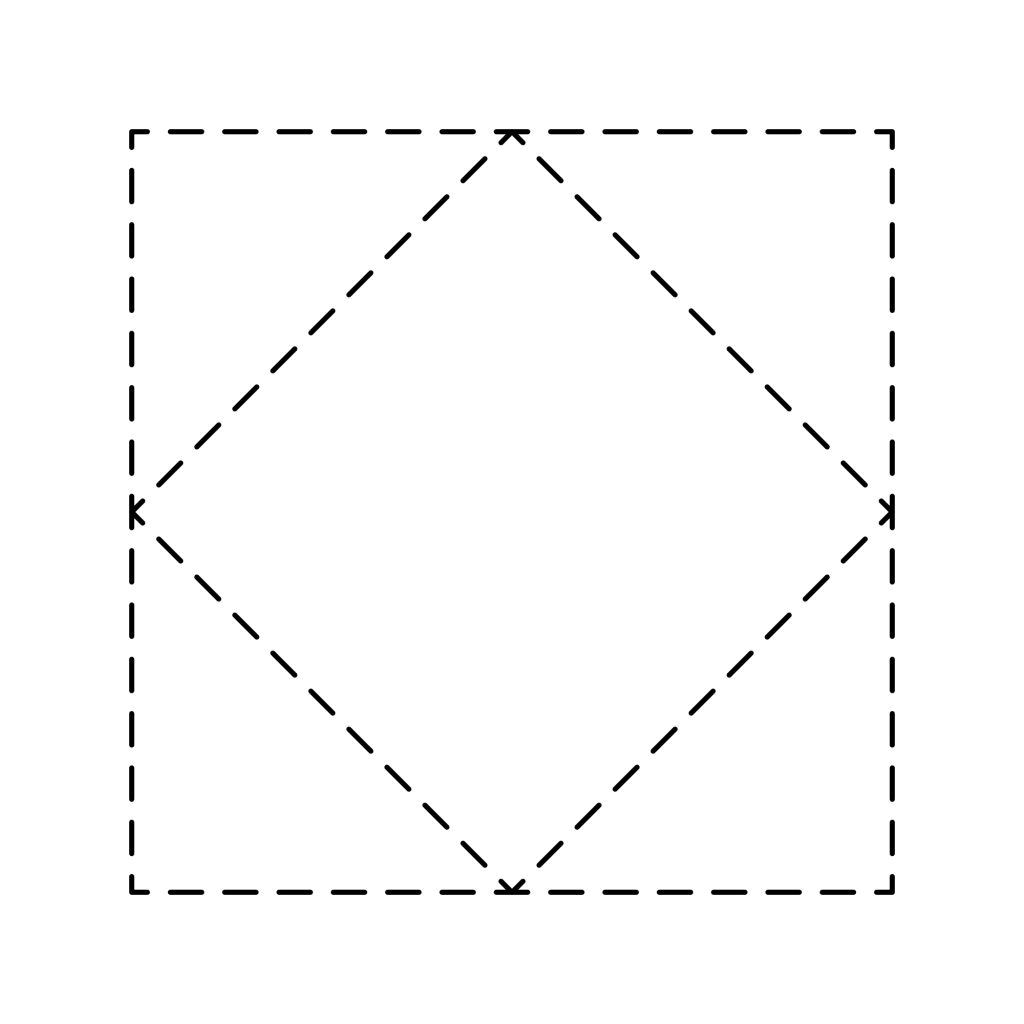

Draw a line from one corner to the other, do the same to the opposite side forming an X between everything.
Select all
Go to Boolean Operations → Divide to divide the shapes.
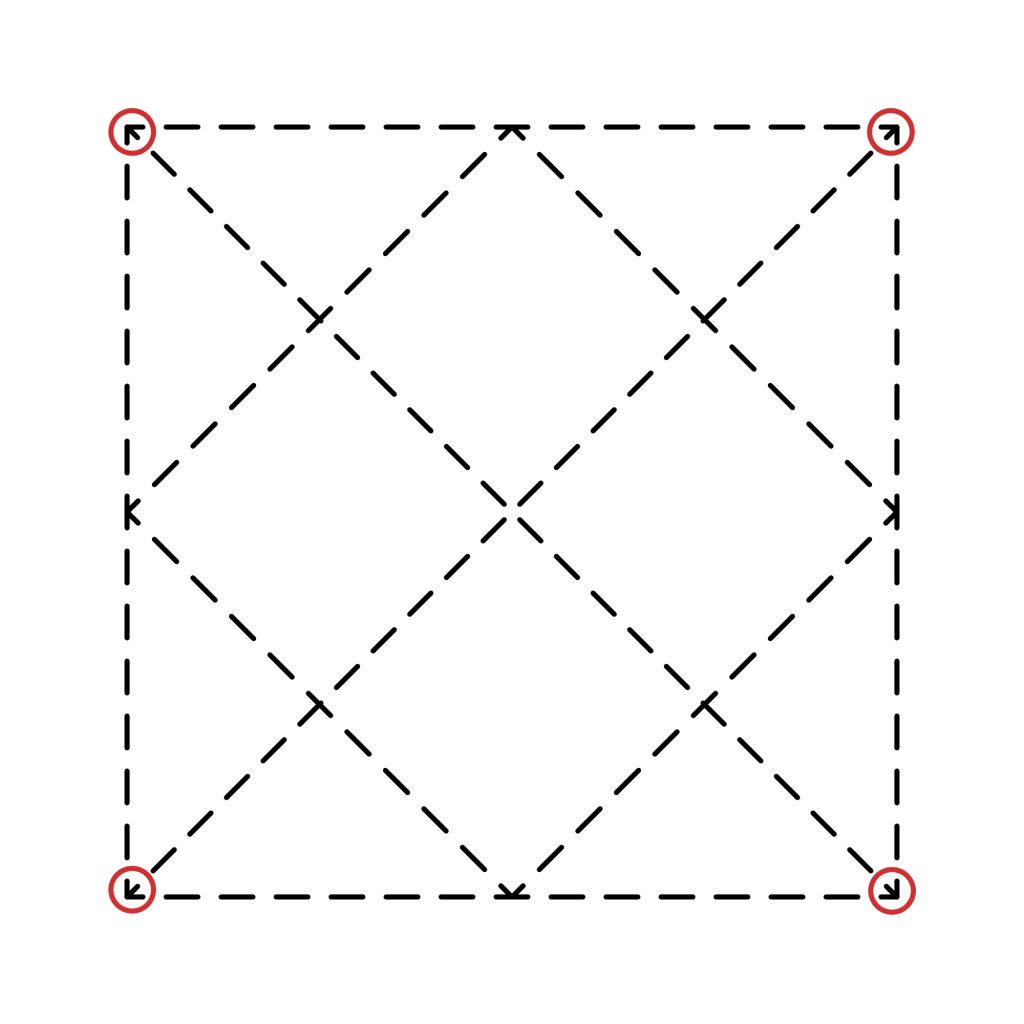

Add the colors.

Pattern 11:
Create a shape with the Pie Tool.
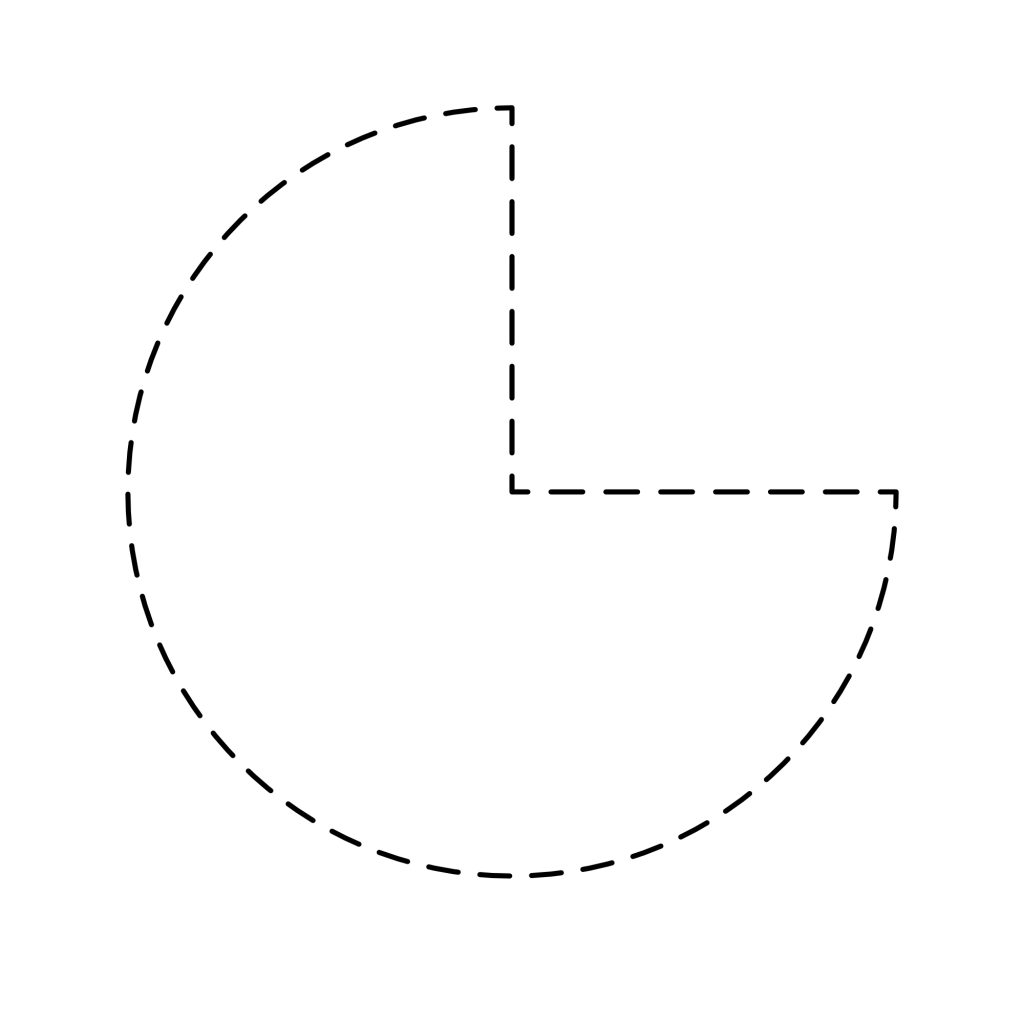

Hover over the red dot, and rotate the handle down and to the left to create a half-circle. Convert to Curves.
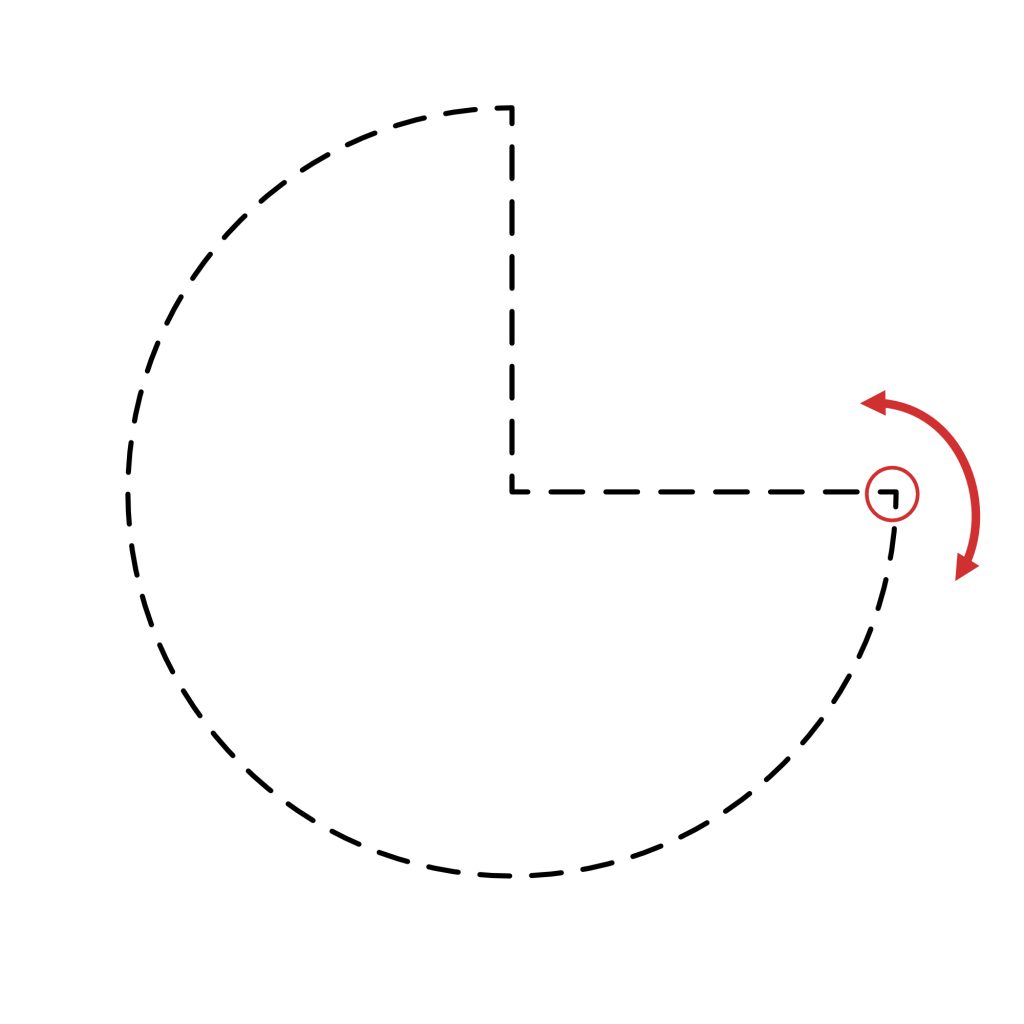
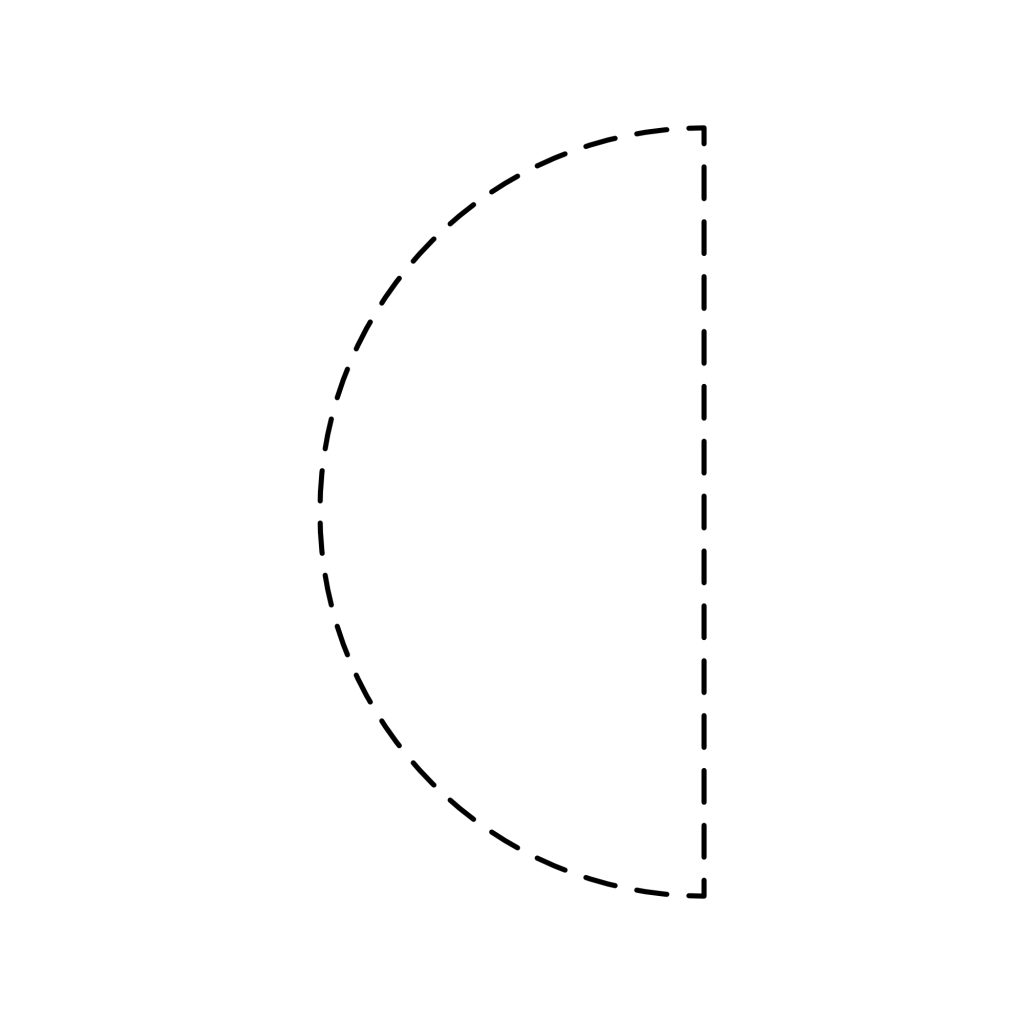

Rotate the half-circle 90 degrees, and draw a line in the center.
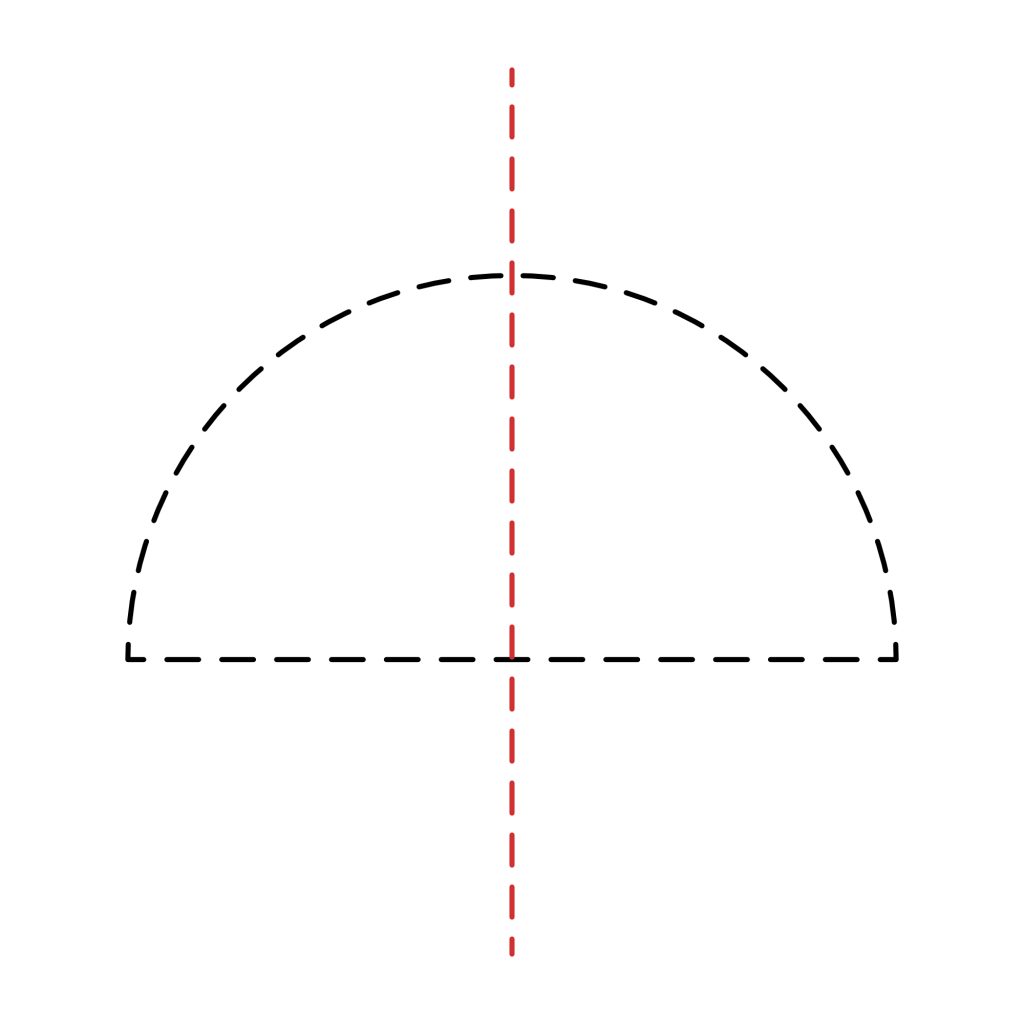

Select all.
Go to Boolean Operations → Divide to divide the shapes.
Group the shape together, duplicate, and flip vertically.
Align the duplicate shape to the top of the original shape to create an hourglass.
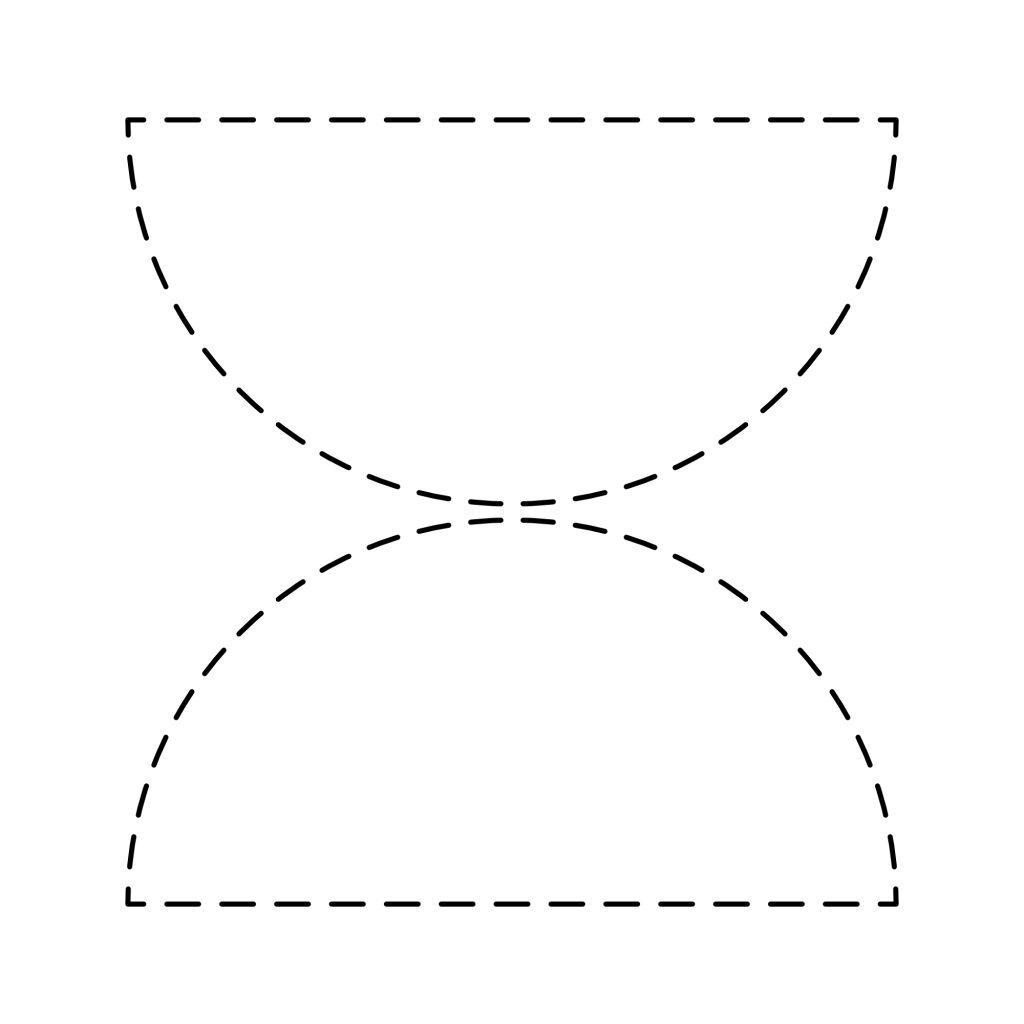
Ungroup all, and change the colors.

Pattern 12:
Create two rectangles with the Rectangle Tool[U], and place them on top of each other.
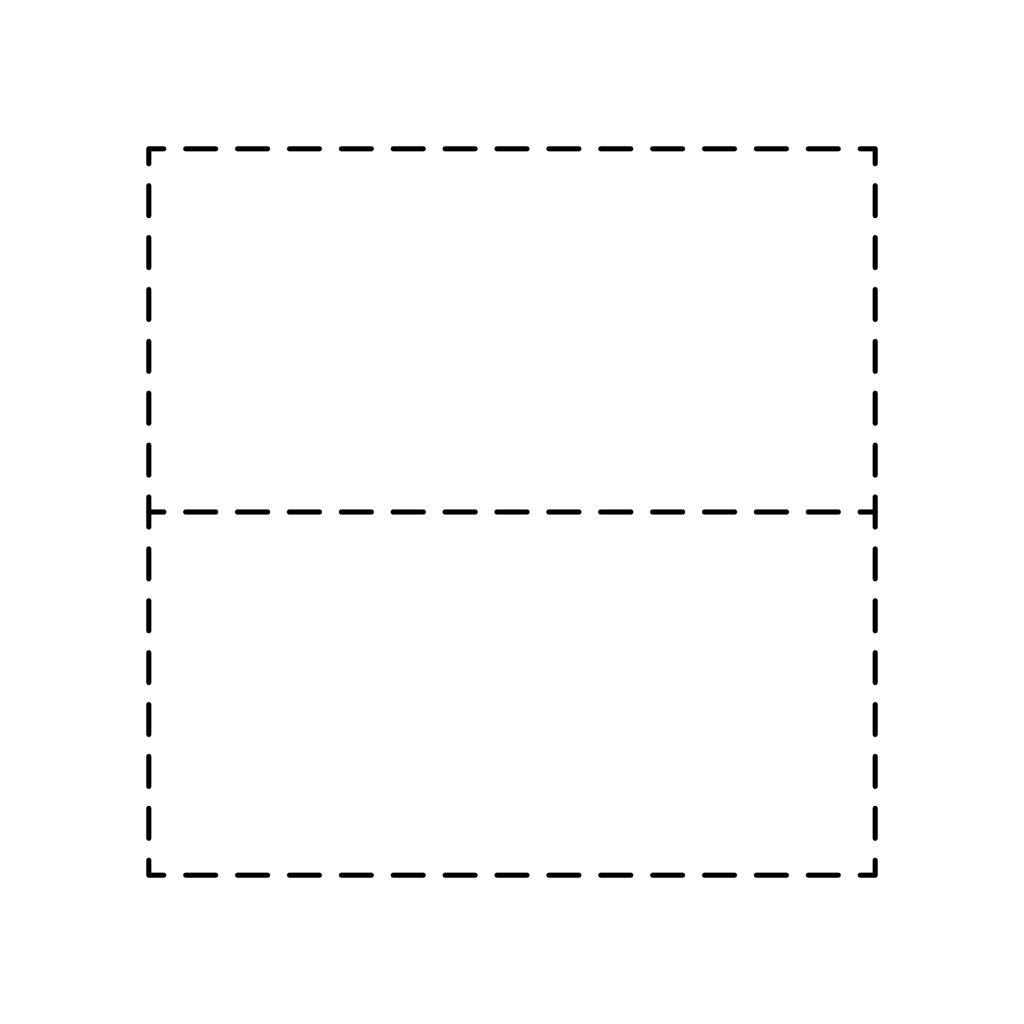

Create an ellipse with the Ellipse Tool[U], and center it between the two rectangles and scale it inward.
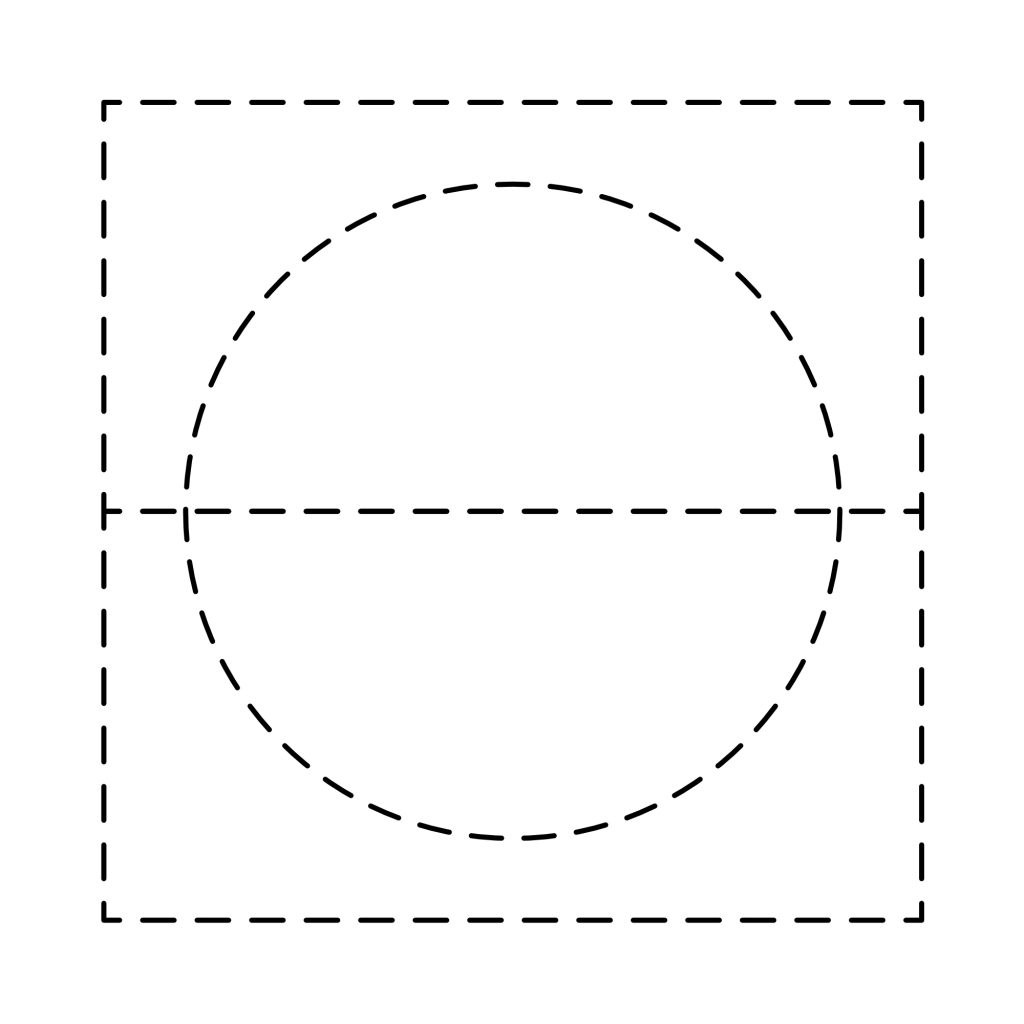
Select all the shapes.
Go to Boolean Operations → Divide to divide the shapes.
Change the colors.

I hope you found this tutorial both enjoyable and informative. Geometric patterns are a wonderful way to express creativity while keeping things simple and fun. Don’t forget to follow me on social media and subscribe to my newsletter for more design tips and tricks. Until next time, keep creating!
Warm regards,
Eric
Help support my work.
I love creating free tutorials and sharing what I learn along the way.
If this post was useful, you can support my work by buying me a cup of coffee ☕
It helps keep everything free and ad-free for everyone.