Affiliate Disclosure:
Some of the links in this post are affiliate links. This means I may earn a small commission at no extra cost to you if you choose to make a purchase. I only recommend tools and resources I personally use and trust. Your support helps keep these tutorials free.
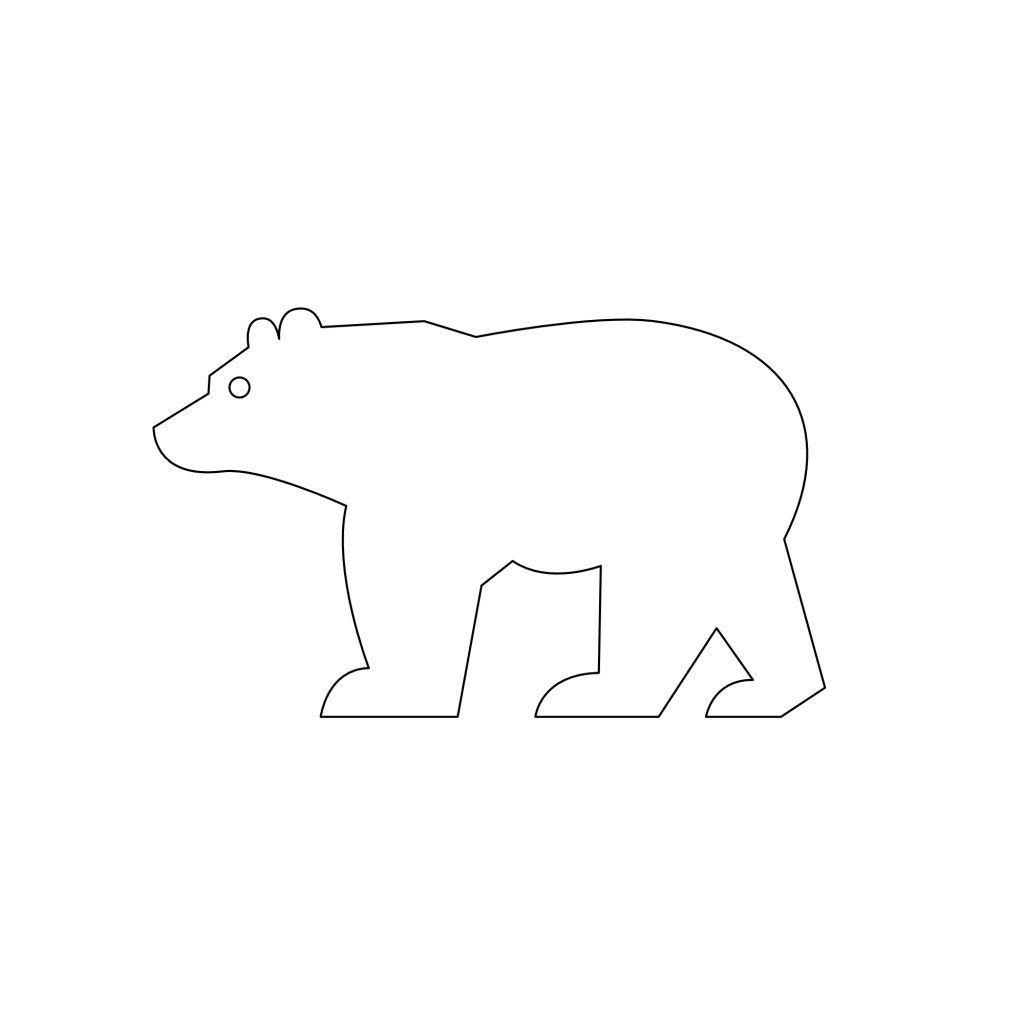
In this beginner-friendly tutorial will walk you through creating a vector bear illustration using only the Pen Tool in Affinity Vector Studio.
You’ll learn how to place anchor points, adjust handles, and understand the flow of vector paths — just like a “connect-the-dots” for designers!
What You’ll Need
Software: Affinity: Vector Studio
Tool:Pen Tool (shortcut:P)
Note: This tutorial assumes you have a basic understanding of Affinity, and the Vector Studio.
Click here to download the follow along for this tutorial. Ive set the blend mode on the Steps layer to Multiply, and reduce the transparency to about 50%. Adjust the opacity if needed. Use the Follow Along layer to follow along.
Step 1: Selecting the Pen Tool
Choose the Pen Tool (`P`) from the left toolbar.
Make sure Stroke is visible and Fill is turned off (click the white box with a red slash in the color panel).
You’re ready to trace!
Step 2: Placing Nodes.
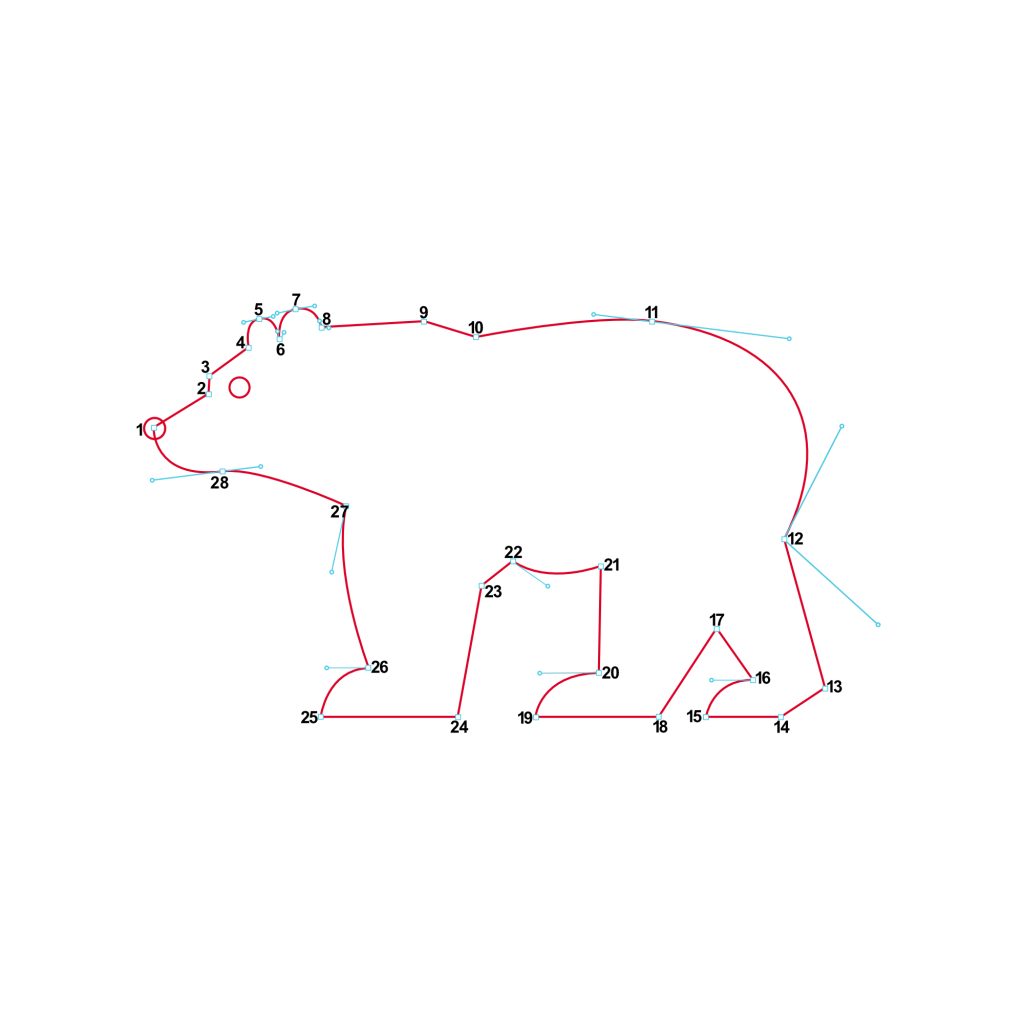
Each numbered square on the guide marks where you’ll click to place a node.
Follow the sequence from 1 through 28.
Node Tips:
Straight lines:Single-click to place a point.
Curved lines: Click and drag to create curve handles.
Use the blue handles on the guide as a visual cue for direction and length.
Example:
Nodes 1 → 3:Create the bear’s snout. These are short, slightly curved paths.
Nodes 4 → 8:Form the forehead and ear curve using soft handles.
Nodes 9 → 12:Shape the back and hindquarters — these are longer, smoother curves.
Nodes 13 → 17: Outline the rear and front legs. Alternate between straight and curved segments.
Nodes 18 → 26:Build the underside and paws using short, rounded strokes.
Nodes 27 → 28 → back to 1:Complete the belly and return to the starting point to close the shape.
Step 3 Adjusting Handles
After placing all nodes:
1. Select the Node Tool (A).
2. Click and drag the blue curve handles to fine-tune each curve.
3. Aim for smooth, natural lines between the body sections (especially around the back and legs).
Tip: Hold `Shift` while dragging to constrain handle direction.
Step 4: Refining the Shape
Close the path by clicking back on Node 1.
With the shape selected, you can:
Apply a stroke color (e.g., dark brown or black).
Increase stroke width for a bold outline.
Optionally, convert to curves and fill with color for a silhouette bear.
This exercise helps you see how vector paths flow together to form smooth, organic shapes.
The numbered guide gives you a structured way to practice — just like tracing a “draw-by-numbers” for digital art.
Once you’re comfortable, try drawing your own animal outlines from reference photos!
Thank you for following along with this tutorial on creating Vector Bear in Affinity. If you enjoyed this tutorial, please consider liking, following, and subscribing to my newsletter and social media for more creative insights and tutorials. Should you have any questions or need further assistance, don’t hesitate to reach out. Your creative journey is just beginning, and I’m here to support you every step of the way.
Help support my work.
I love creating free tutorials and sharing what I learn along the way.
If this post was useful, you can support my work by buying me a cup of coffee ☕
It helps keep everything free and ad-free for everyone.