Affiliate Disclosure:
Some of the links in this post are affiliate links. This means I may earn a small commission at no extra cost to you if you choose to make a purchase. I only recommend tools and resources I personally use and trust. Your support helps keep these tutorials free.
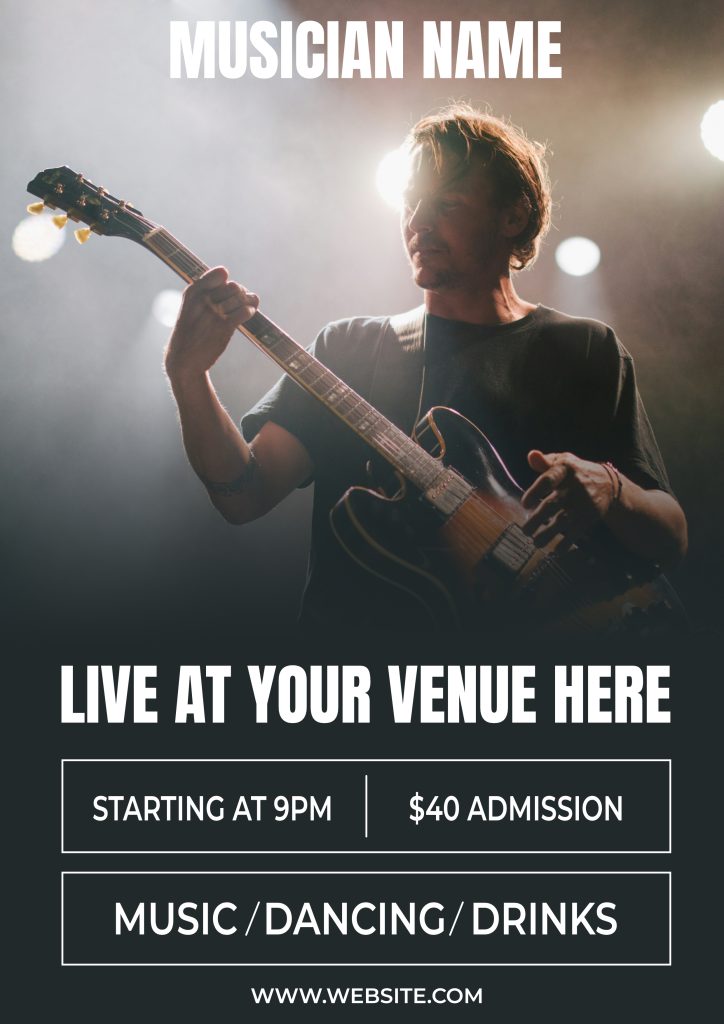
Designing a band flyer is a great way to practice layout, typography, and image handling—all while creating something practical and fun. In this follow-along tutorial, we’ll build a modern band flyer step by step using Affinity Designer’s Layout Persona. This tutorial is designed so you can work alongside me, pause when needed, and end with a clean, professional-looking flyer.
Program: Affinity
Persona: Layout
Difficulty: Beginner to Intermediate
Fonts Used in This Tutorial
We’ll be using two free fonts from Google Fonts. I recommend downloading and installing them before starting so you can follow along without interruptions.
- Anton (Regular)
A bold, condensed sans-serif that works perfectly for headlines and band names.
Download: https://fonts.google.com/specimen/Anton - Montserrat (SemiBold)
A clean, modern sans-serif that pairs well with Anton and is great for event details and supporting text.
Download: https://fonts.google.com/specimen/Montserrat
Once the fonts are installed, restart Affinity Designer if needed so they appear in your font list.
Image Used in This Tutorial
The image used in this tutorial come from Unsplash taken by Bobby Hendry.
Download: https://unsplash.com/@bobby_hendry
Step 1. Set Up Your Document
Open Affinity, then select the Layout Studio.
On the Welcome Screen, select New Document.
Use the following settings:
- Page Size: A4
- DPI: 300
- Color Format: RGB/18 (can be converted to CMYK later for print)
- Image Placement: Prefer Embedded
- Margin: 6 mm
- Bleed: 3 mm
Click Create Document.
Step 2. Background
Create the background by selecting the Rectangle Tool [U].
Place the cursor on the top-left corner of the bleed and drag to the bottom-right corner of the bleed.
Change the rectangle color to #2129213.
Step 3. Place the Hero Image
Download: https://unsplash.com/@bobby_hendry
Select the Picture Frame Rectangle Tool [K].
Drag the frame from the top-left bleed down to a little over halfway down the page.
Select the Place Tool, then click inside the Picture Frame.
Locate your image and click Open to place it.
Step 4. Editing the Photo
Now we’ll do some light photo editing by switching to the Pixel Persona.
Create a new Pixel Layer and drag it into the Picture Frame.
Make sure this Pixel Layer is above the Hero Image.
Select the Inpainting Brush Tool [J].
In the Context Toolbar, set it to Current Layer & Below.
We’ll remove a few distractions—the microphone and one stage light.
With the Pixel Layer selected, paint over the microphone and the stage light to clean them up.
Note: You may need to paint over areas two or three times to make them look natural.
Enjoying this so far?
Buying me a cup of coffee helps keep these tutorials free for everyone.
Step 5. Image Blending
Next, we’ll blend the Hero Image into the background.
Click on the Hero Image layer, then click Add Mask Layer.
With the Mask Layer selected, choose the Gradient Tool [G].
Place the cursor around the neck of the guitar and drag downward to create a soft blend into the background.
Adjust the opacity sliders and gradient line to remove harsh edges and achieve the desired effect.
Step 6. Text Containers
Create the first text container using the Rectangle Tool [U].
- No fill
- Stroke: 1.5
- Width: 176.9 mm
- Height: 27.2 mm
Duplicate this rectangle and place it below the first container.
Select the Pen Tool [P] with Line Mode enabled and draw a vertical line down the center of the first container as a divider.
In the second rectangle, draw two diagonal lines using the Pen Tool.
Space them about 2 inches apart for now.
Step 7. Add Text
Now we’ll add text from top to bottom.
Header
Type “MUSICIAN NAME” using Anton Regular, font size 54.4, and center it at the top within the margin.
Main Event Title
Type “LIVE AT YOUR VENUE” using Anton Regular, font size 54.4.
Center it below the hero image, just above the first text container.
Information Panel
Type:
- “STARTING AT 9PM”
- “$40 ADMISSION”
Use Montserrat SemiBold, font size 28.5.
Select the starting time, divider, and admission text.
Open the Alignment Panel and choose Align Horizontally → Space Horizontally.
Group them together.
Select the group and the first text container.
In the Alignment Panel, choose Horizontally Align Center and Vertically Align Middle.
Second Text Container
Type MUSIC, DANCING, and DRINKS.
Select all text and dividers, then align horizontally using Space Horizontally.
Group everything together.
Select the group and the second text container.
Align Horizontally Center and Vertically Middle.
Footer
Finally, type the website address and align it to the bottom margin.
You’ve now created a complete band flyer using Affinity Designer’s Layout Persona—from document setup and background design to image blending and structured typography. This layout is flexible and can easily be reused for different bands, venues, or event styles by swapping images, colors, and fonts.
Once you’re comfortable with this process, try experimenting with additional text containers, alternate font weights, or converting the document to CMYK for print-ready output.
I love creating free tutorials and sharing what I learn along the way.
If this post was useful, you can support my work by buying me a cup of coffee ☕
It helps keep everything free for everyone.