Affiliate Disclosure:
Some of the links in this post are affiliate links. This means I may earn a small commission at no extra cost to you if you choose to make a purchase. I only recommend tools and resources I personally use and trust. Your support helps keep these tutorials free.
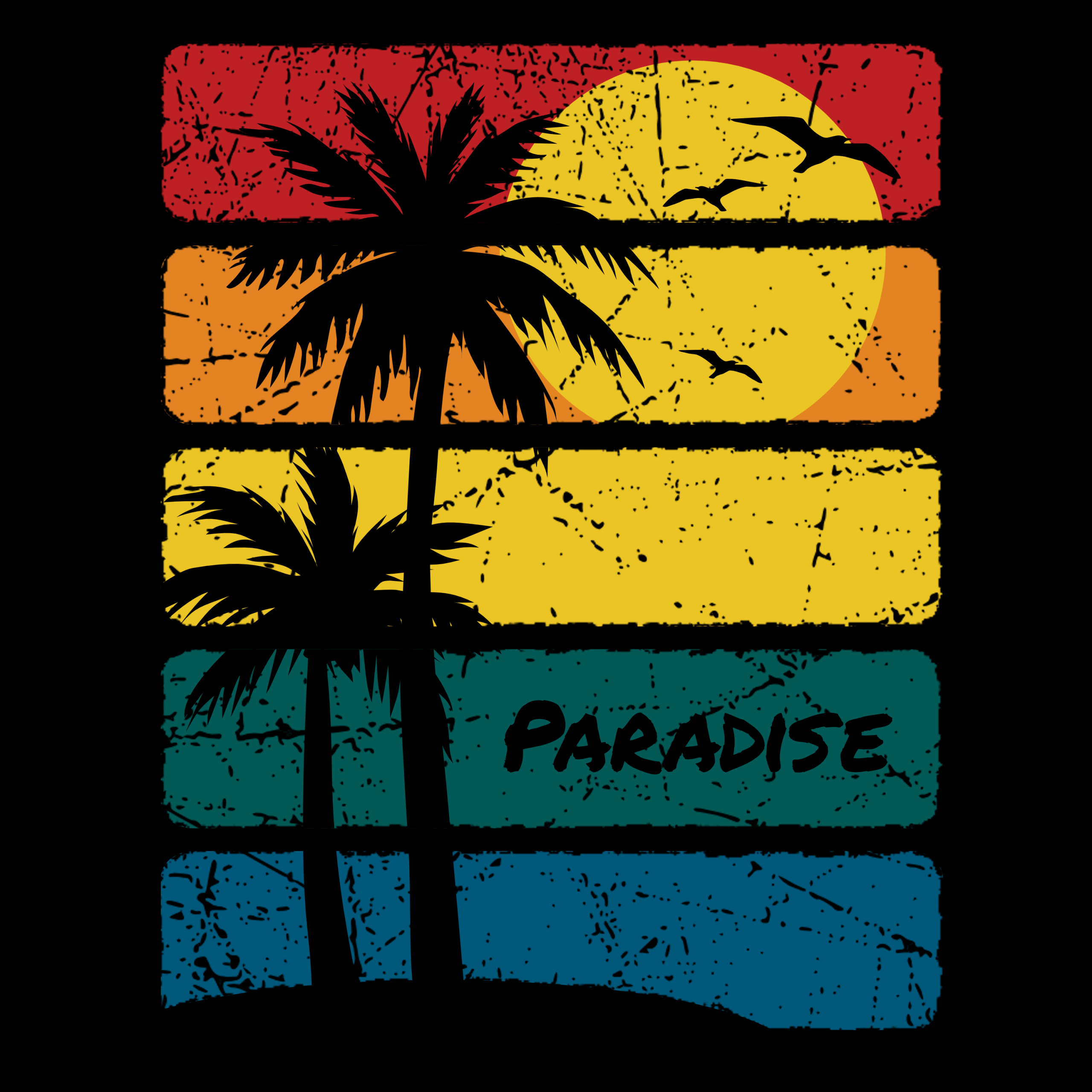
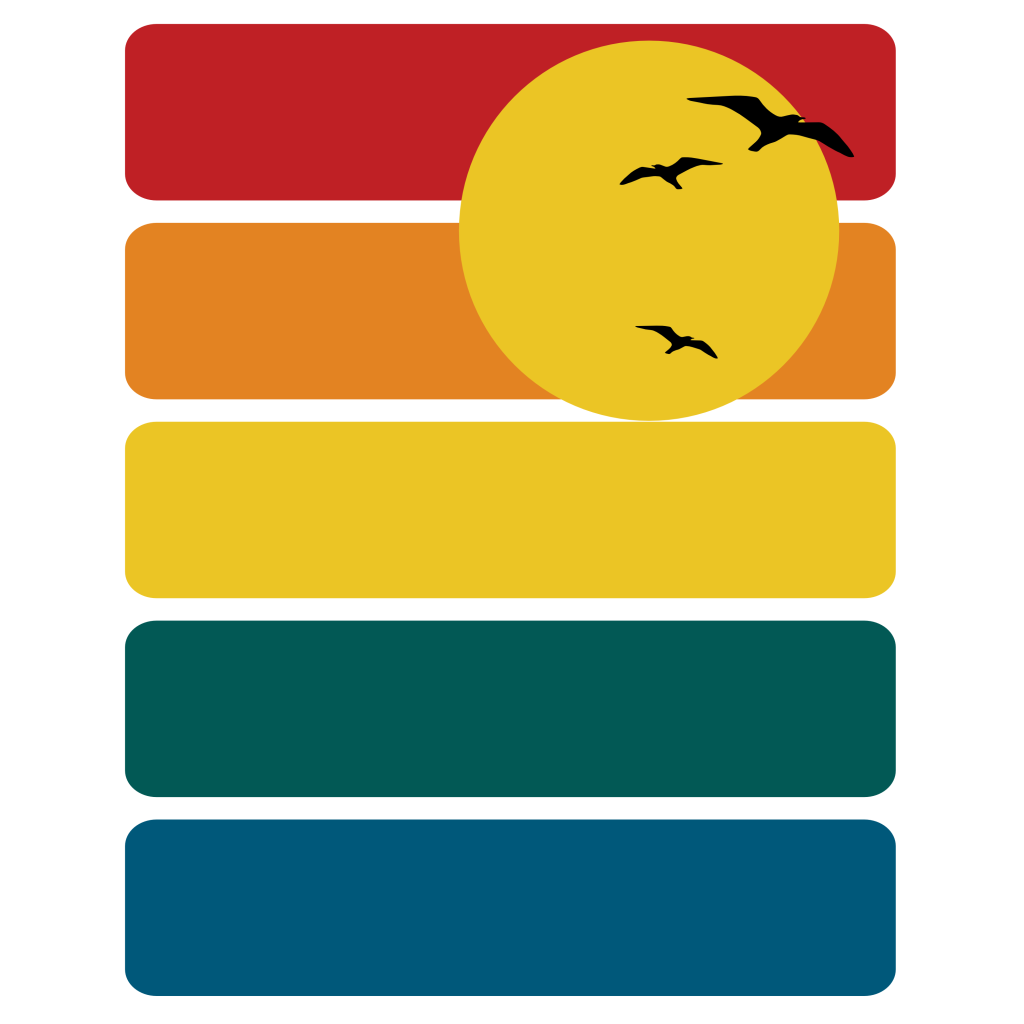
In this follow-along tutorial, we’ll create a stylized surf graphic using panels, type, and hand-drawn elements. We’ll also add texture and distress effects to give the design a vintage surf poster feel.
This tutorial will walk you through building the panel layout, drawing the sun and birds, creating an island scene with palm trees, and finally adding texture and distressing to finish the design.
Click here to download the follow along.
Lets begin.
Step 1 – Create the Panels
Start by creating the panel layout that will hold the entire illustration.
- Select the Rounded Rectangle Tool.
- Draw a rounded rectangle.
- Adjust the corner radius using the red dot in the left-hand corner of the rectangle.

Next we’ll convert it to editable curves.
- Go to Layer → Convert to Curves.
Now duplicate the panels.
- With the cursor on the rectangle, hold Shift + Option (Mac) or Shift + Control (Windows).
- Drag the rectangle downward to create a duplicate.
Once the second rectangle is created:
- Press Command + J (Mac) or Control + J (Windows) three times to create three more copies.
You should now have four stacked panels.
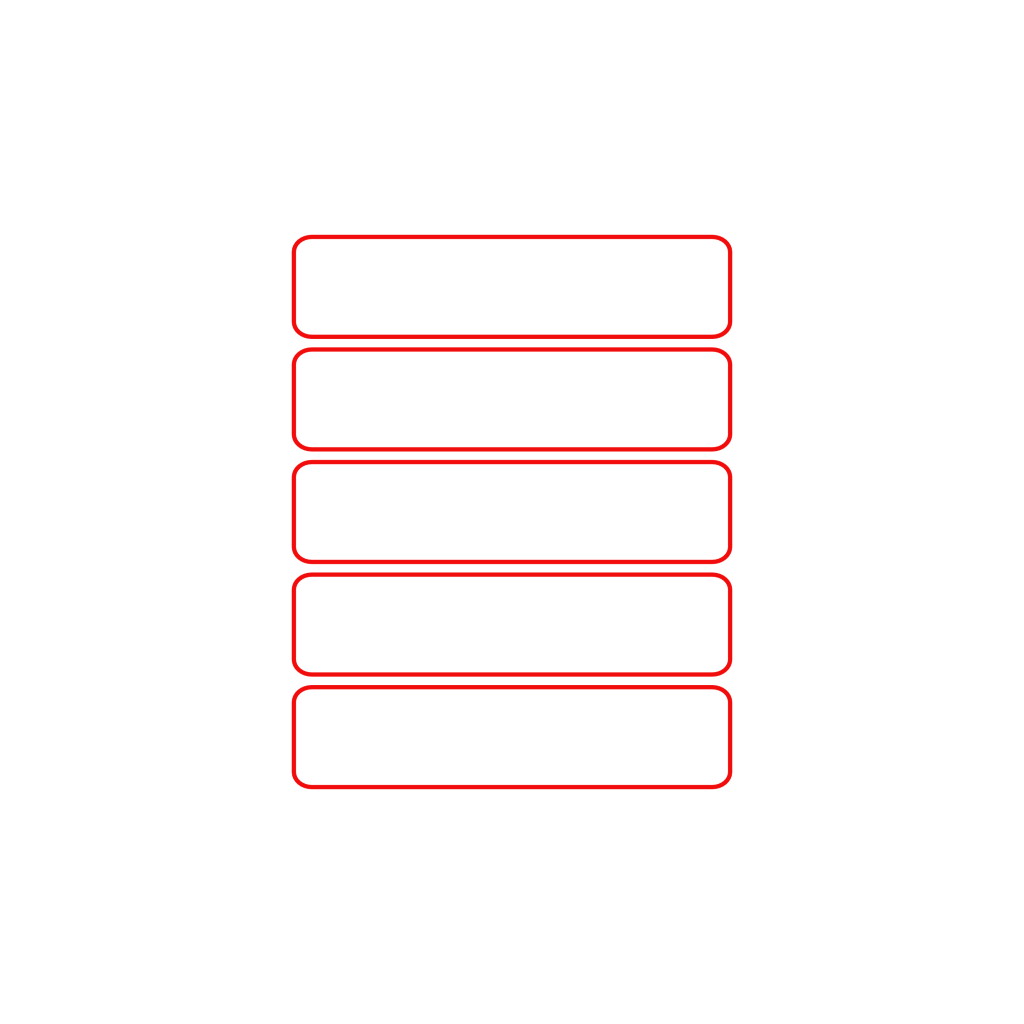
- Change the fill colors.
- Select all the Panels.
- Group them together.
- Lock the layer so they don’t move while you work.

Step 2 – Create the Sun
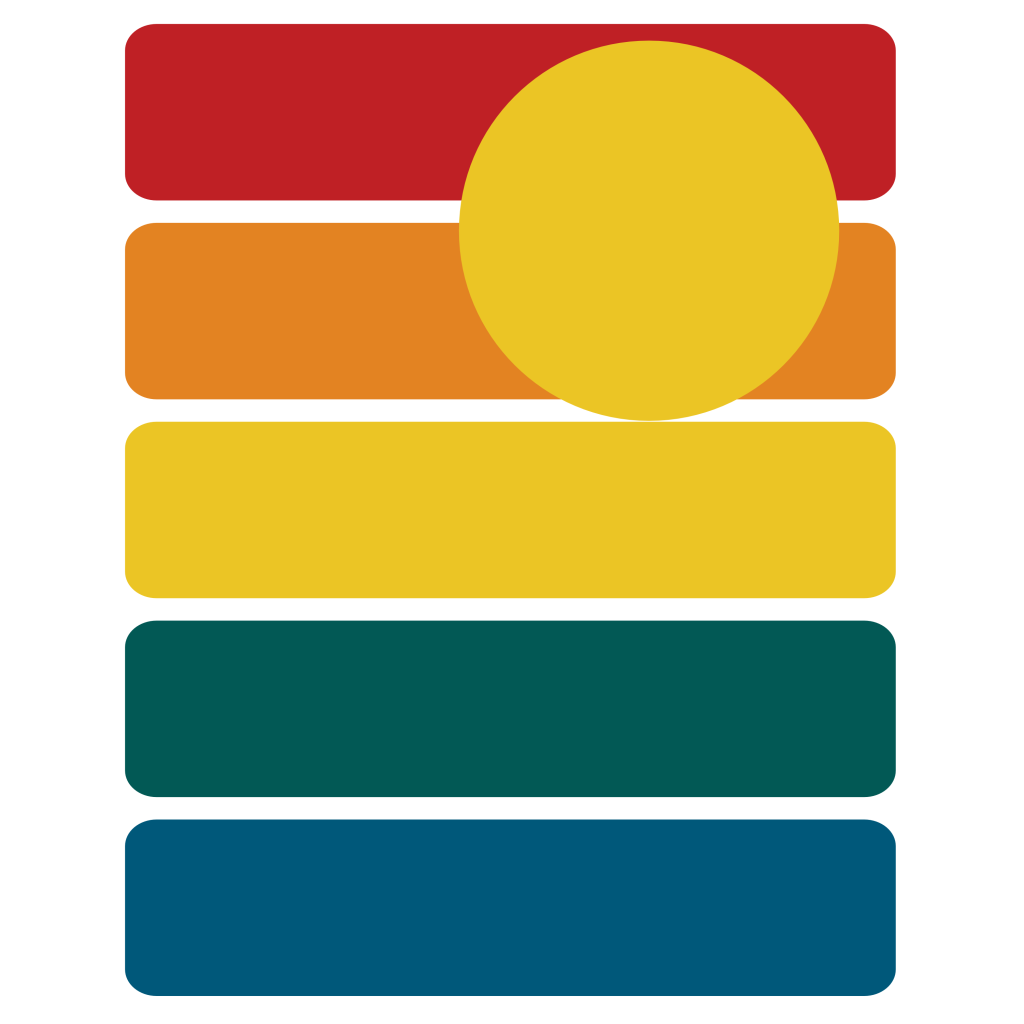
Next we’ll add the sun.
- Select the Ellipse Tool.
- Hold Shift and draw a circle.
Place the sun in the top right corner of the top panel.
Step 3 – Create the Birds
The birds will be created using the Pencil Tool.
- Select the Pencil Tool.
In the Context Toolbar, use these settings:
- Use Fill: Enabled
- Keep Selected: Checked
- Sculpt Mode: Enabled
Now trace the birds.

- Trace over the red guide lines from the reference image to draw the birds.
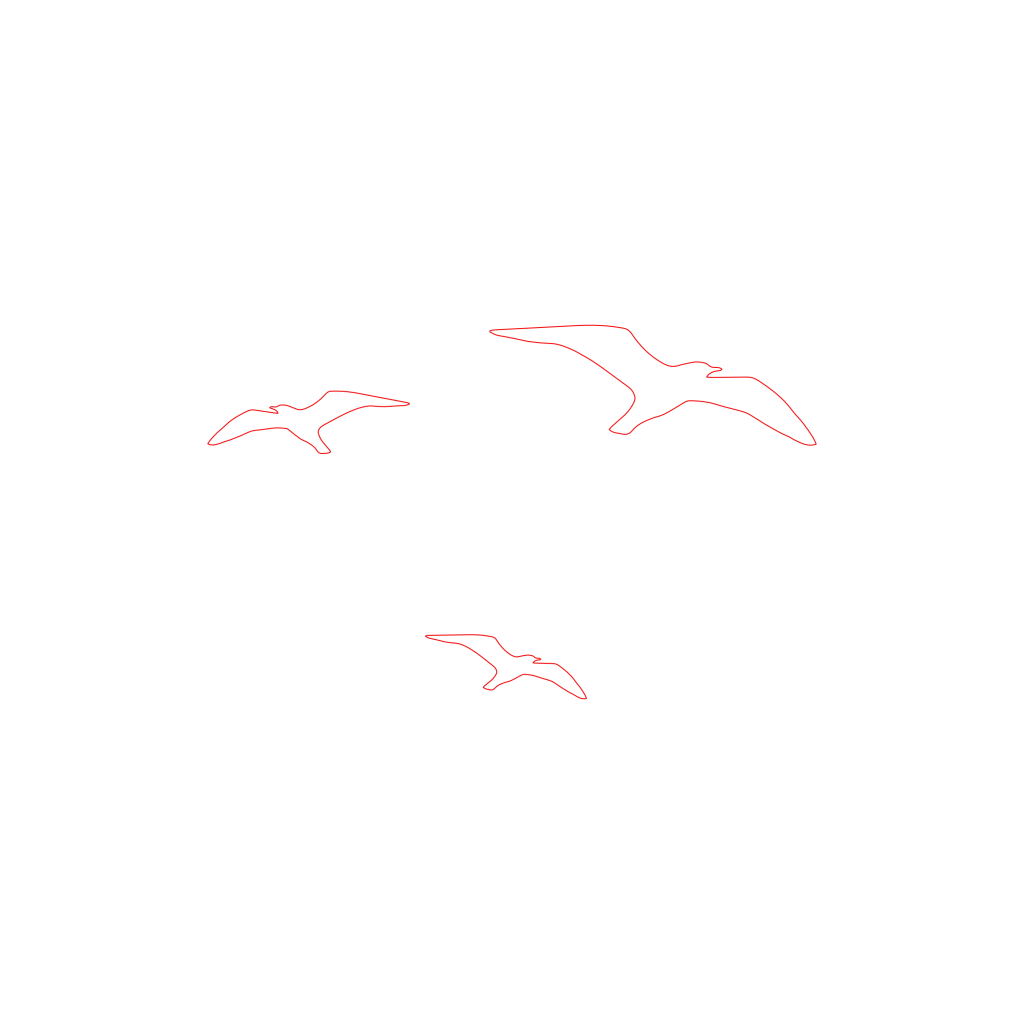
Place the birds in front of the sun.
Step 4 – Add the Island
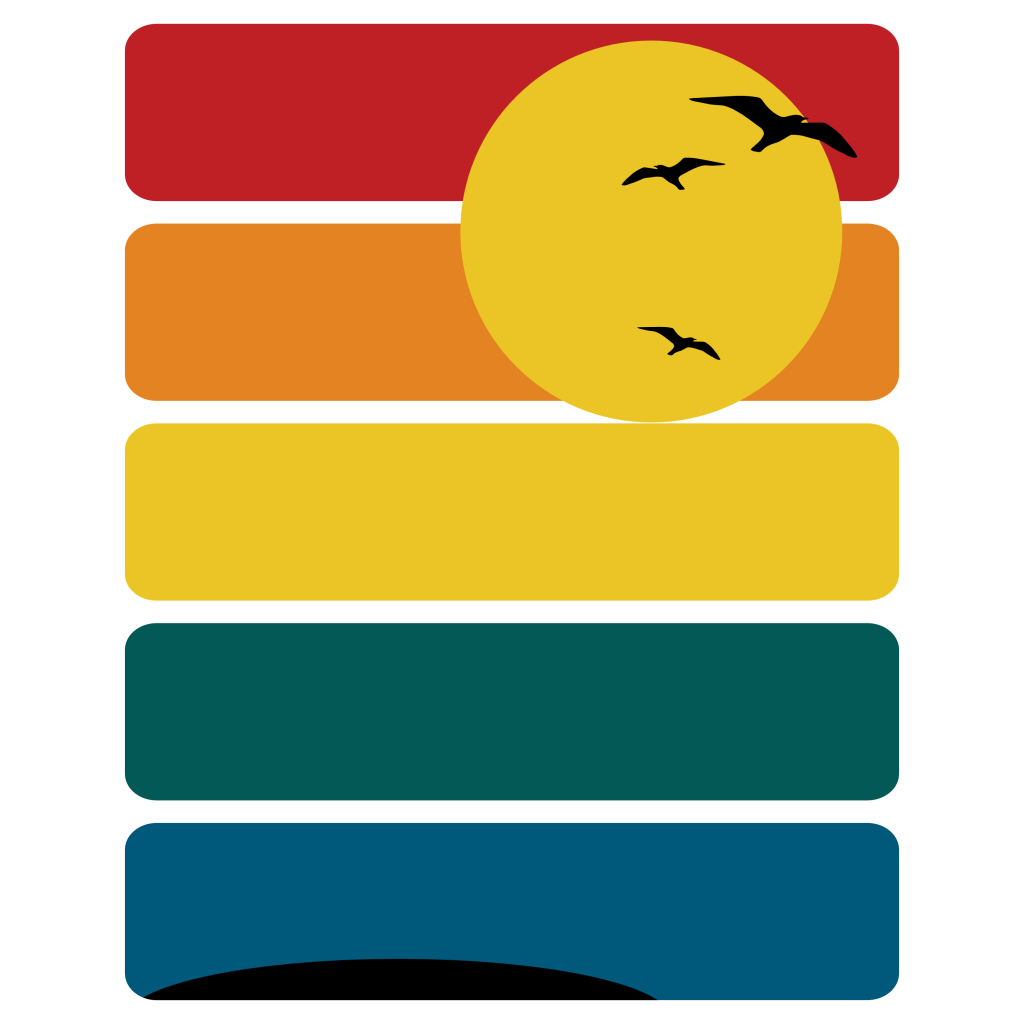
Next we’ll create the island.
- Select the Ellipse Tool.
- Draw an oval shape.
- Place the oval on p
- the bottom panel.

With the oval still selected:
- Mask it inside the bottom blue panel so the island stays contained within the panel.
Step 5 – Create the Palm Trees
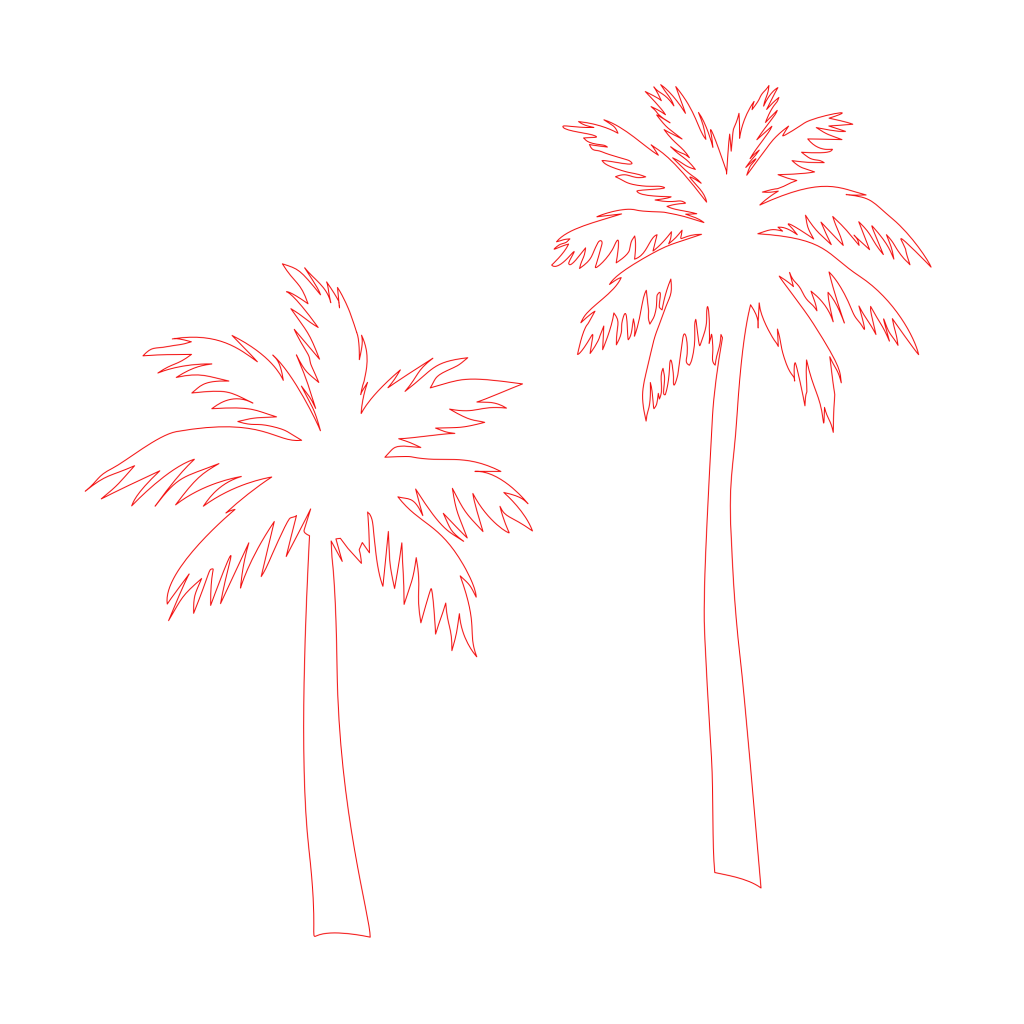
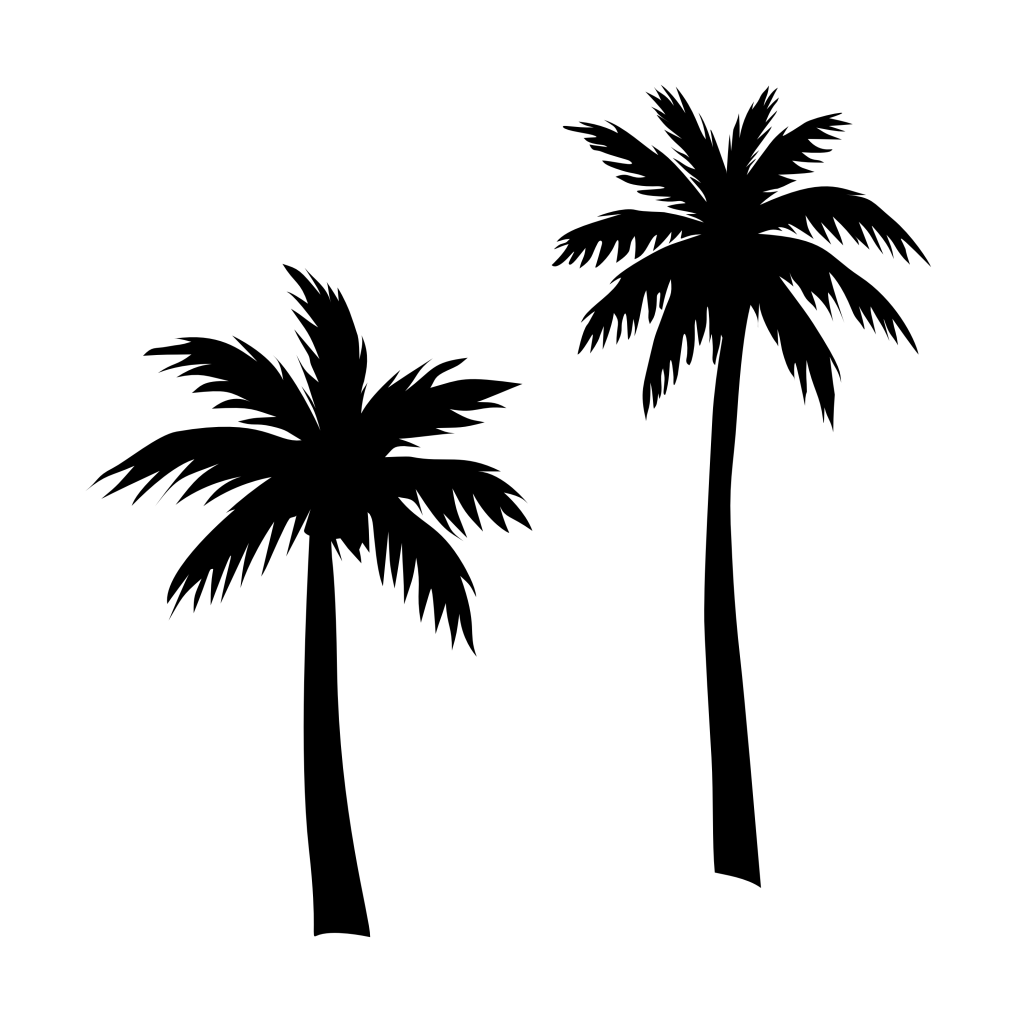
Now we’ll draw the palm trees.
- Select the Pencil Tool again.
Use the same settings in the Context Toolbar:
- Use Fill: Enabled
- Keep Selected: Checked
- Sculpt Mode: Enabled
- Trace along the red outlines from the reference image to create the palm trees.
Step 6 – Cut Out the Overlapping Elements
Some elements will overlap, so we’ll clean them up using the Shape Builder Tool.
- Select the Shape Builder Tool.
- Enable Subtract Mode, or hold Option (Mac) / Alt (Windows).
- Click and drag across the area show in the red stripes in the reference image.
As you drag across these areas, the Shape Builder Tool will subtract the intersecting pieces.
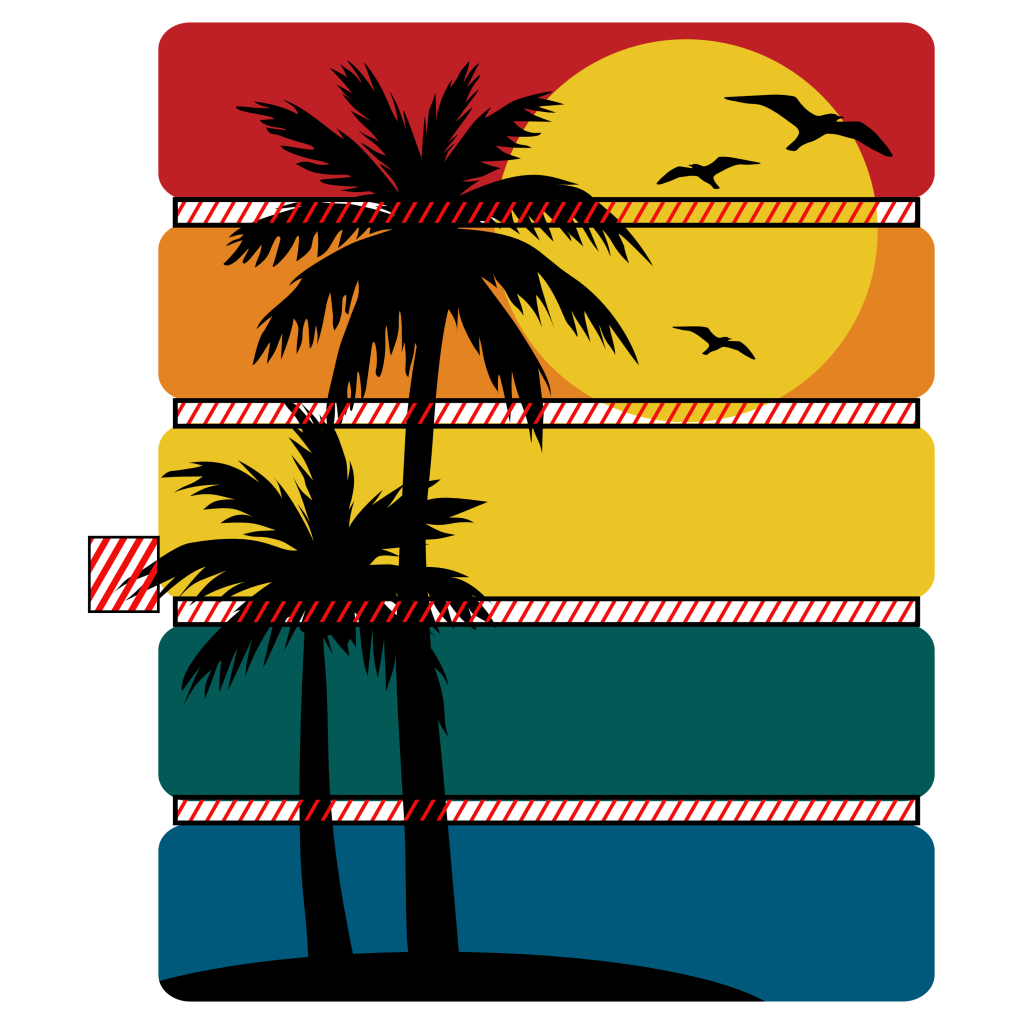
After this step, the palm trees and sun will be cleanly cropped inside the panel layout.
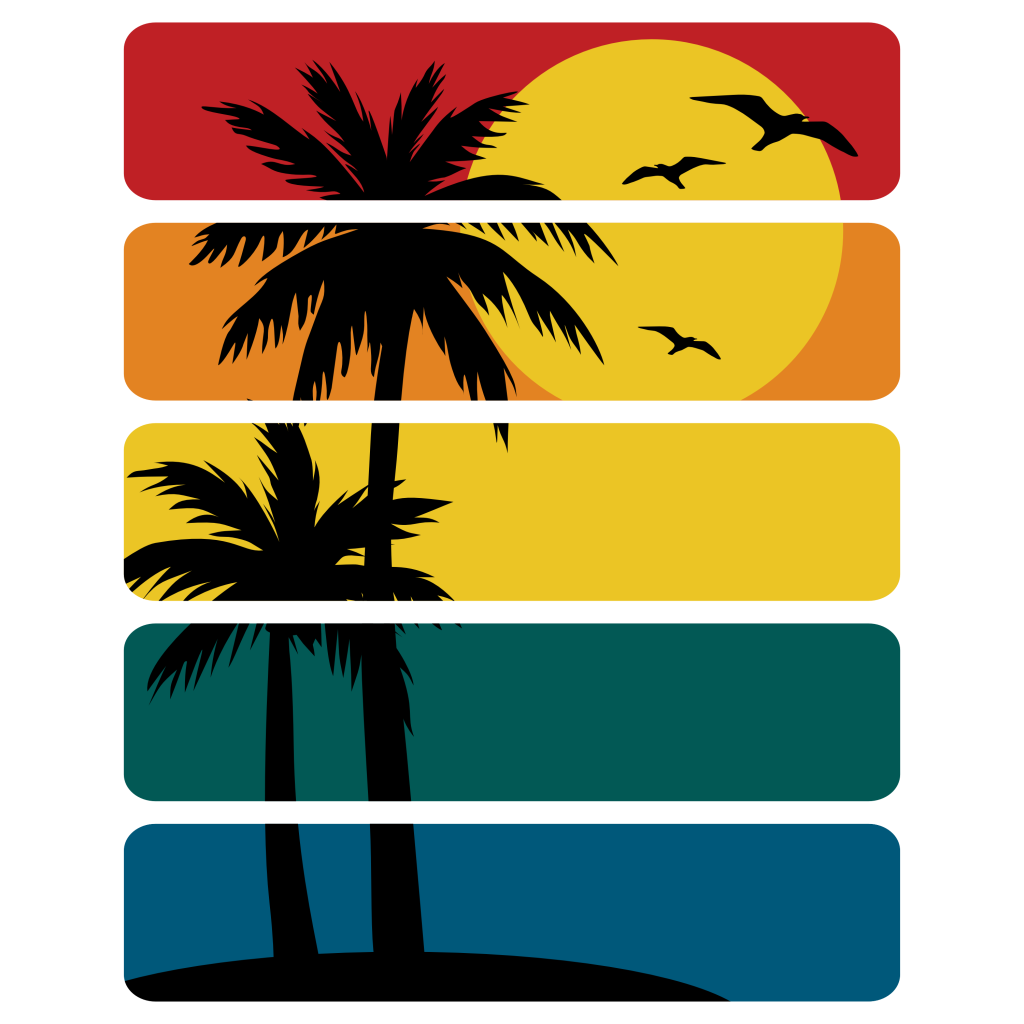
Step 7 – Add the Typography
Now let’s add the text.
- Select the Text Tool.
- Type the word:
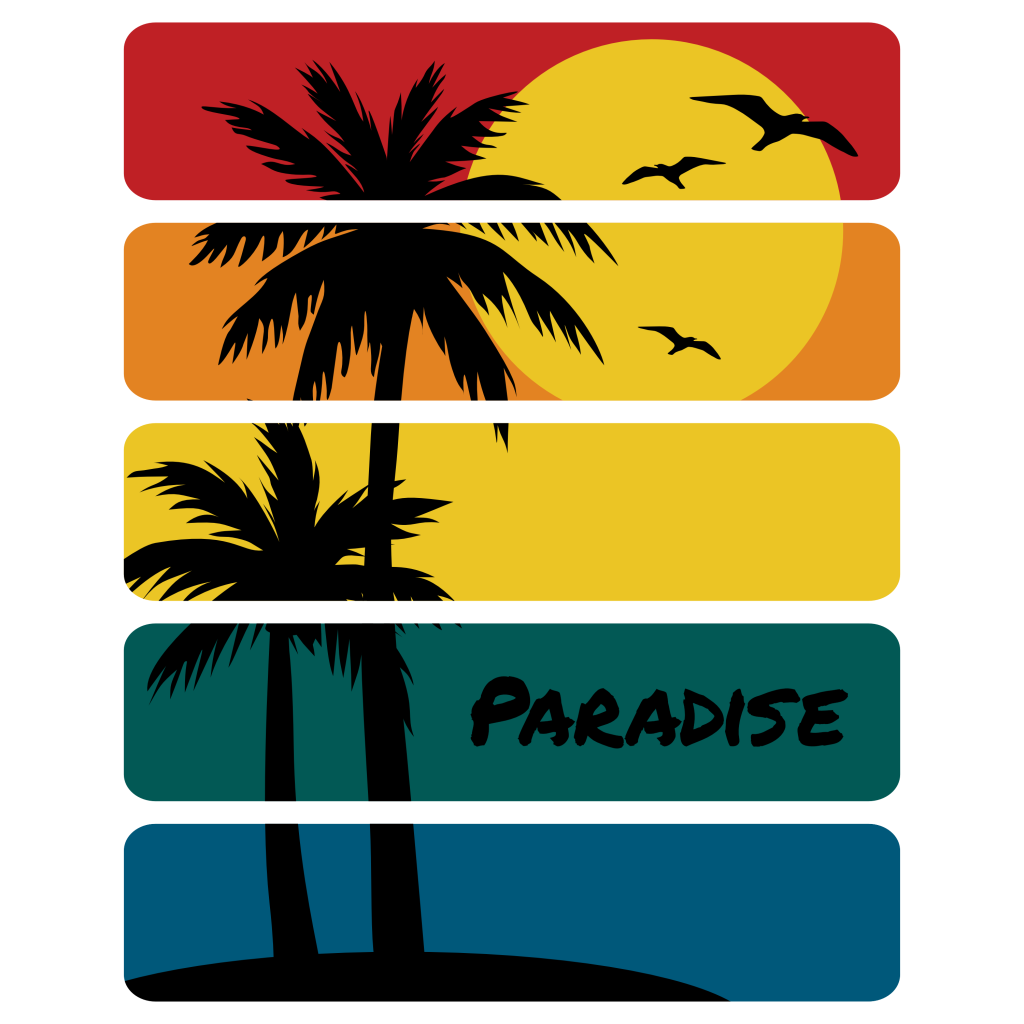
Paradise
- Set the font to Permanent Marker. Download it here for free.
- Place the text on the fourth panel to the right.
Step 8 – Add Texture(Included with follow along)
To give the design a vintage surf look, we’ll add texture.
First, make sure everything is grouped together.
Next:
- Grab the texture used in this tutorial.
A tutorial on creating your own textures is coming soon.
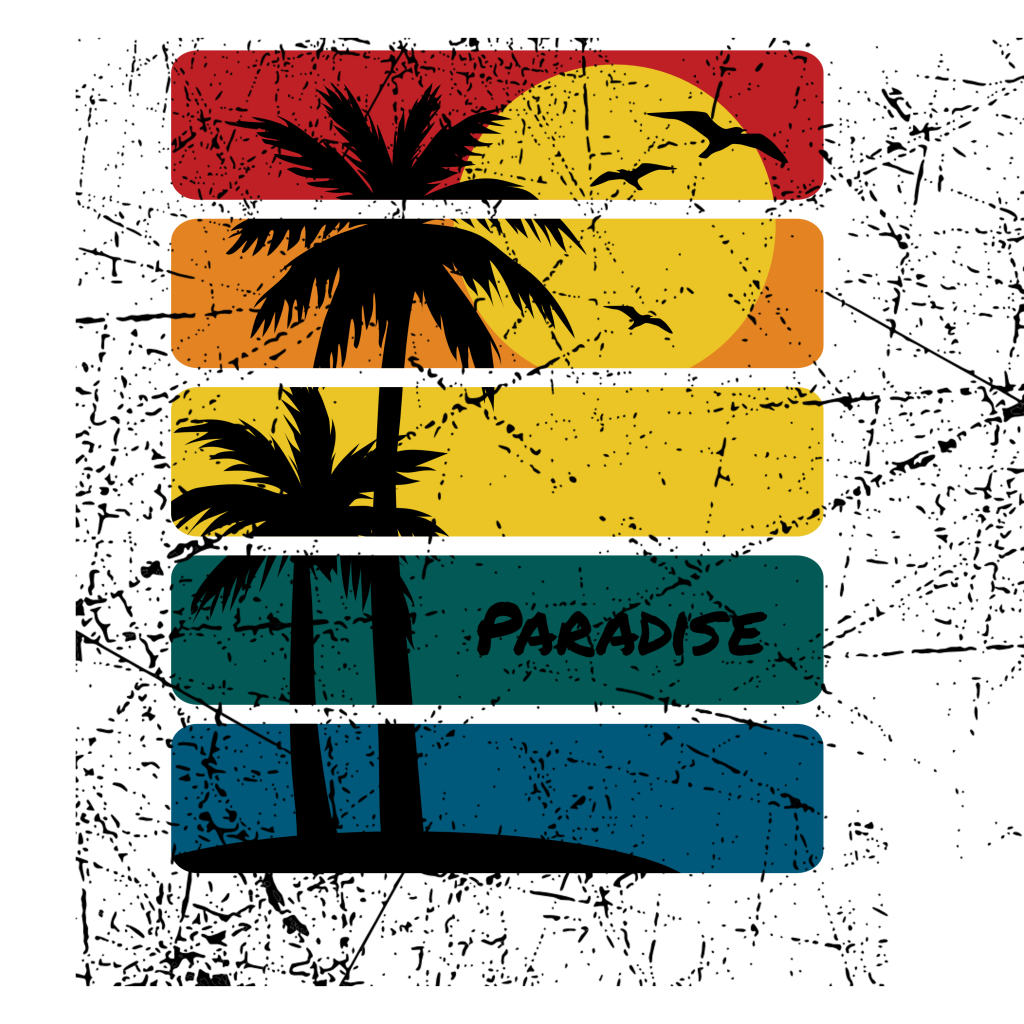
- Place the texture on top of the artwork.
- In the Layers Panel, set the blend mode to erase.
- Place the texture inside the group.
- Make the art board black.
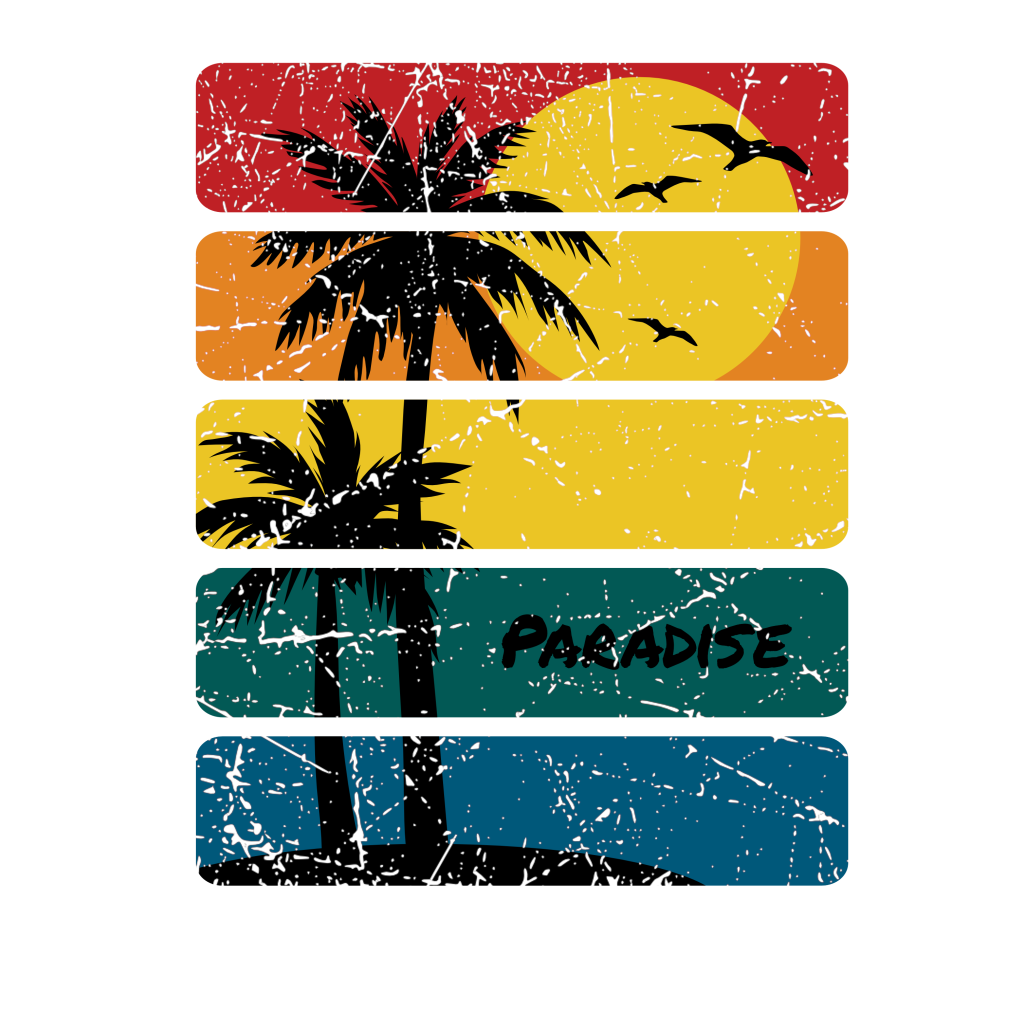
Step 9 – Distress the Outer Edges
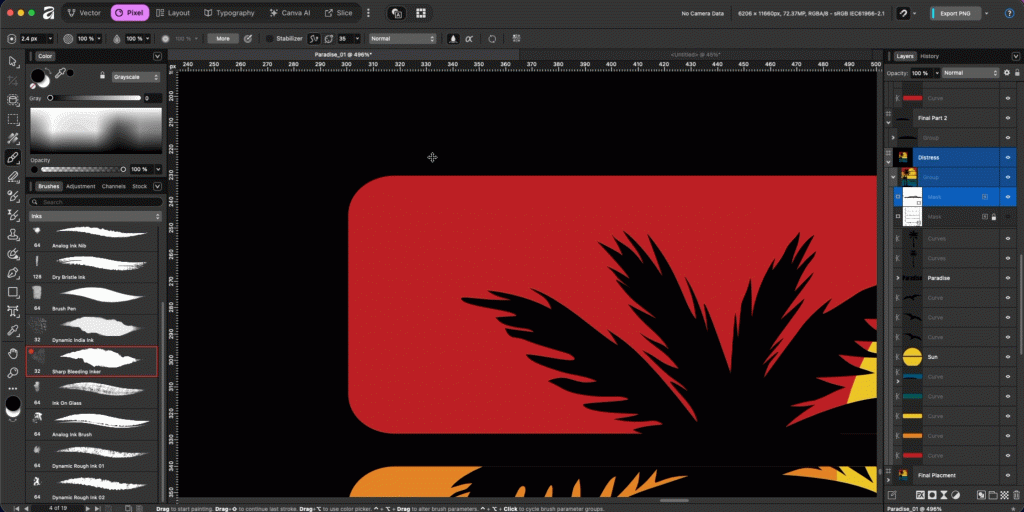
Finally, we’ll distress the outer edges of the panels.
- Switch to the Pixel Persona.
- With the group selected, go to:
Layer → New Mask Layer
Or click the Mask Layer icon at the bottom of the Layers Panel.
Next:
- Select the Paint Brush Tool.
- In the Brushes Panel, choose:
Sharp Bleeding Inker
Set the colors:
- Foreground Color: Black #000000
- Background Color: White #FFFFFF
Now begin painting.
- With the mask selected, paint along the edges of the panels to distress them.
If you hide too much:
- Switch to the background color (white)
- Paint the area back in.
Tip:
Whatever background color you choose for your final design, make sure the trees and typography match that color. For this tutorial we’re using black.
Final Result
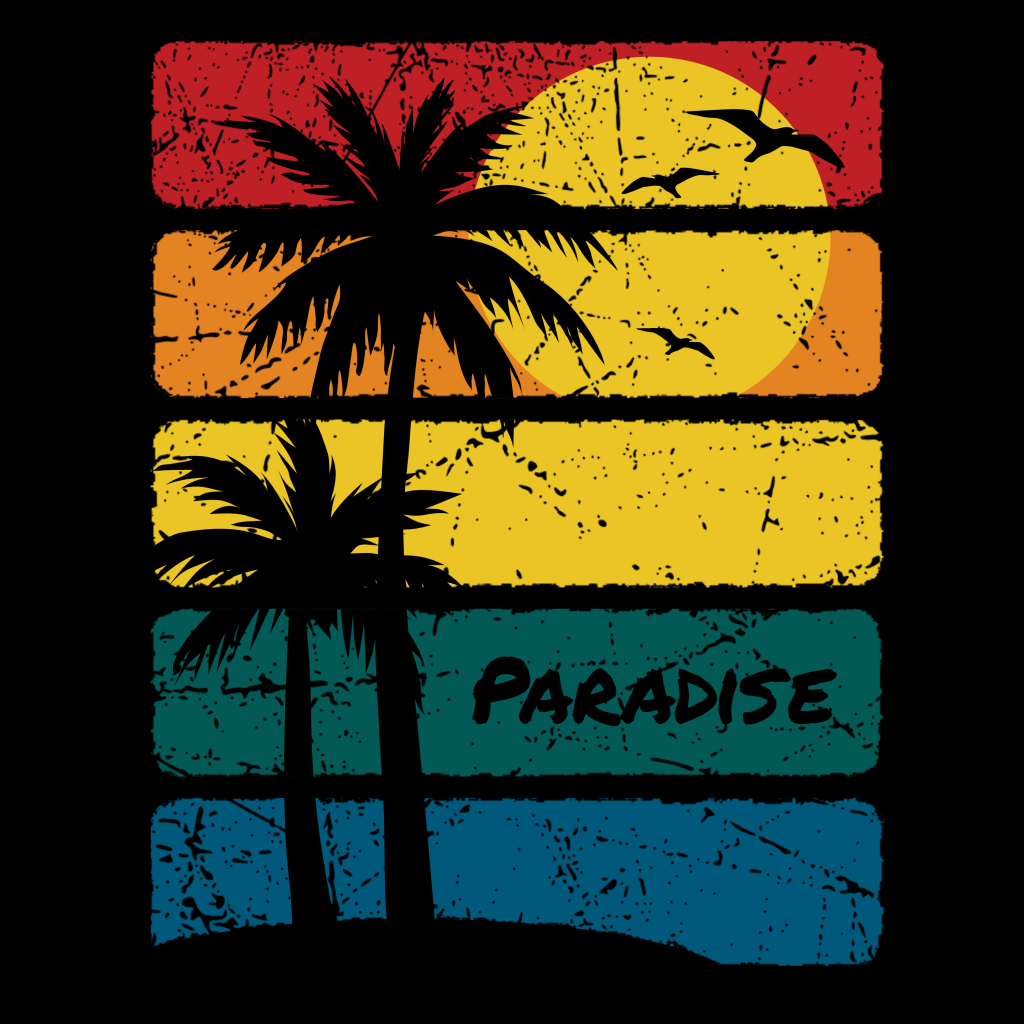
At this point your surf graphic is complete.
You now have:
- A stacked panel layout
- A sun and bird silhouette
- Island and palm trees
- Vintage texture
- Distressed edges
This style works great for t-shirts, stickers, posters, and surf-inspired apparel designs.
And that’s it! By combining simple shapes, hand-drawn elements, and a little texture, you can create a clean surf-style graphic inside Affinity Designer. The panel layout helps organize the design, while the palm trees, sun, and island give the graphic that classic beach vibe.
Adding texture and distressing the edges is what really brings the artwork to life. These finishing touches help the design feel more organic and give it that worn, vintage look that works great for surf graphics, posters, and apparel designs.
Once you understand these techniques, you can experiment with different layouts, colors, and textures to create your own unique surf-inspired graphics. Try swapping out the island scene, adjusting the panel shapes, or adding different distressed textures to make the design your own.
Have fun experimenting, and I’ll see you in the next tutorial!
Help support my work.
I love creating free tutorials and sharing what I learn along the way.
If this post was useful, you can support my work by buying me a cup of coffee
It helps keep everything free for everyone.
Comments are disabled to keep the site focused and spam-free. If you have a question, please use the Contact page.