Affiliate Disclosure:
Some of the links in this post are affiliate links. This means I may earn a small commission at no extra cost to you if you choose to make a purchase. Your support helps keep these tutorials free.
If you design graphics regularly, you already know that creating everything from scratch can take hours. Sometimes that’s great, but when you’re on a deadline—or just want to prototype quickly—using stock vector assets can be a huge time saver.
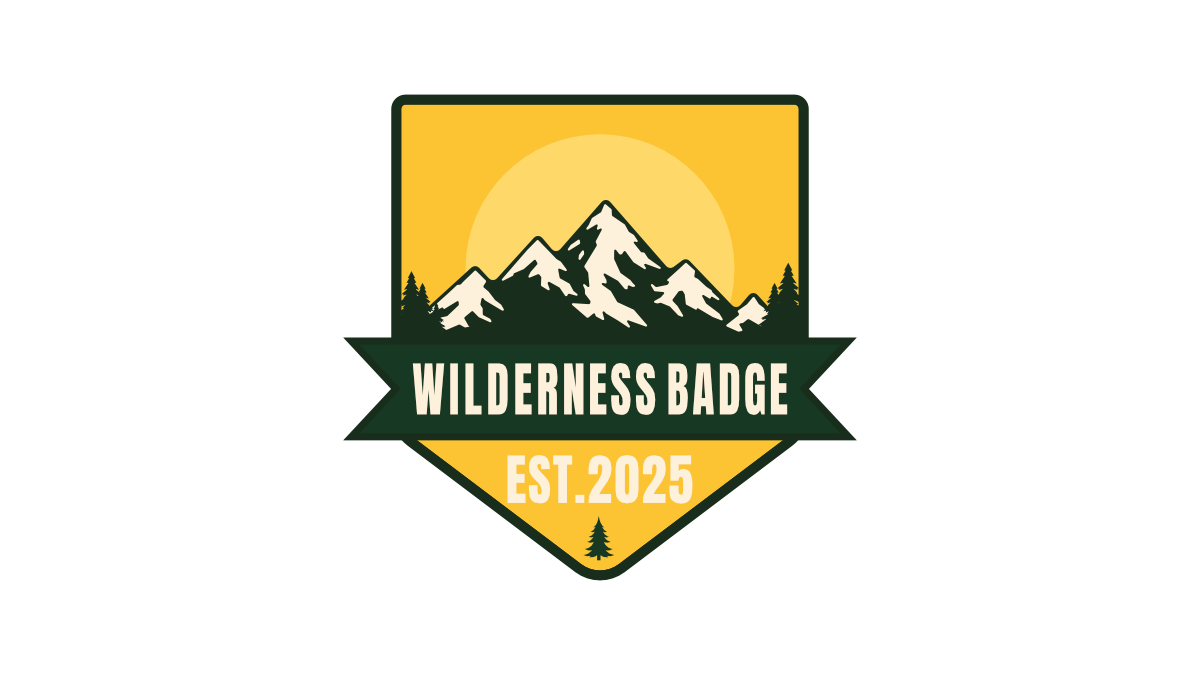
In this follow-along tutorial, we’re going to create a clean wilderness badge design using assets from Vecteezy and assemble everything in Affinity:Vector Persona.
We’ll modify and combine multiple assets into one finished badge that works great for:
- Stickers
- T-shirts
- Logos
- Patches
- Outdoor brand graphics
By the end of this tutorial you’ll understand how to combine stock assets, modify them, and turn them into something unique.
Skill Level
Intermediate
Skills Required
Before starting, you should already understand the basics of Affinity Designer.
This tutorial assumes you know how to:
- Use masking
- Group objects
- Use Boolean operations
- Kern and track text
- Use the Node Tool
- Use the Contour Tool
- Use the Corner Tool
What is Vecteezy?
If you’ve never used Vecteezy before, it’s a fantastic resource for designers.
Vecteezy is an online platform that provides:
- Vector graphics
- Stock photos
- Video assets
All of these assets are created for creatives by creatives.
One of the things I love about Vecteezy is the massive library of vector assets. If you’re ever stuck for inspiration—or you simply want to avoid building something from scratch—you can download assets, modify them, and create something new.
Instead of spending hours designing every small detail, you can:
- Download
- Modify
- Combine
- Publish
Vecteezy offers both Free and Pro tiers.
The Pro plan is highly recommended, especially if you create commercial work regularly. It gives you access to a much larger library, removes attribution requirements, and unlocks a huge number of premium vectors, photos, and videos.
If you’d like to check out the Pro plan you can do that here:

Disclosure: This is an affiliate link. If you decide to upgrade it helps support this blog at no additional cost to you.
Before We Begin: Understanding Vecteezy Usage Rules
Whenever you download stock assets, it’s important to follow the platform’s rules.
Some important guidelines when using Vecteezy assets:
Free Plan Rules
- You must give attribution to the creator
- Assets must be modified
- You cannot redistribute the original files
Pro Plan Benefits
- No attribution required
- Commercial friendly licensing
- Access to far more assets
Regardless of plan, the most important rule is:
You must modify the asset before publishing it.
That means you can’t simply download a vector and resell or redistribute it as-is.
Official rules can be found here:
https://www.vecteezy.com/licensing-agreement
Tutorial Downloads
To make things easier, I created a Vecteezy collection that contains all the assets used in this tutorial.
You can access the full collection here:
Disclosure: This is an affiliate link. If you upgrade to Vecteezy Pro, it helps support the blog at no additional cost to you.
Font Download
Anton Font (Google Fonts)
https://fonts.google.com/specimen/Anton?preview.script=Latn
Follow along Download
In this tutorial we’ll be combining and modifying multiple assets, which makes our final design compliant with these rules.
Step 1: Create the Badge Shield
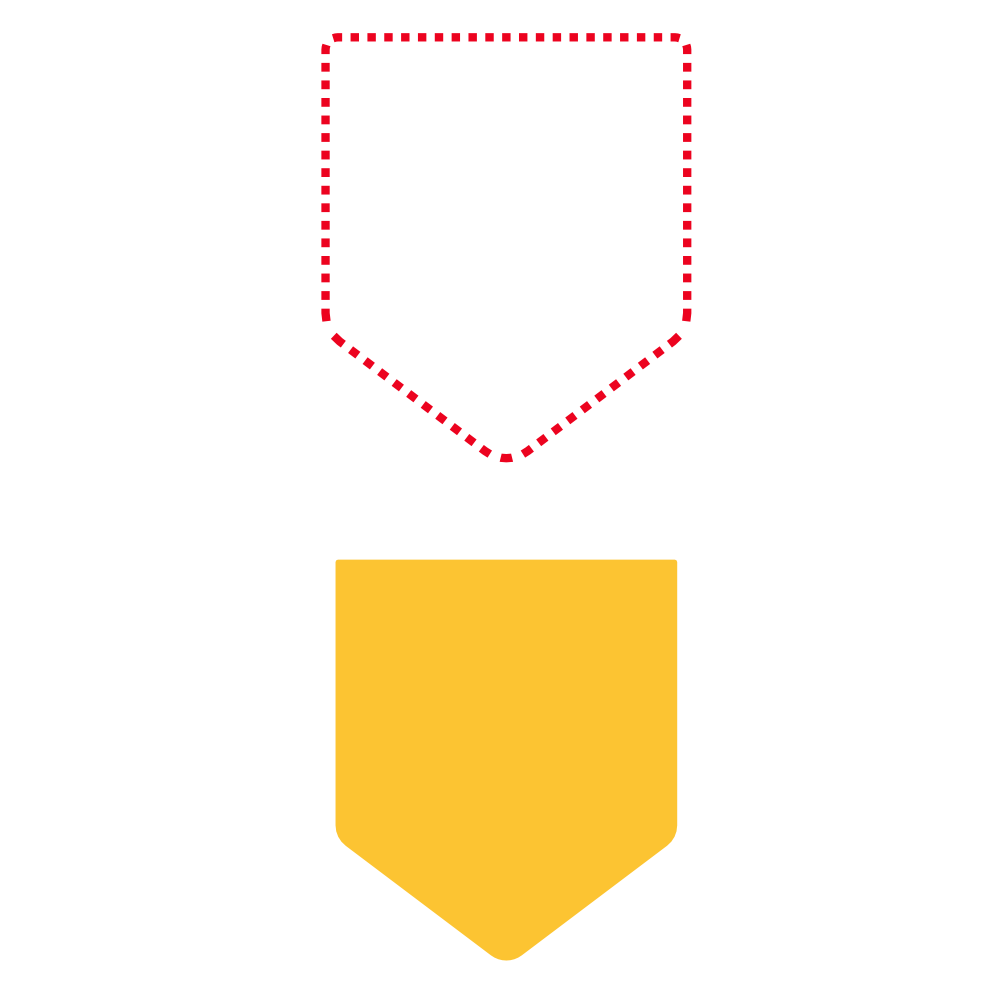
Open the download and locate the shield shown here.

Copy and paste the shield into your document and position it inside the red dotted outline shown in the tutorial reference image.
Create the inner badge.
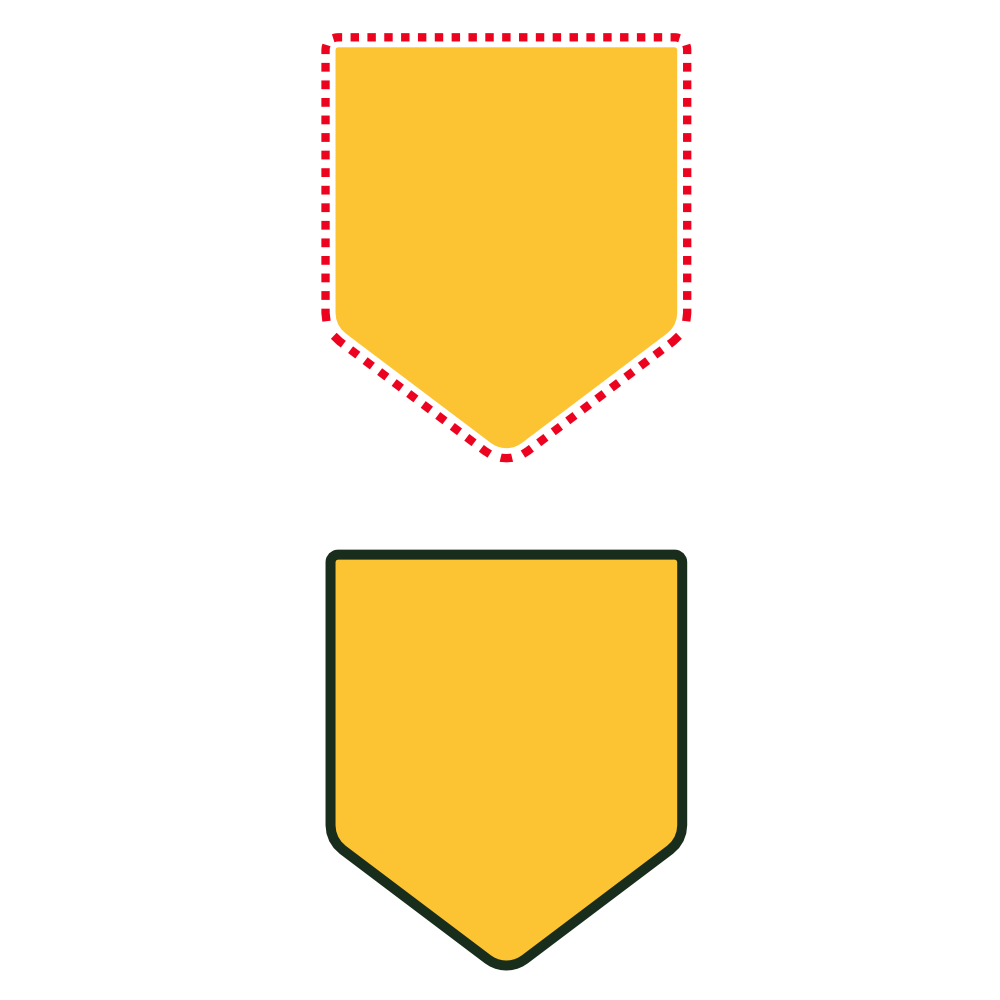
- Duplicate the shield.
- Select the duplicate.
- Activate the Contour Tool.
- Set the contour type to Miter in the context toolbar.
Drag the contour inward until the duplicate shield fits inside the inner red dotted outline.
This creates the inner badge border.
Step 2: Create the Ribbon
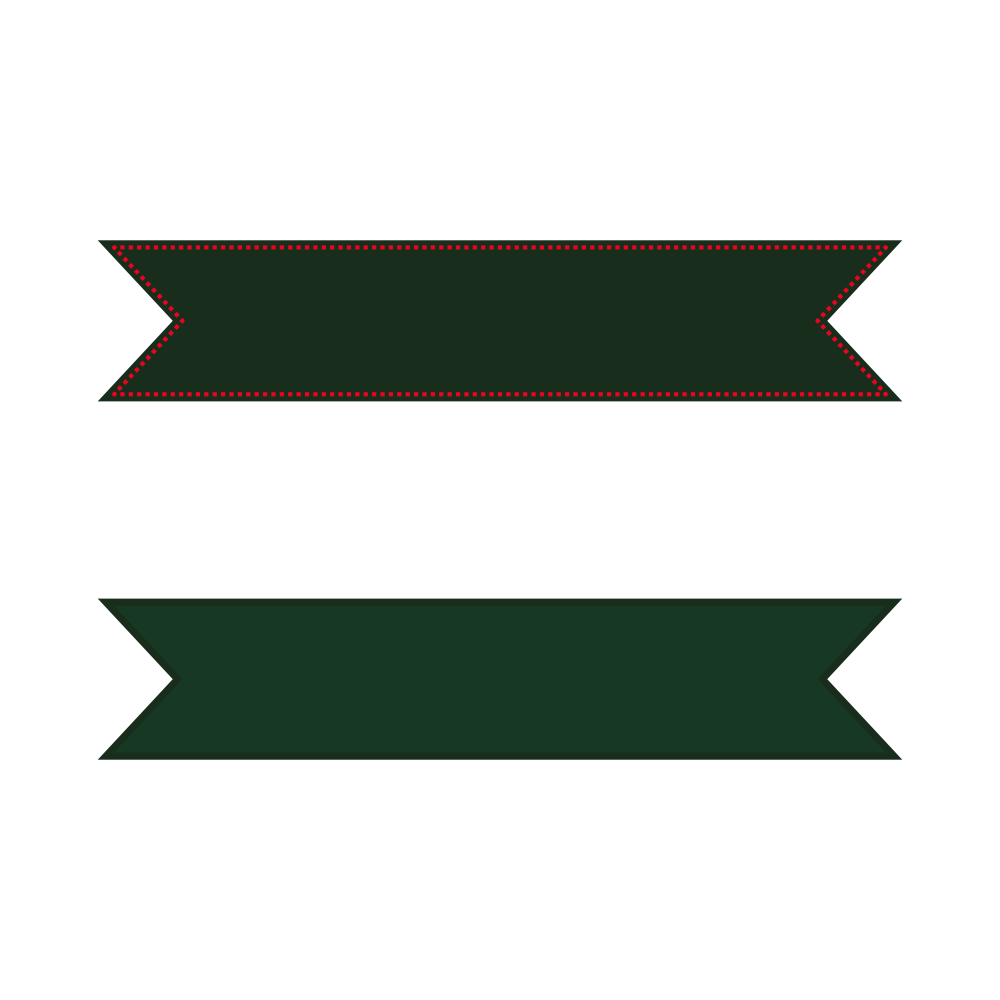
Open the file and locate the half ribbon shown here.

- Rotate the ribbon 90°.
- Duplicate it.
- Flip the duplicate horizontally.
Place the flipped ribbon on the opposite side so both halves form one ribbon.
Combine the ribbon halves.
In the menu bar:
Vector→ Geometry → Add
Or use the Geometry Panel.
Now place the ribbon inside the red outline.

Duplicate the ribbon and change the duplicate color to: #173822
Select the duplicate and use the Contour Tool again with Miter enabled.
Drag the contour inward to create the inner ribbon shape, then align it with the red outline.
Step 3: Add the Mountains
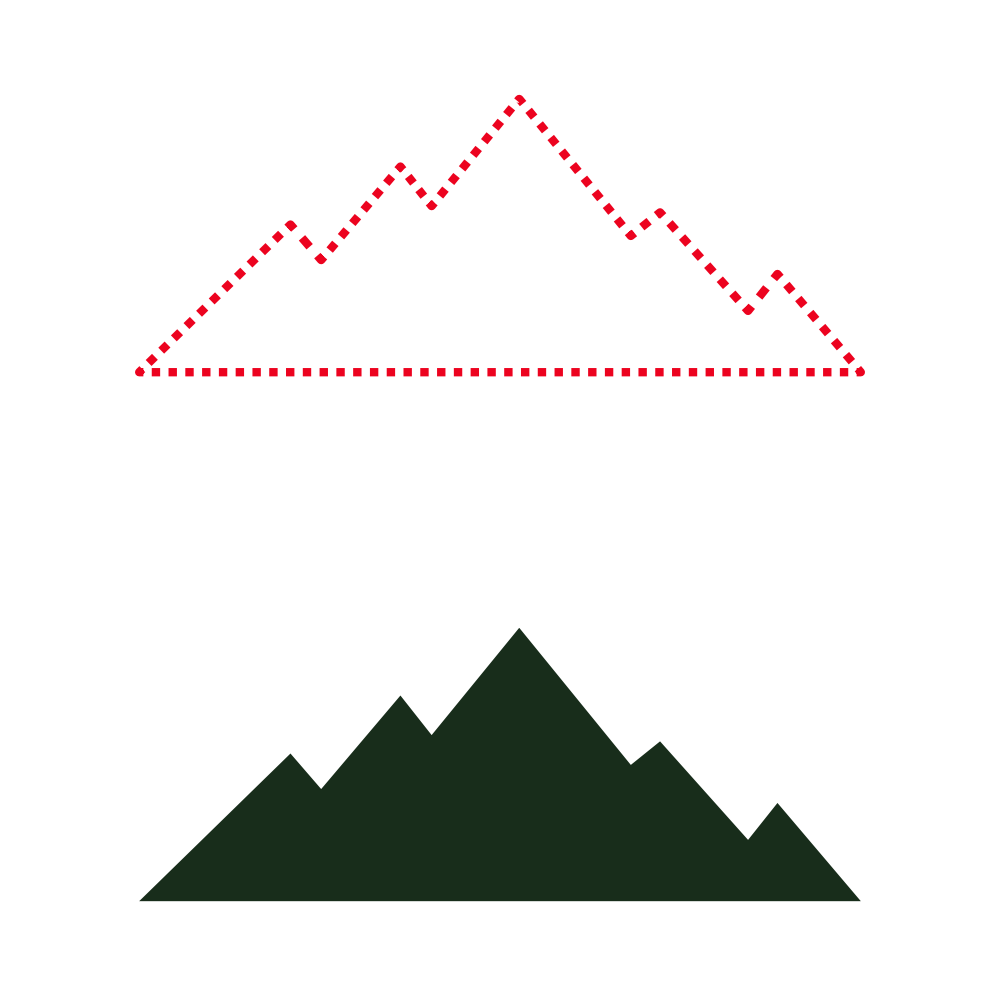
Open the file and locate the mountain range shown here.

Paste it into your document and delete the snow caps.

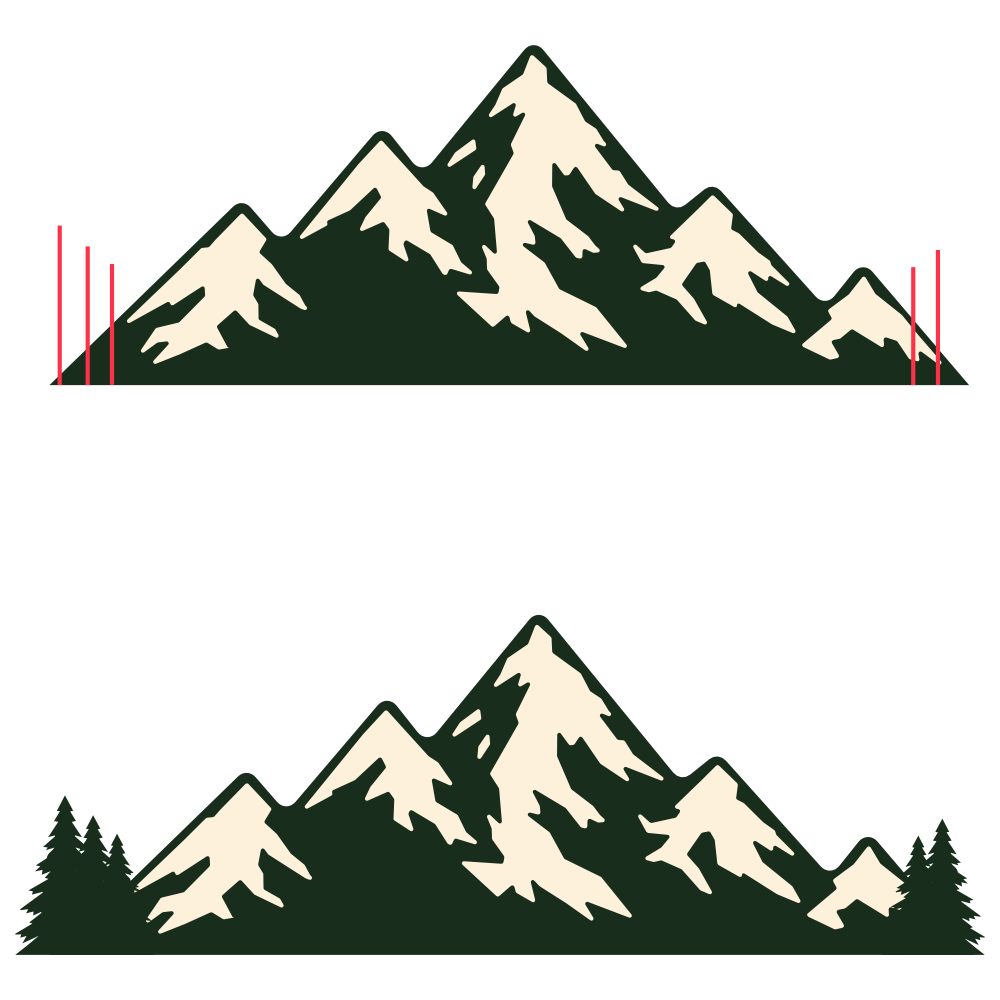
Place the mountains inside the red dotted outline, and modify the peaks.
- Select the Node Tool
- Adjust peaks and valleys so they are straight
- Fit them within the red dotted outline
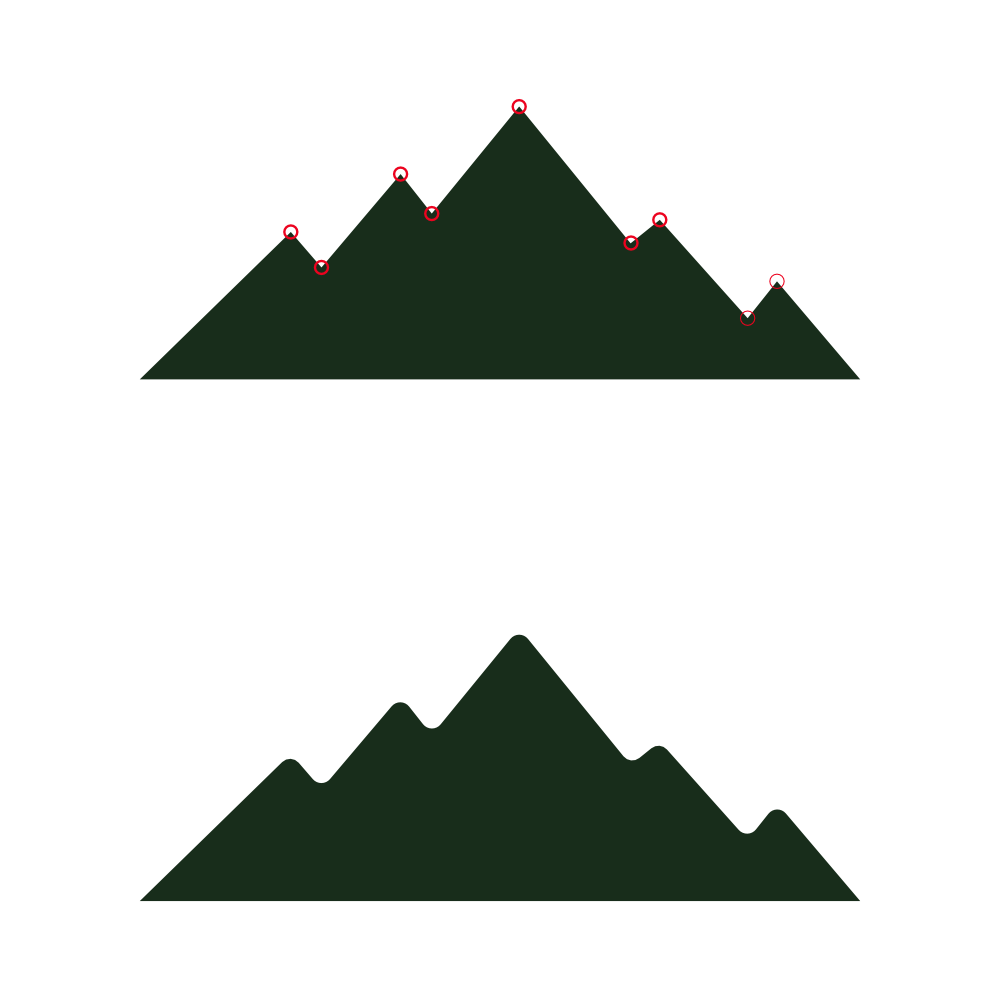
Round The Peaks and Valleys.
- Select all the mountain nodes
- Activate the Corner Tool
- Set the radius between 4 and 6
- Bake Appearance
This slightly softens the peaks.
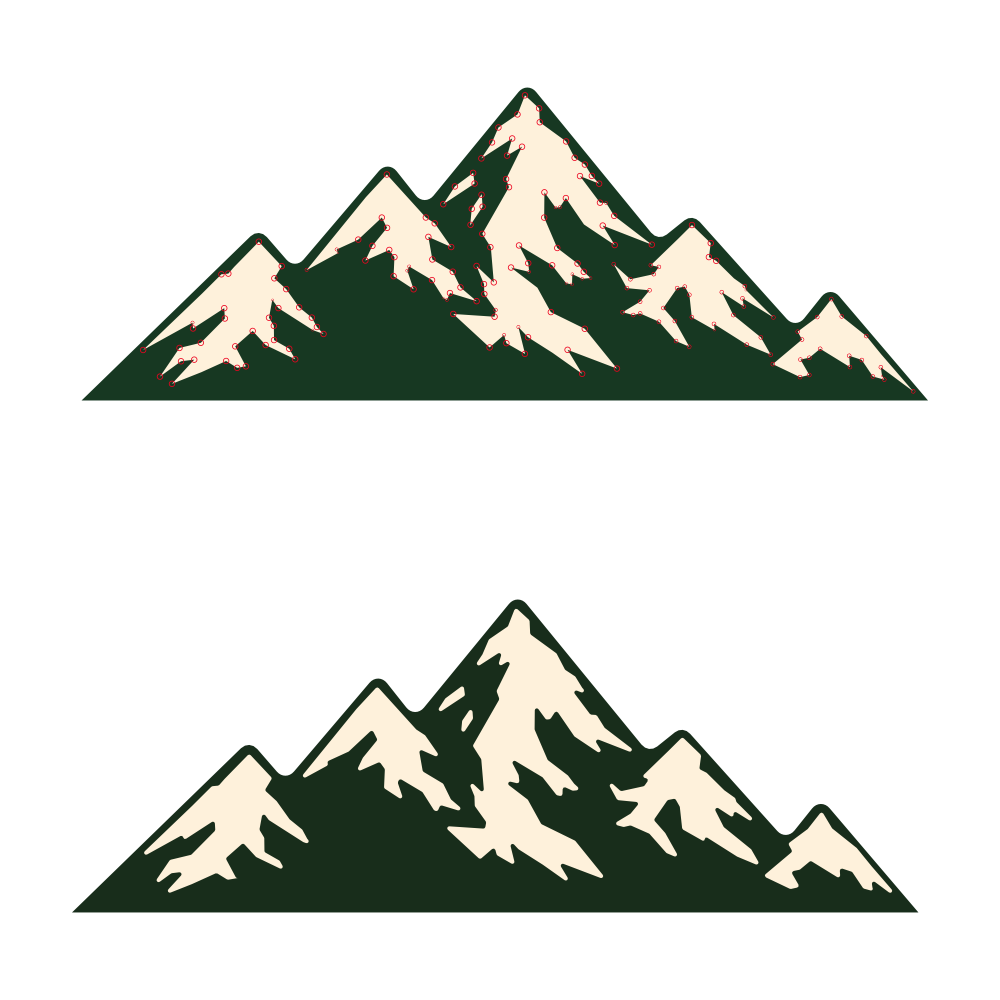
Step 4: Add the Snow
This step is simple.
Select the Pen Tool.
Start connecting points in red along the peaks to draw snow caps.
Once the shapes are complete:
- Select the snow shapes
- Use the Corner Tool
- Set the radius to 1
This slightly rounds the corners and gives the snow a cleaner look.
Step 5: Add the Trees
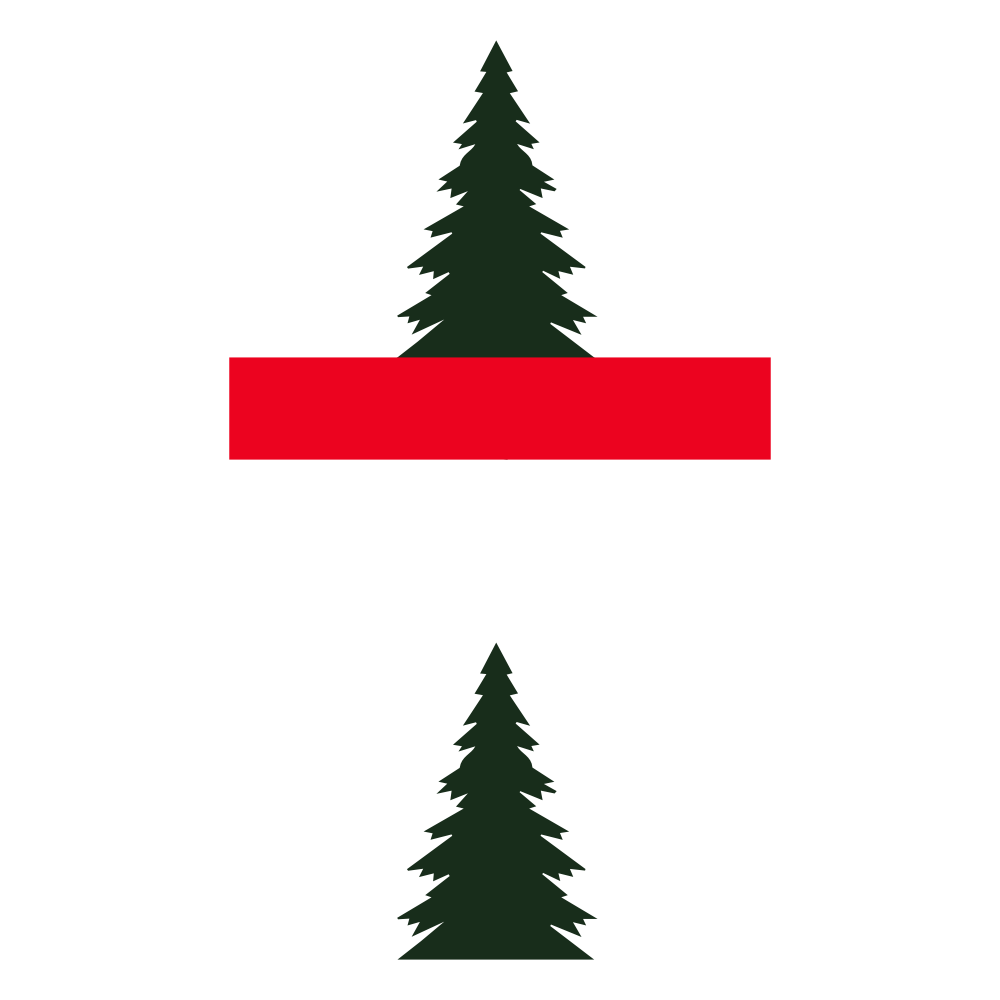
Open the file and locate the second tree in the third logo in the Vecteezy download as shown here.
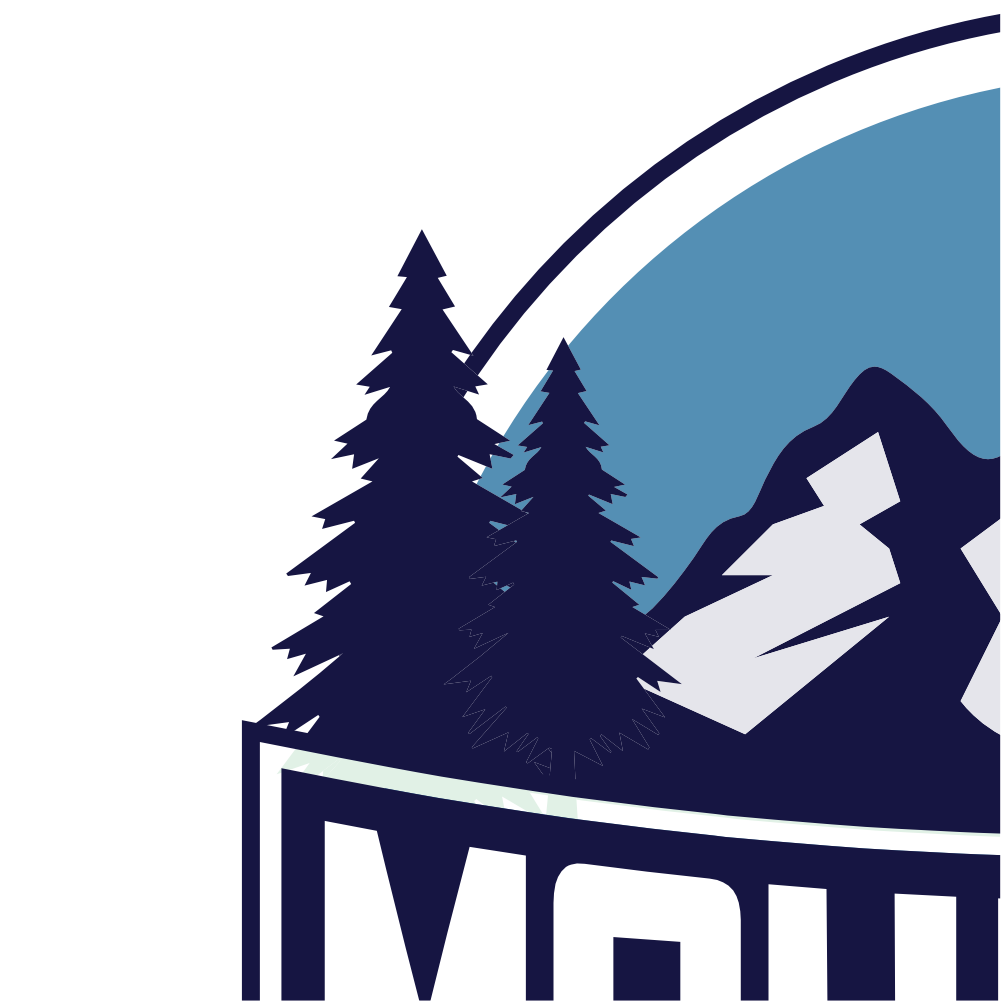
Paste the tree into your document.
Duplicate the tree and move one copy aside—we’ll use it later.
Now create a flat bottom.
- Draw a rectangle across the bottom of the tree
- Select the rectangle and the tree
- Go to Vector → Geometry → Subtract Or use the Geometry Panel
This removes the bottom portion.
Now place the trees along the red guideline locations in the badge.
Step 6: Create the Sun
Select the Ellipse Tool.
Draw a circle for the sun and place it behind the mountains.

Step 7: Add the Type
Font Download
Anton Font (Google Fonts)
https://fonts.google.com/specimen/Anton?preview.script=Latn
Add two lines of text:
WILDERNESS BADGE
EST. 2025
Use kerning and tracking to space the letters so they fit nicely within the ribbon and badge layout.

Step 8: Assemble the Badge
Now we’ll bring everything together.
- Select the mountains and trees
- Group them
Align the group to the top of the ribbon.
Mask the group inside the inner badge shape.

Place the sun behind the mountains and mask it inside the badge as well.

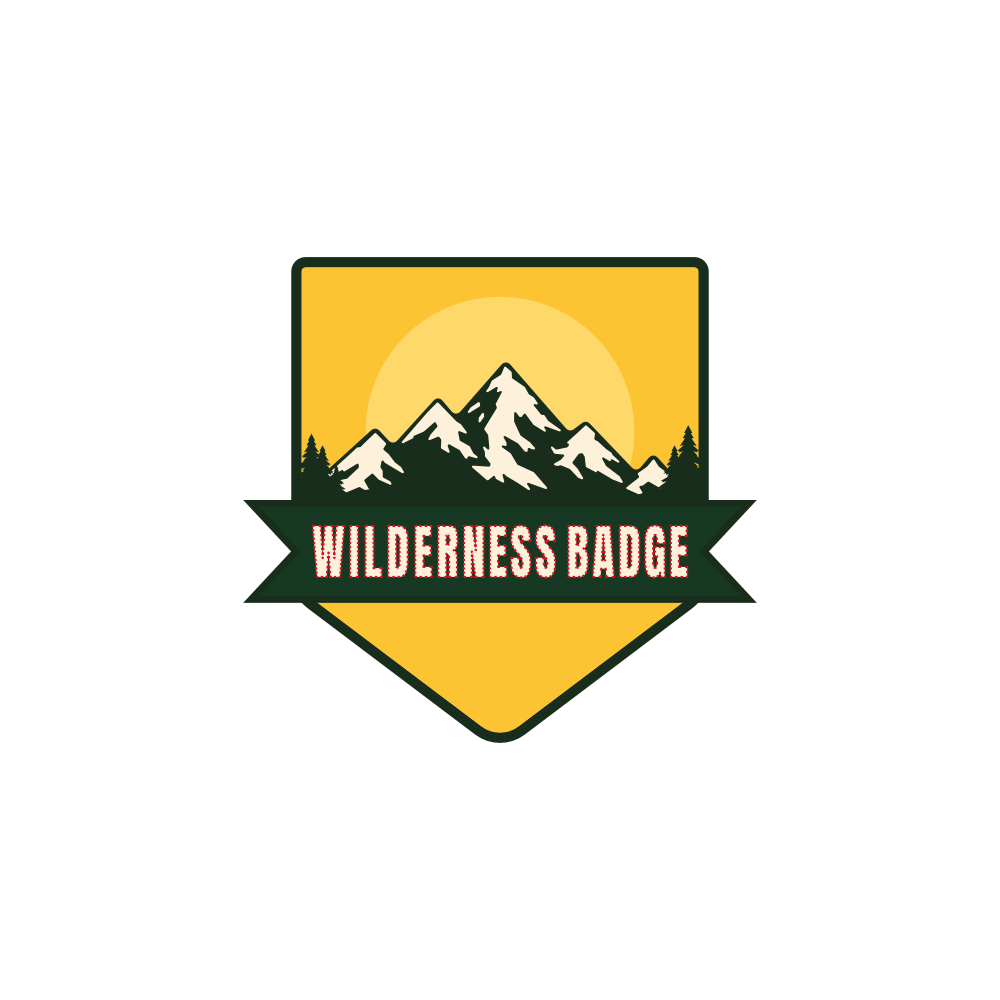
- Place WILDERNESS BADGE on the ribbon
- Center it
- Group it with the ribbon
Place EST. 2025 below the ribbon as shown in the reference image.
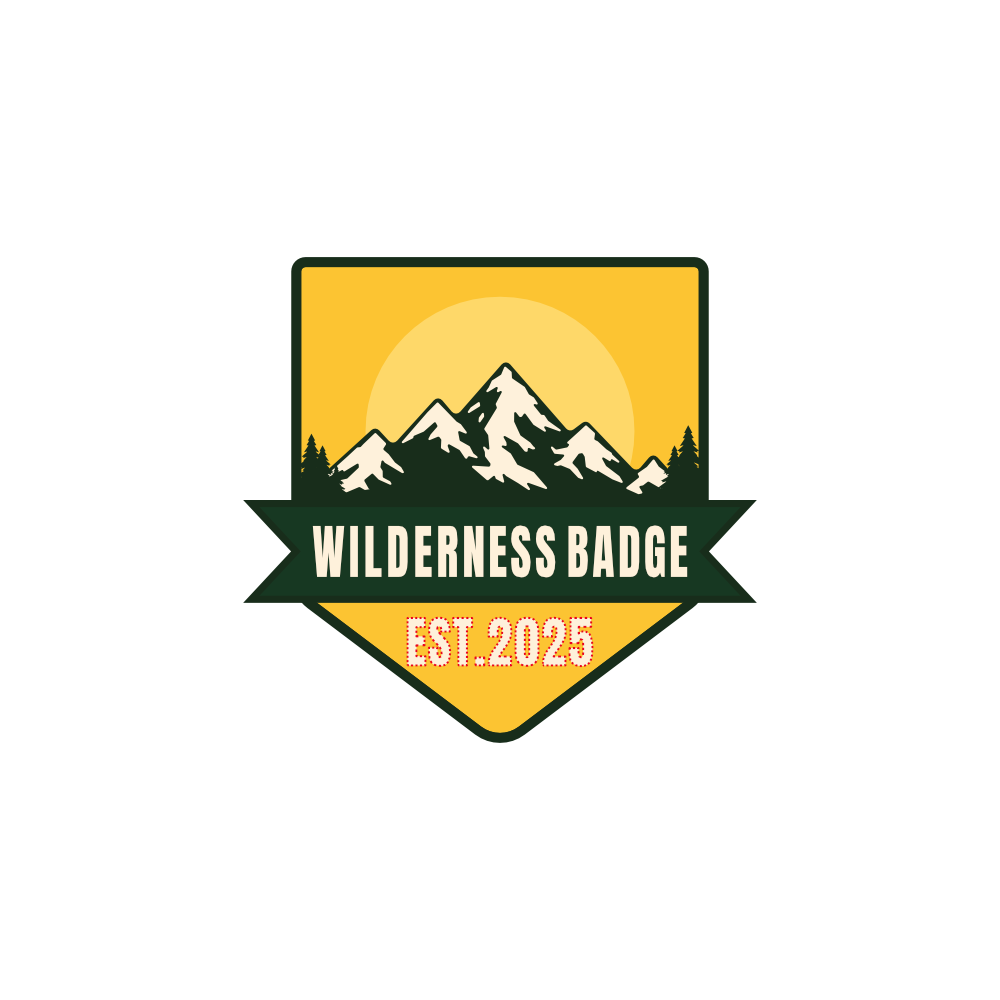
Finally, take the tree we saved earlier and place it below the EST text.
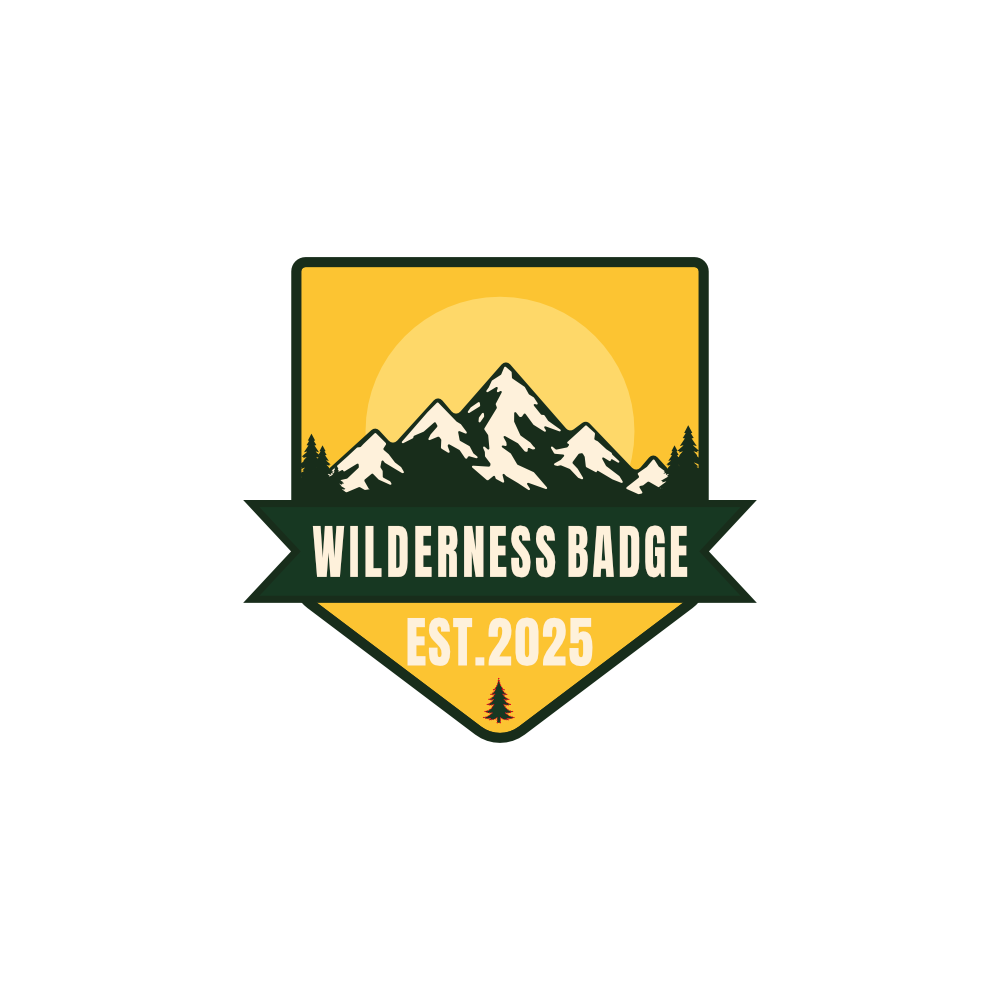
And that’s it.
Your Wilderness Badge design is complete.
This tutorial is a great example of how powerful stock vector assets can be when used correctly.
Instead of creating every piece from scratch, we:
- Combined multiple assets
- Modified them
- Built something completely new
That’s the real power of platforms like Vecteezy.
If You Enjoyed This Tutorial
Please consider:
- Sharing this article
- Subscribing to the blog
- Leaving a comment
It helps more designers discover these tutorials and allows me to keep creating new ones.
More Affinity tutorials and vector design breakdowns coming soon.
Help support my work.
I love creating free tutorials and sharing what I learn along the way.
If this post was useful, you can support my work by buying me a cup of coffee ☕
It helps keep everything free for everyone.
Comments are disabled to keep the site focused and spam-free. If you have a question, please use the Contact page.