Affiliate Disclosure:
Some of the links in this post are affiliate links. This means I may earn a small commission at no extra cost to you if you choose to make a purchase. I only recommend tools and resources I personally use and trust. Your support helps keep these tutorials free.

Creating a mono-line cityscape is a fun way to practice line work, geometry tools, and clean design inside Affinity Designer. I wanted to keep this tutorial as simple as possible, so we’ll only be using basic shapes, and lines, but the final artwork still looks polished and professional.
Program: Affinity
Studio: Vector
Difficulty: Intermediate
Tools We Will Use.
Pen Tool
Geometry Tools
Shape Tools: Rectangle, Ellipse, Triangle
Note: This tutorial assumes you have a basic understanding of Affinity Designer. All strokes are set to 3 pt, and I will include dimensions for every shape as we go.
Click here to download the follow along for this tutorial. Ive set the blend mode on the Cityscape layer to Multiply, and reduce the transparency to about 50%. Adjust the opacity if needed. Use the Follow Along layer to follow along.
Step-by-Step Tutorial
Buildings
Building 1
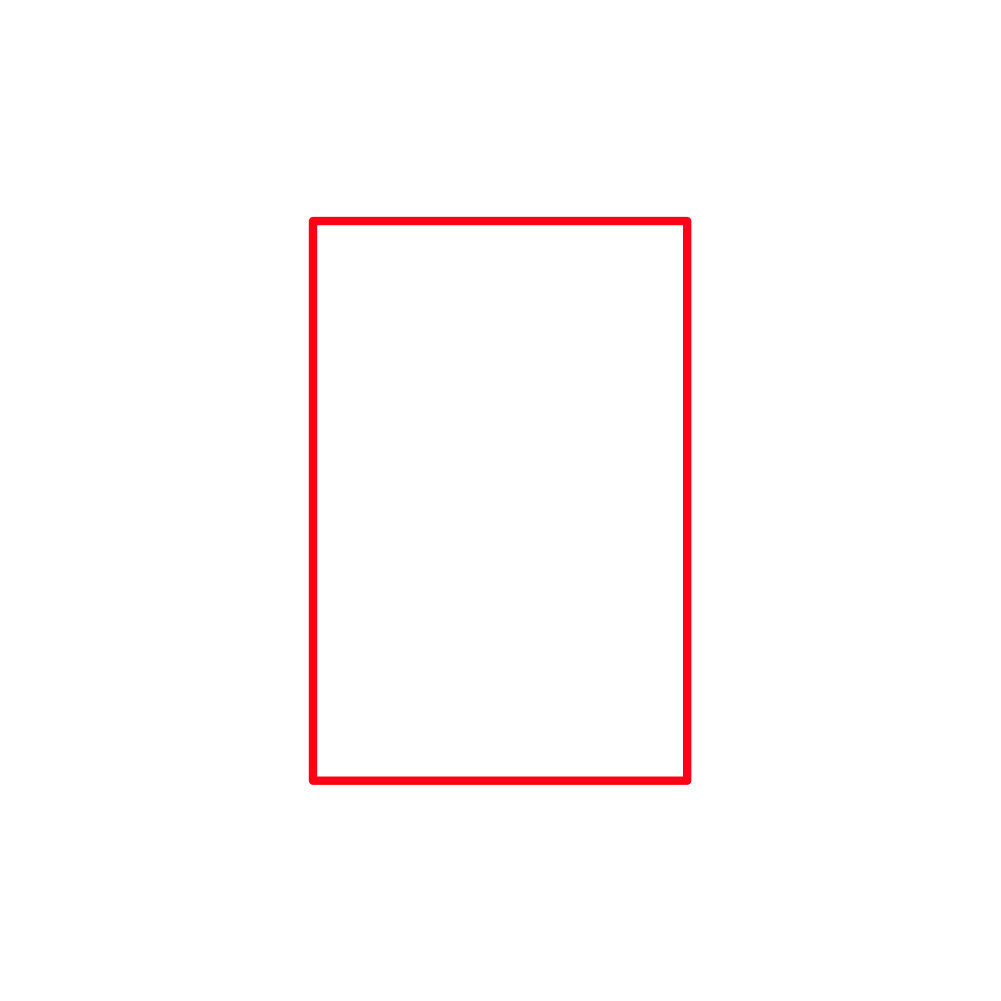
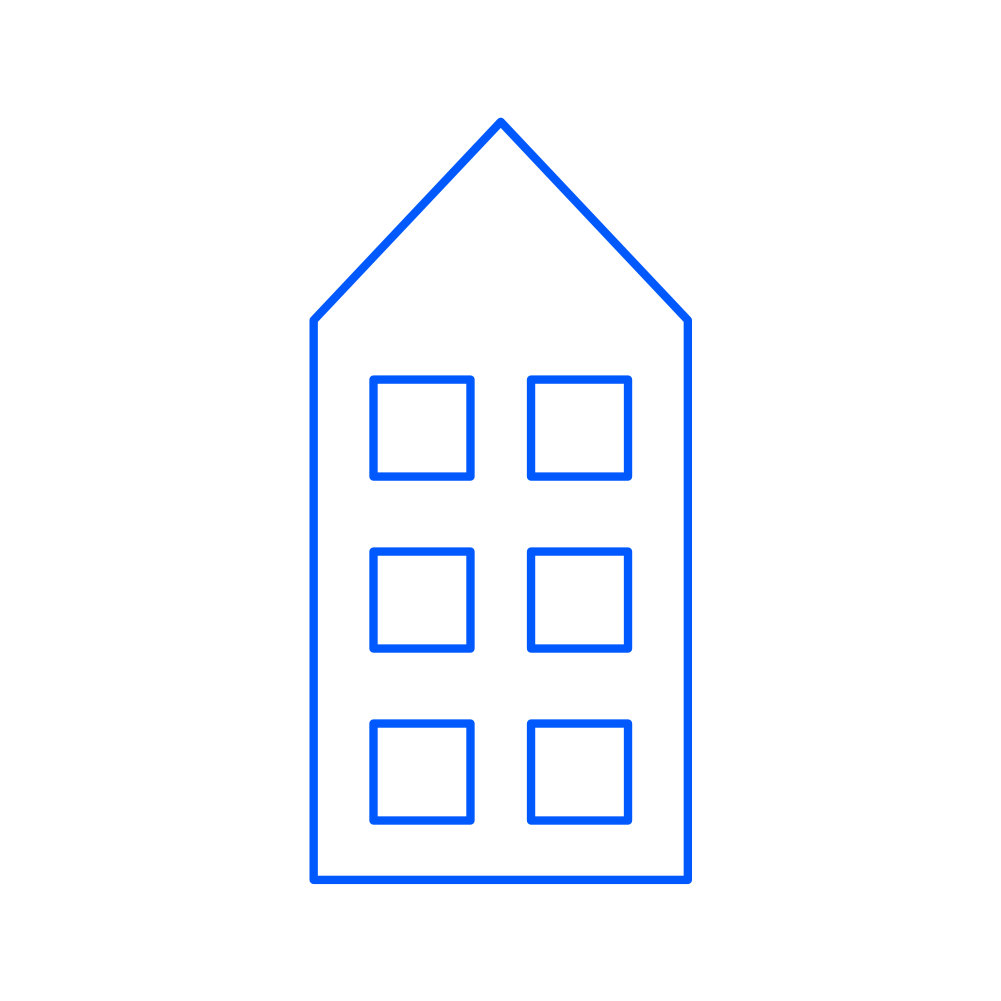
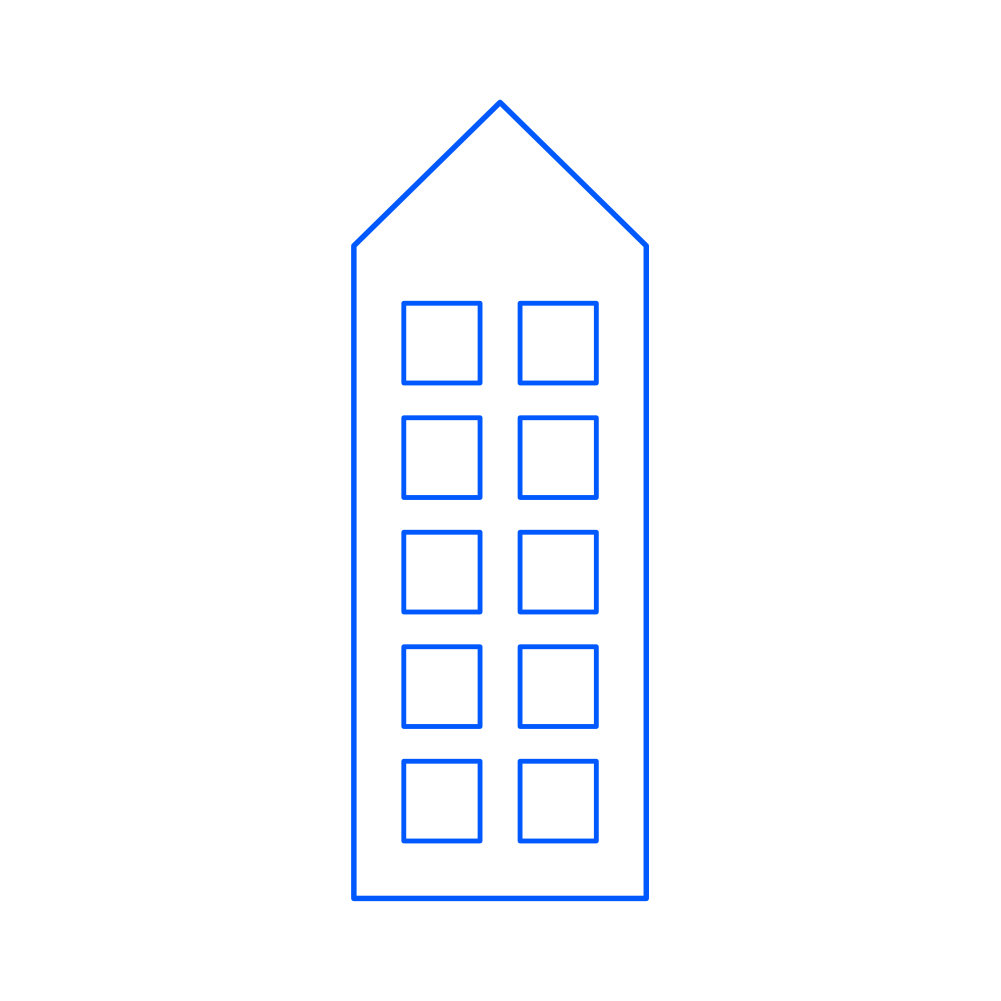
1. Select the Rectangle Tool [U] and draw a building:379×560px.
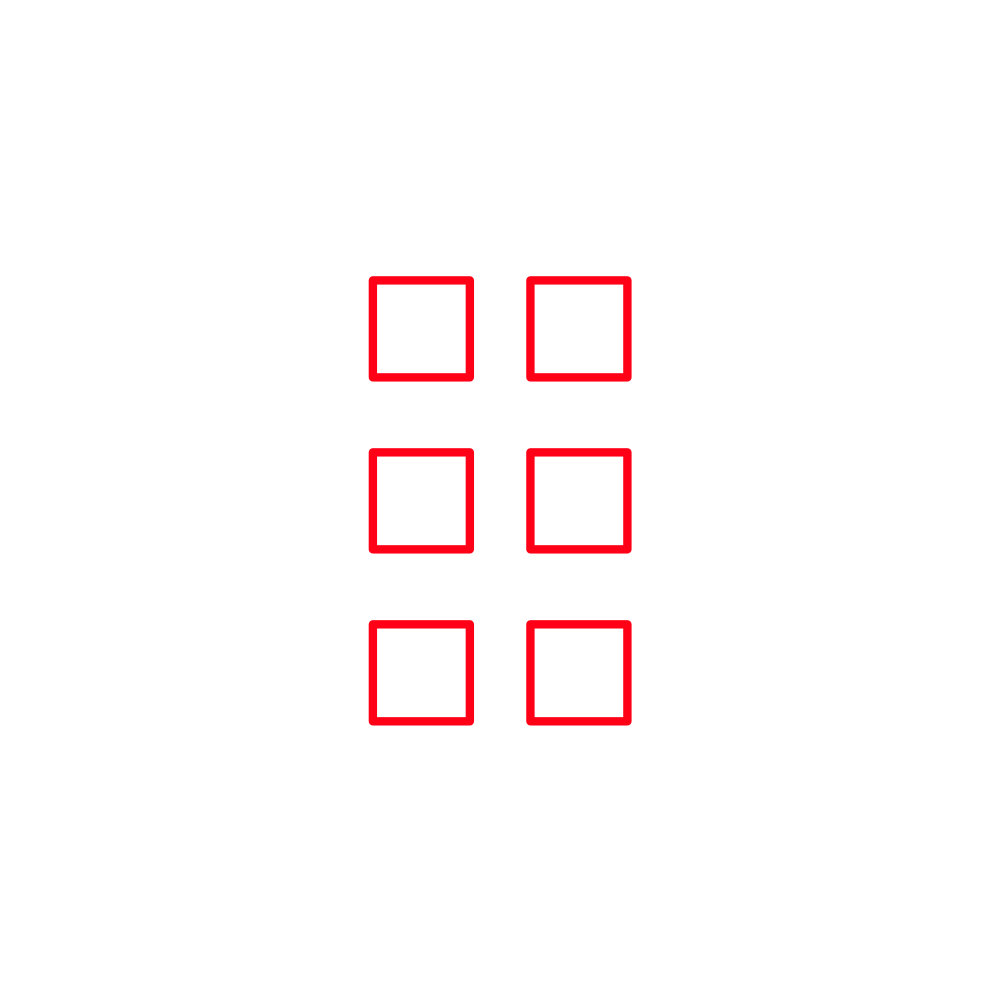
2. Draw 6 square windows, each 97×97px. Align and distribute the six windows evenly.
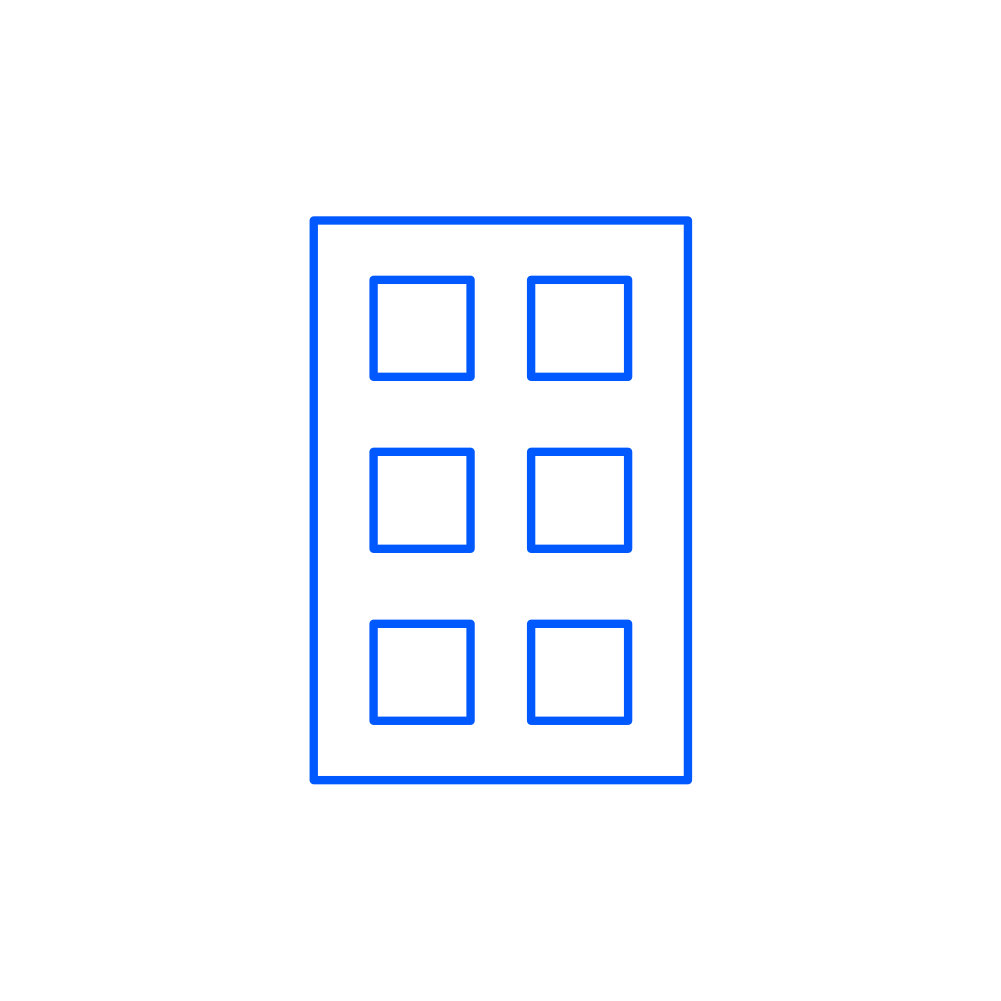
3. Select all and center the windows inside the building.
4. Select the Triangle Tool and draw a triangle for the roof, and place the triangle on top of the rectangle.
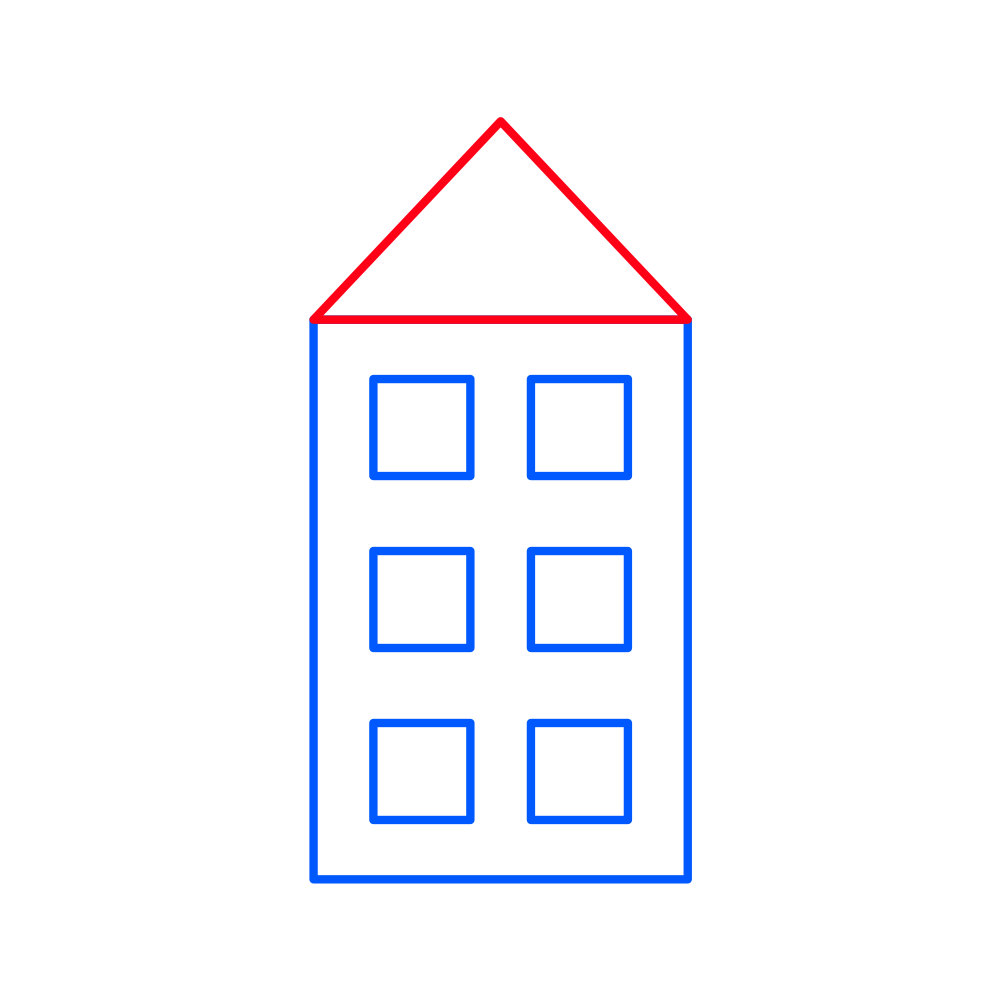
5. Select the triangle + building(leave windows unselected).
6. Go to Boolean Operations → Add to merge them into one shape.
Building 2
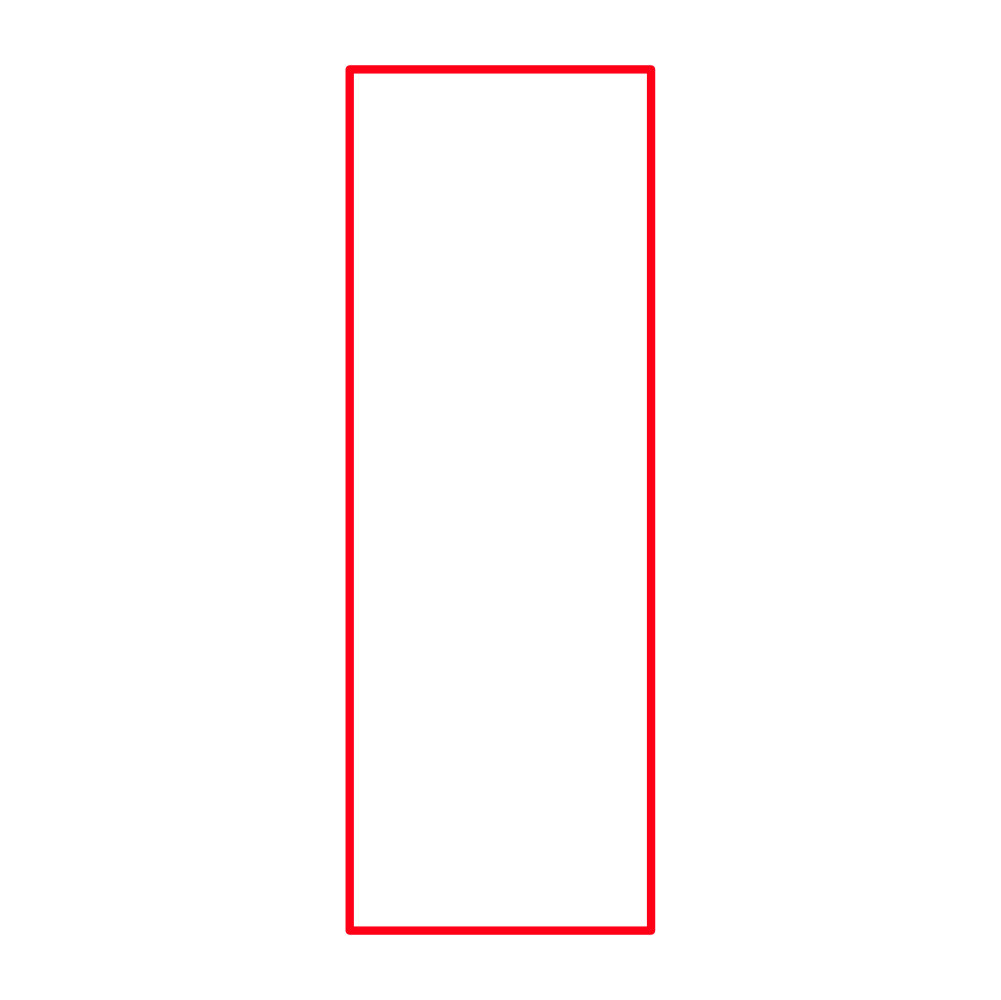
1. Select the Rectangle Tool [U] and draw the building:301×861px.
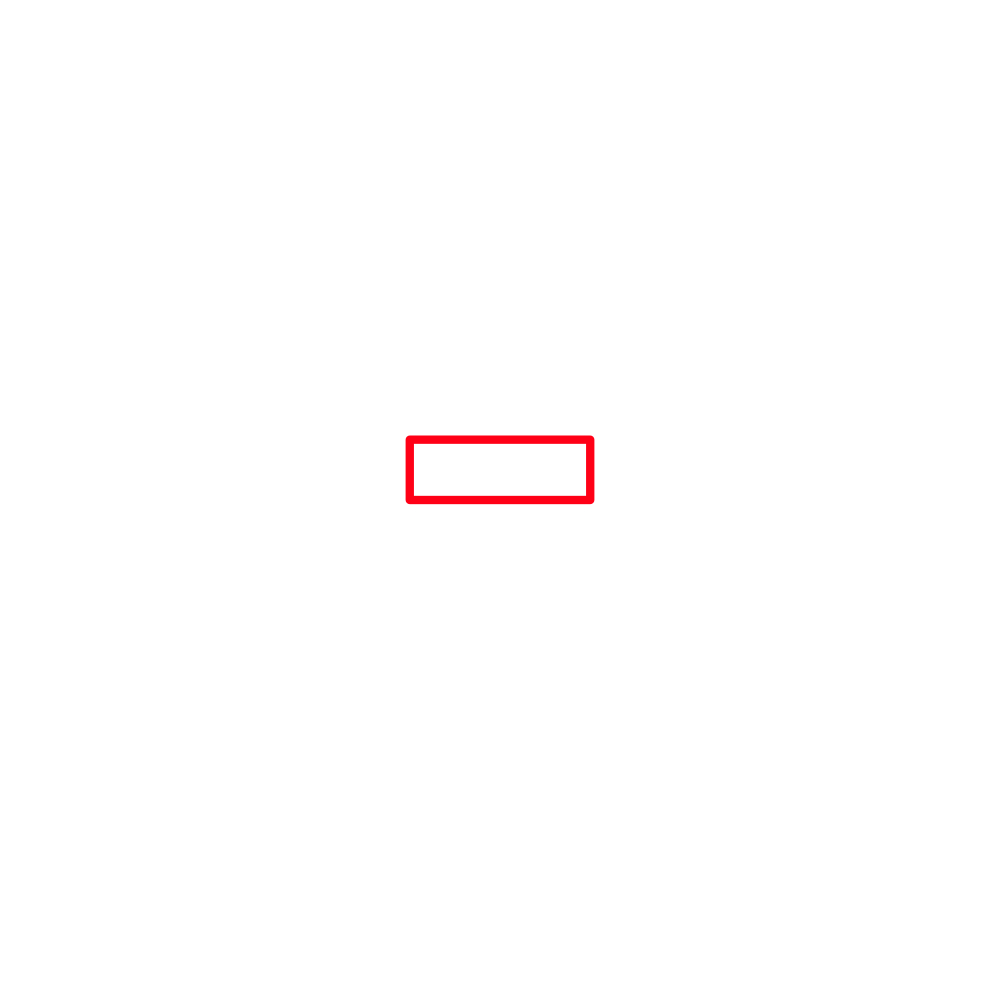
2. Draw a window rectangle:186×70px.
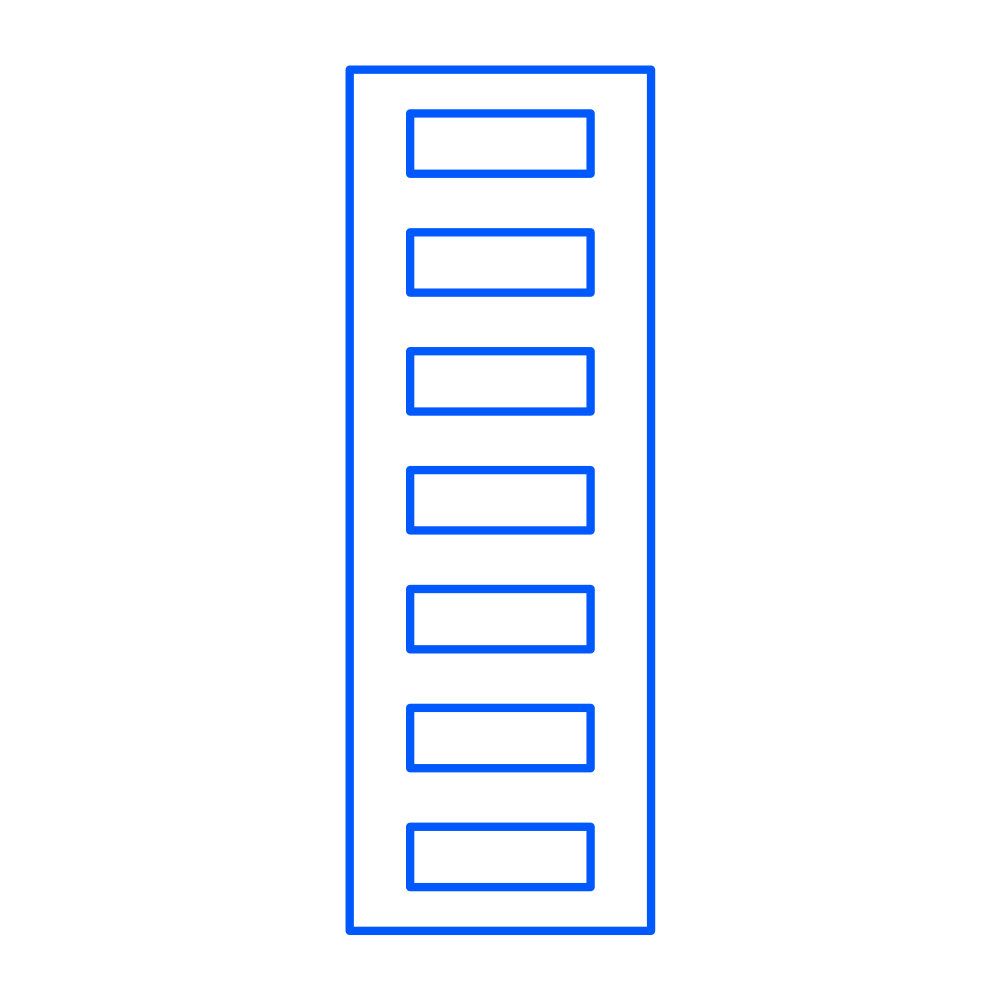
3. Duplicate it 7 times. Evenly space and distribute them vertically. Group the windows together.

4. Select all and center the grouped windows inside the building.
Building 3
1. Select the Rectangle Tool [U] and draw the building: 299×667 px.
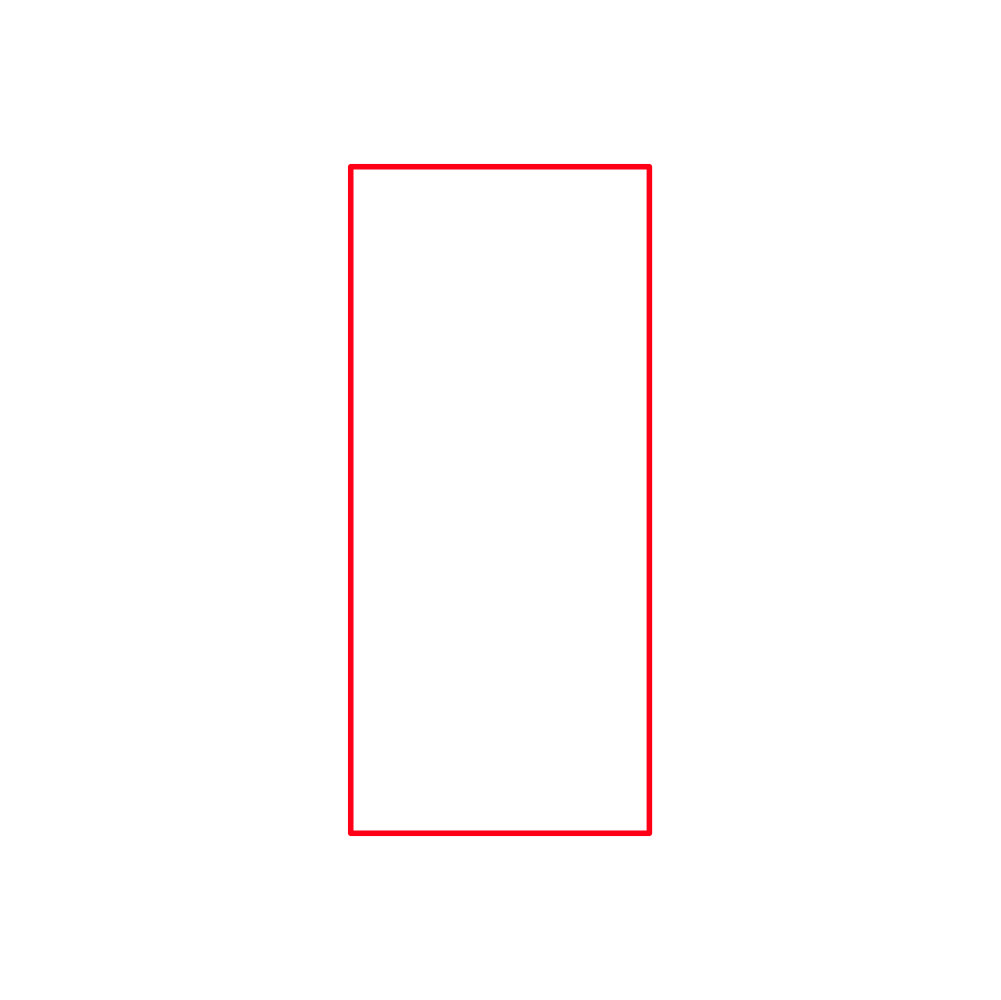
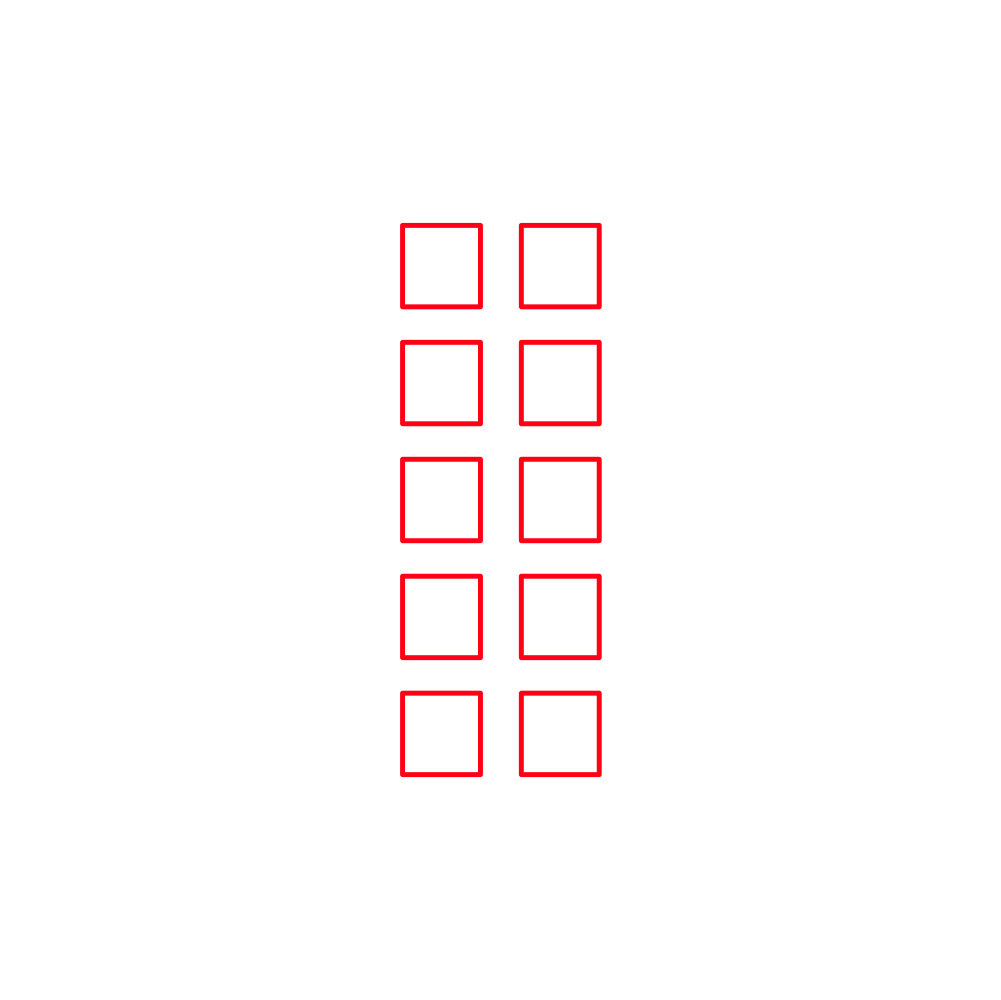
2. Draw 10 square windows, each 78×81px. Align and distribute the windows evenly.
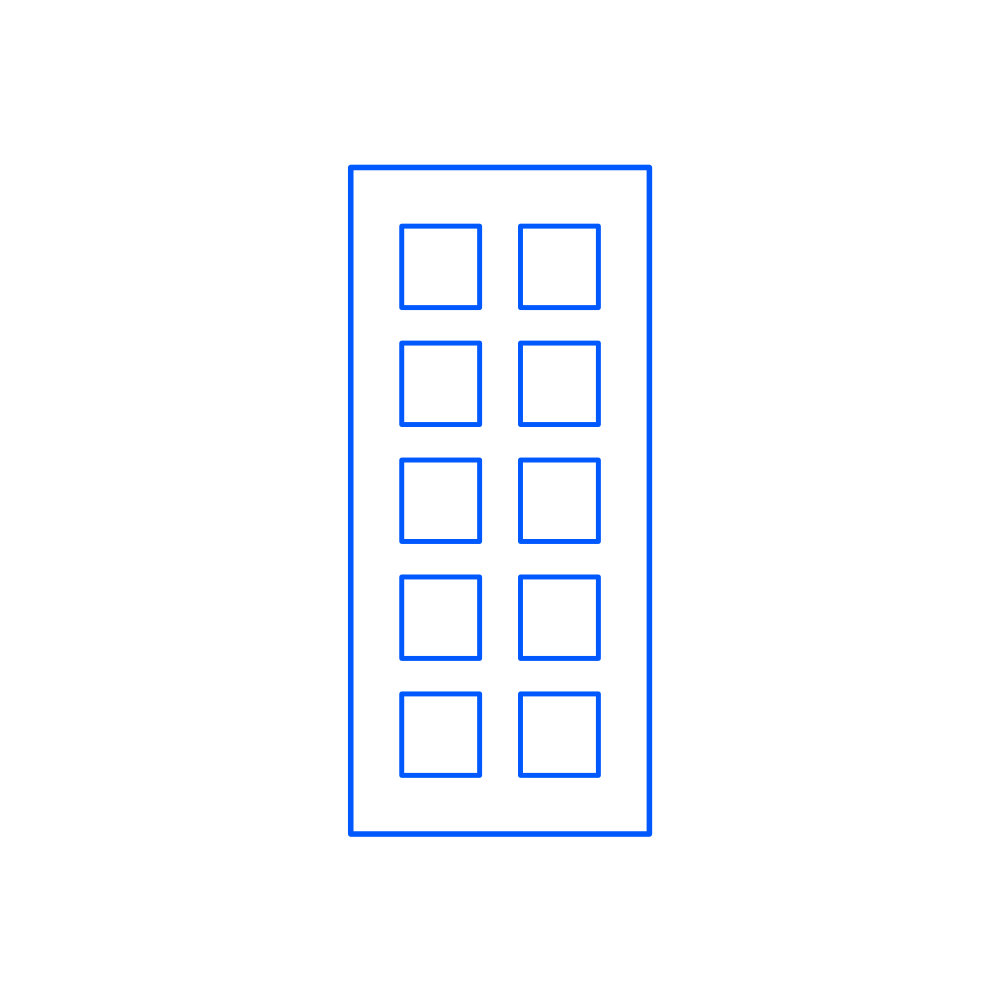
3. Select all and center the windows inside the building.
4. Select the Triangle Tool and draw a roof, and place the triangle on top.
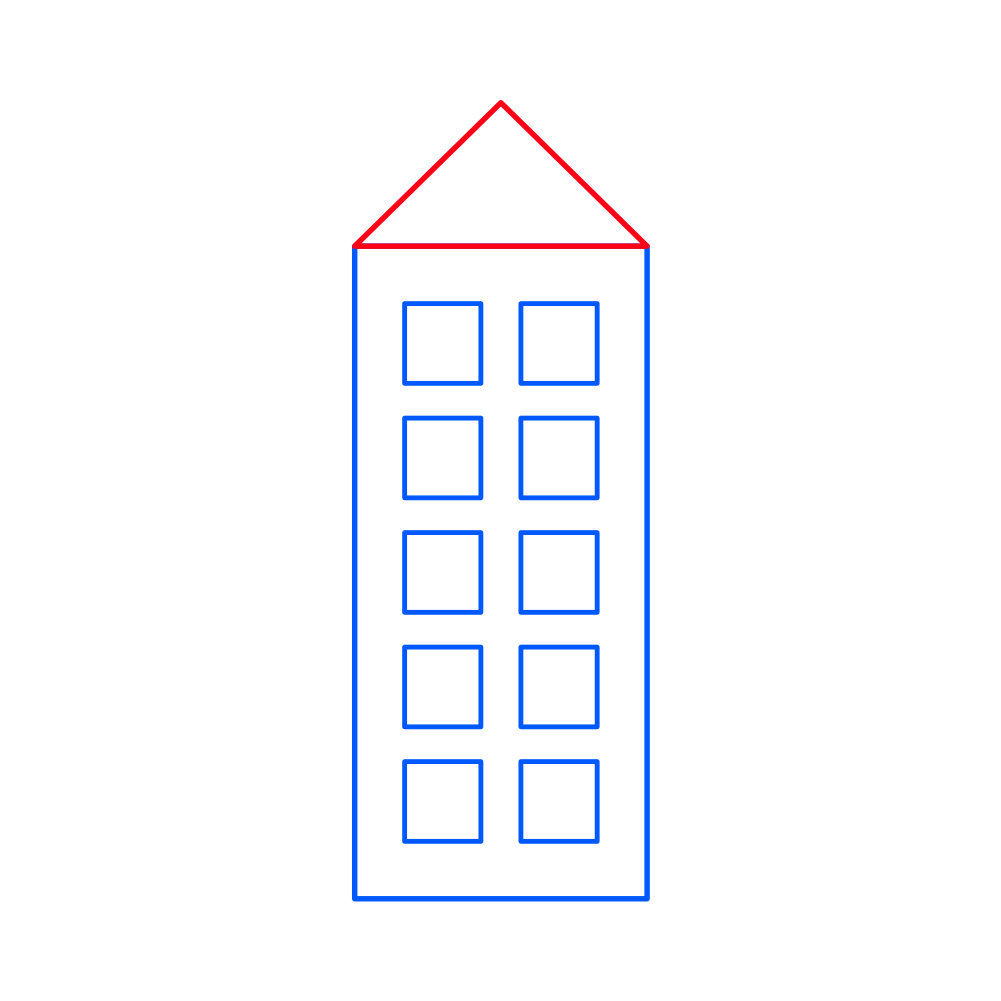
5. Select triangle + building only (leave windows unselected).
6. Go to Boolean Operations → Add to merge the two shapes.
Building 4
1. Select the Rectangle Tool [U] and draw a building:409×814px.
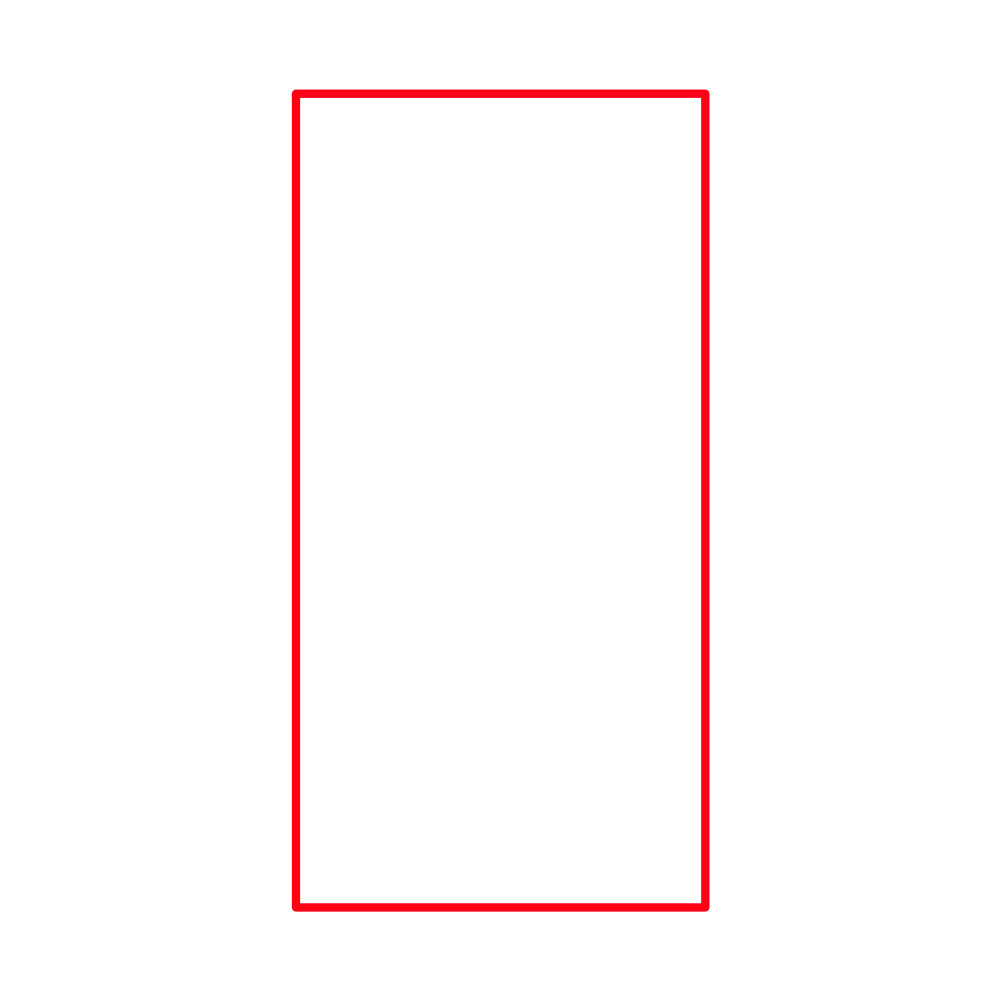
2. Select the Pen Tool [P] in Line Mode. Draw 11 horizontal window lines.
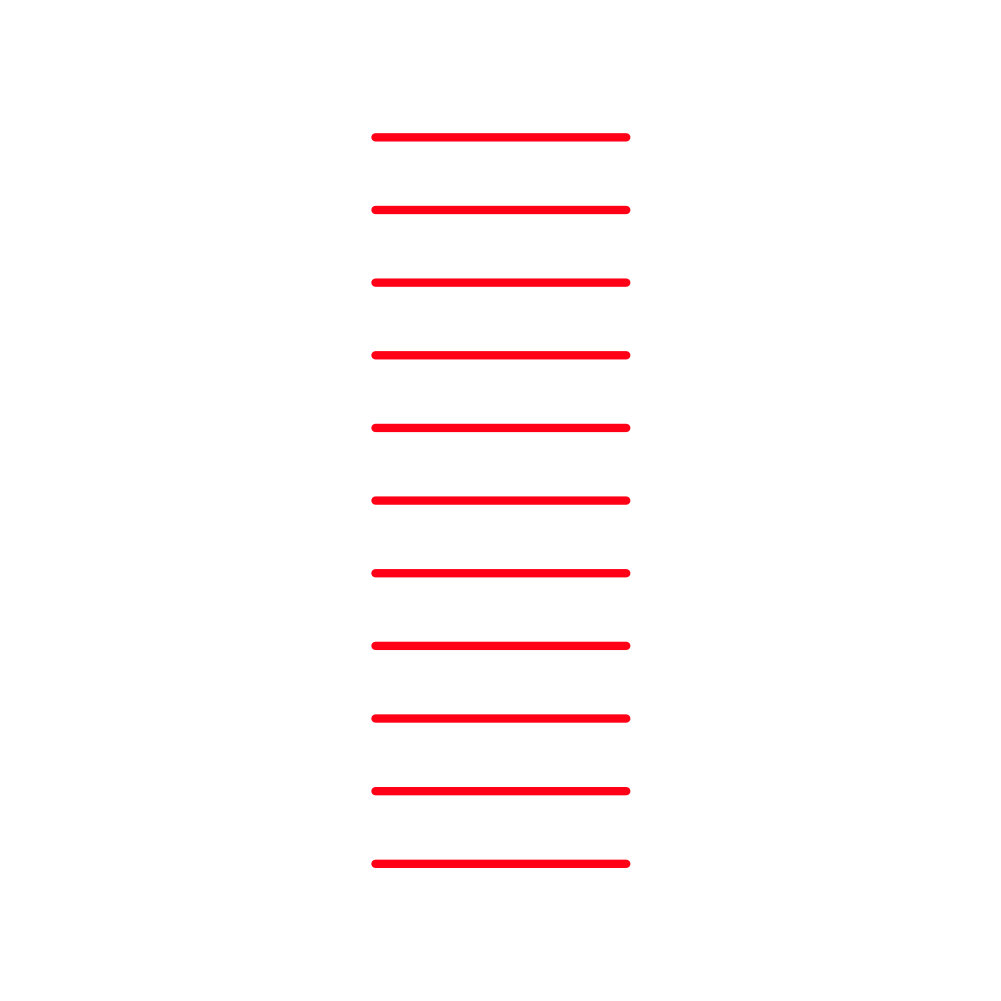
3. In the Alignment Panel:
Align lines center horizontally
Align middle vertically
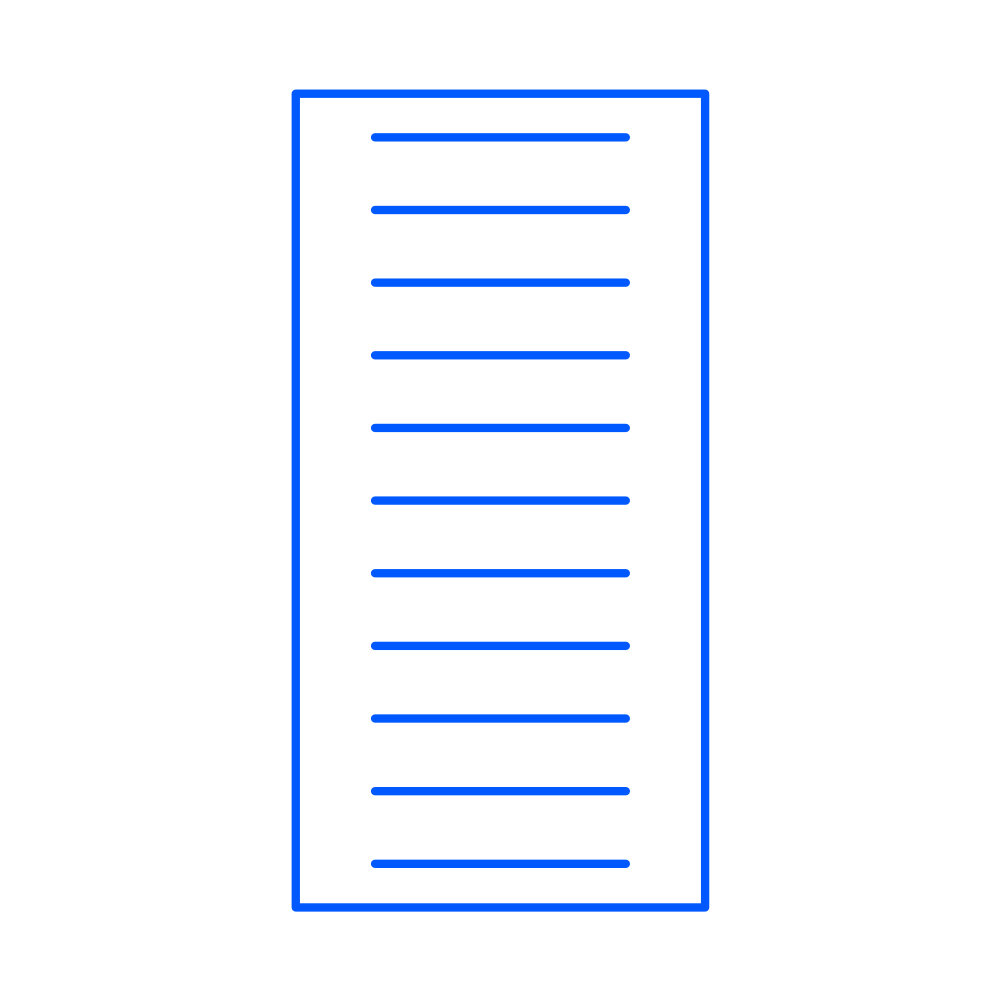
4. Select all and center the window lines inside the building.
Building 5
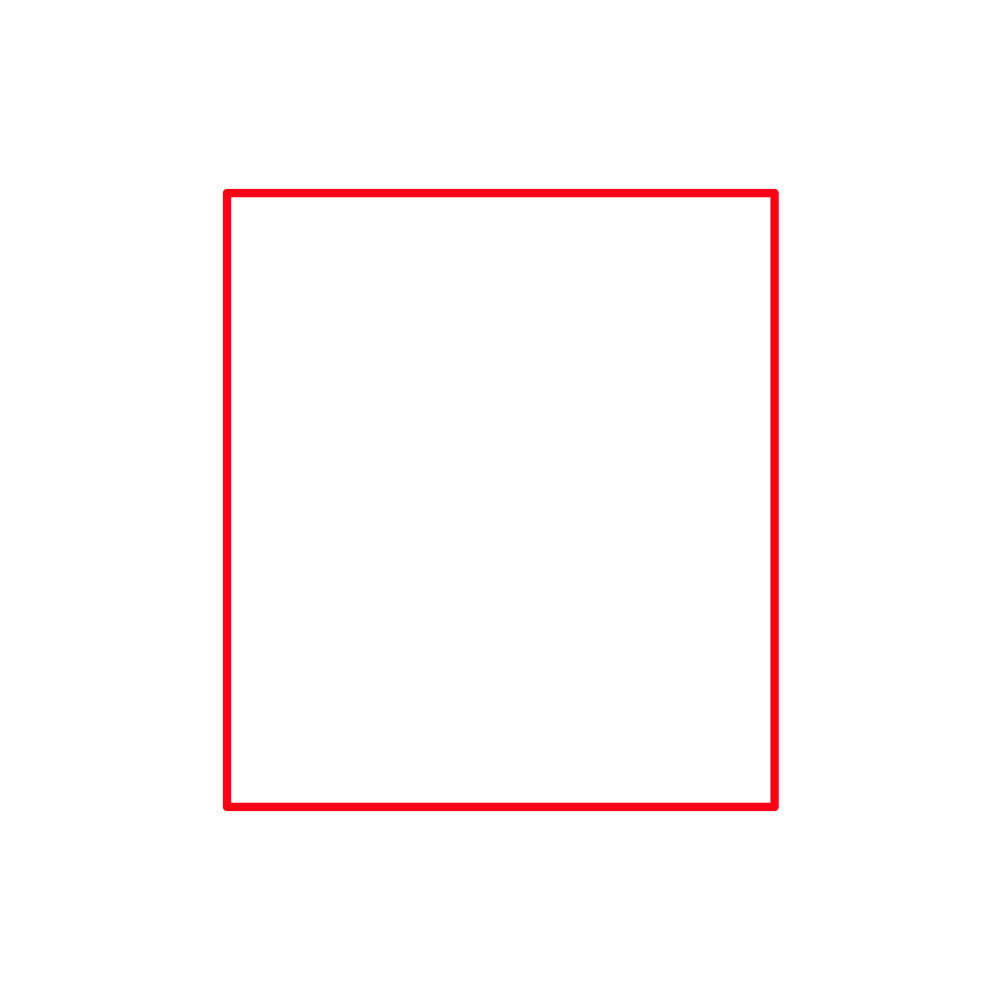
1. Select the Rectangle Tool [U]. Draw a square: 548 × 614 px.
2. Select the Pen Tool [P], set it to Line Mode. Draw 4 horizontal lines for the windows, each 353 px wide.
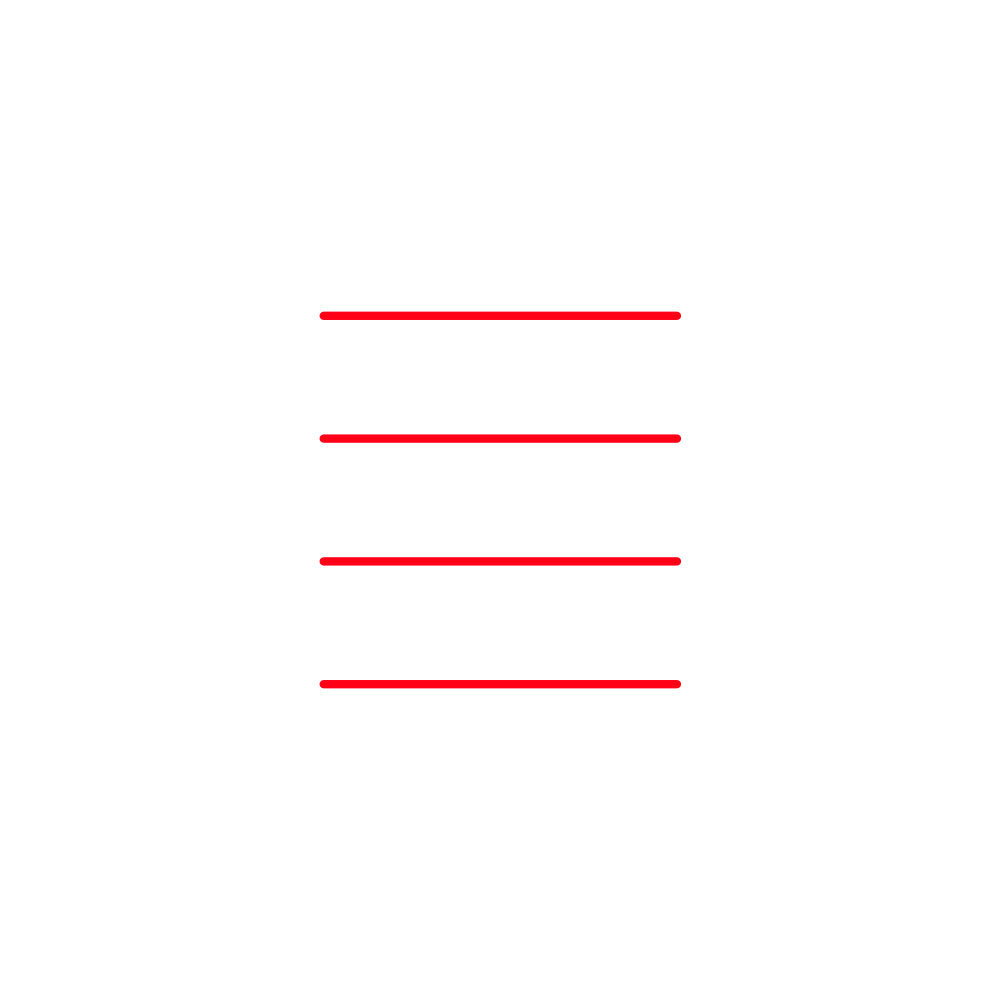
3. Align all four lines horizontally, and evenly space them vertically.
4. Select everything and center the lines inside the square.

Enjoying this so far?
Buying me a cup of coffee helps keep these tutorials free and ad-free
Trees
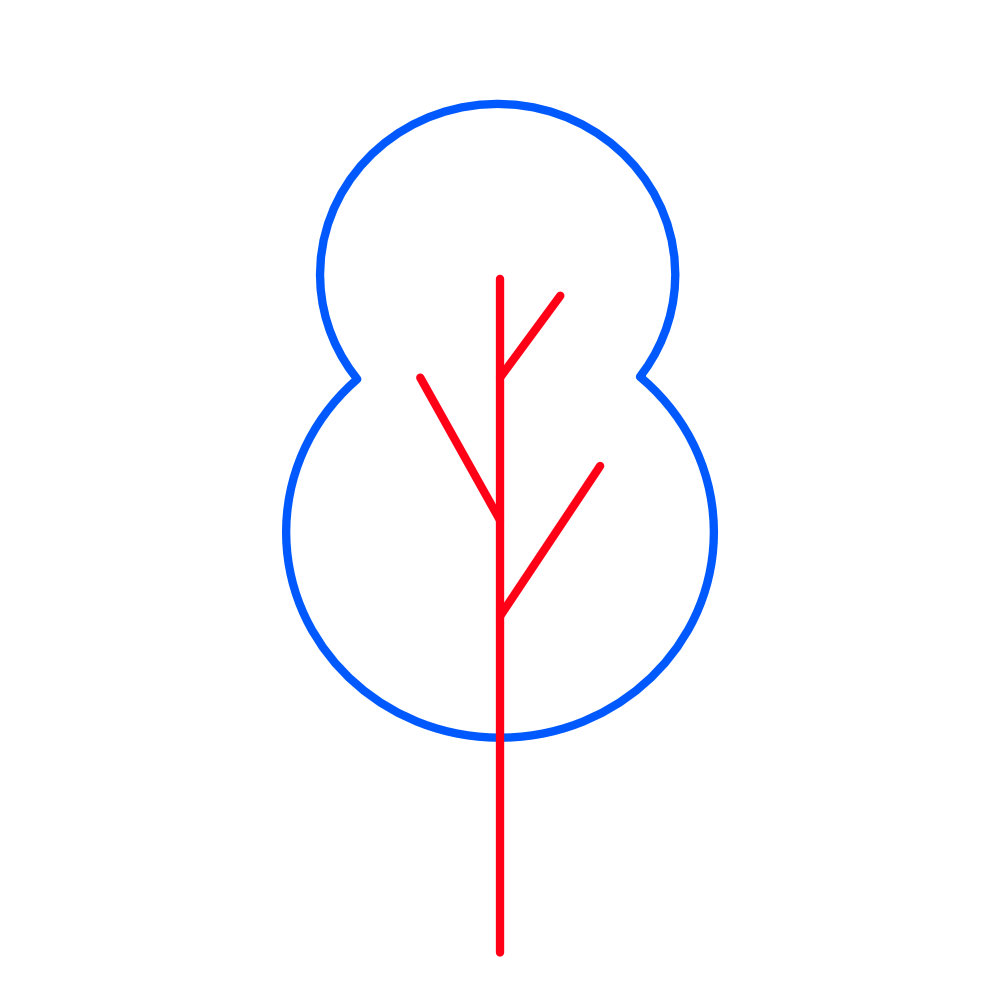
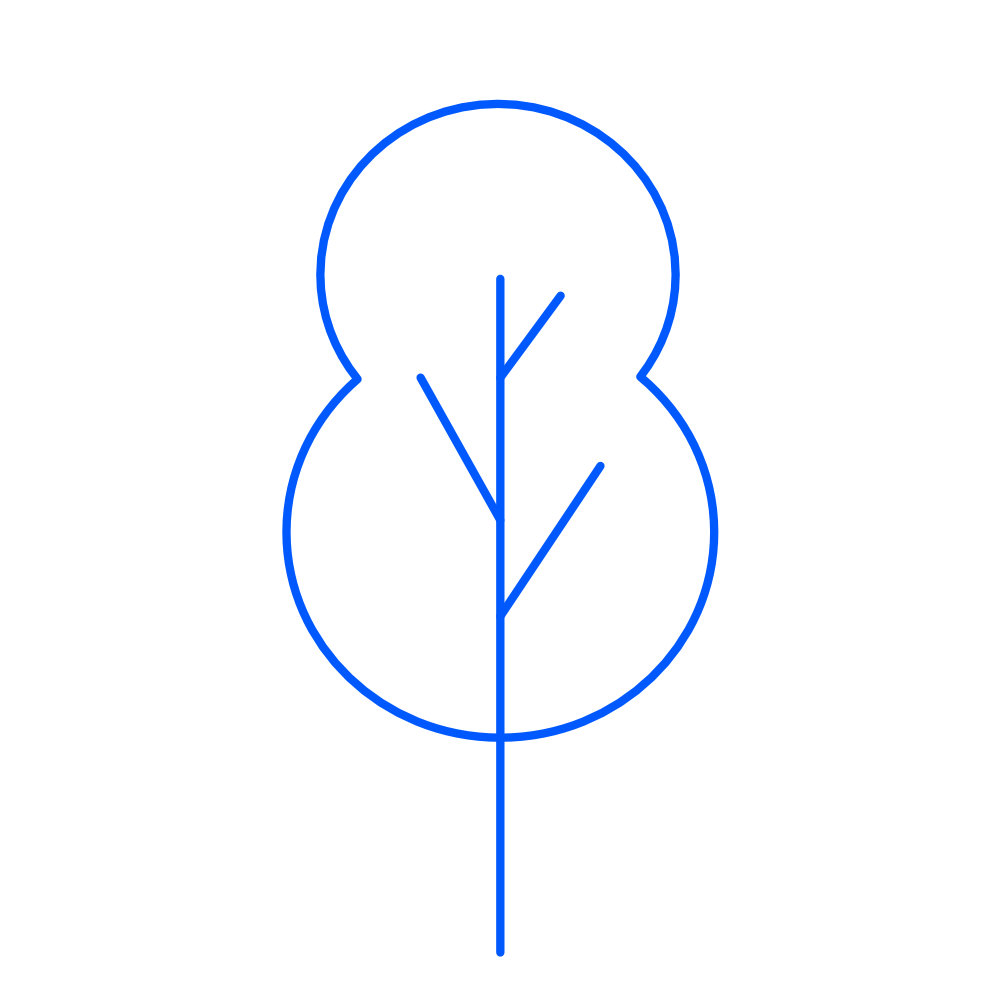
Tree 1(Round Tree)
1. Select the Ellipse Tool, and draw a circle: 353×353px.

2. Duplicate it and move downward. Make the duplicate larger: 425×425px.
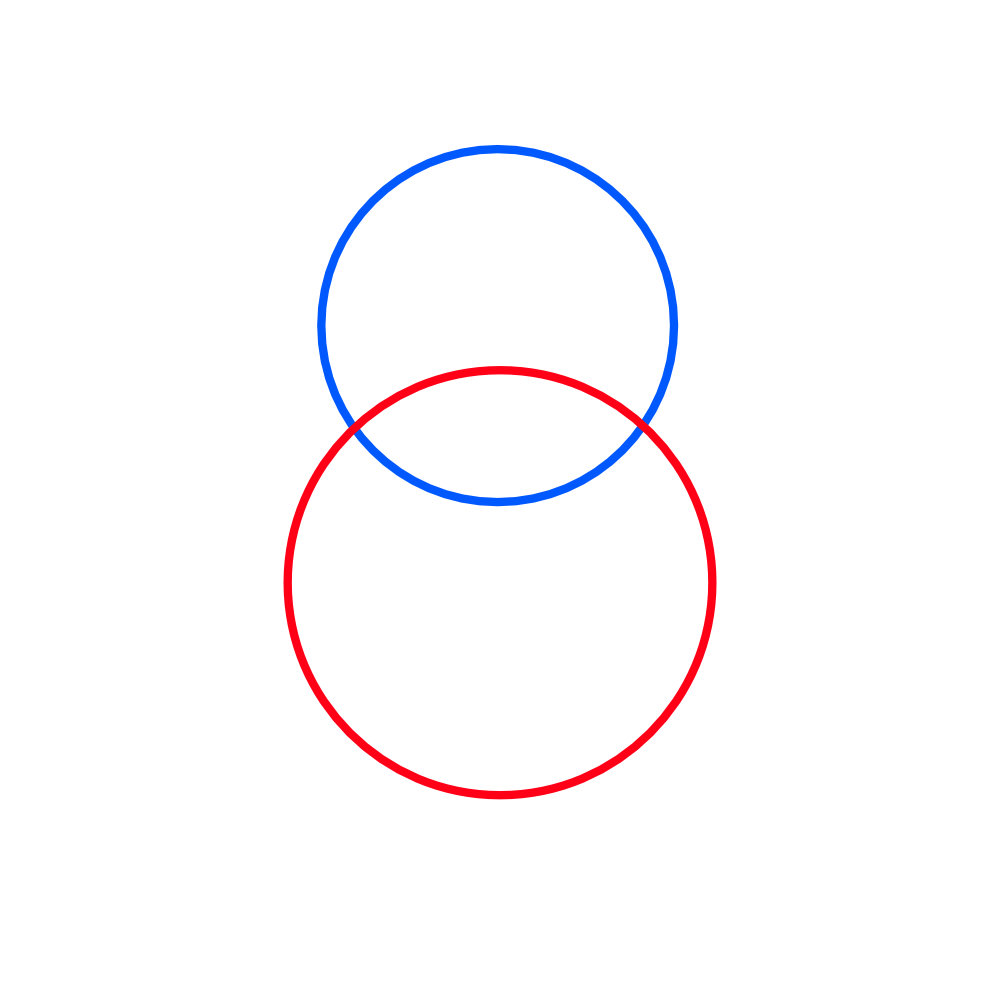
3. Overlap the two ellipses.
4. Select both →Boolean → Add to combine them.
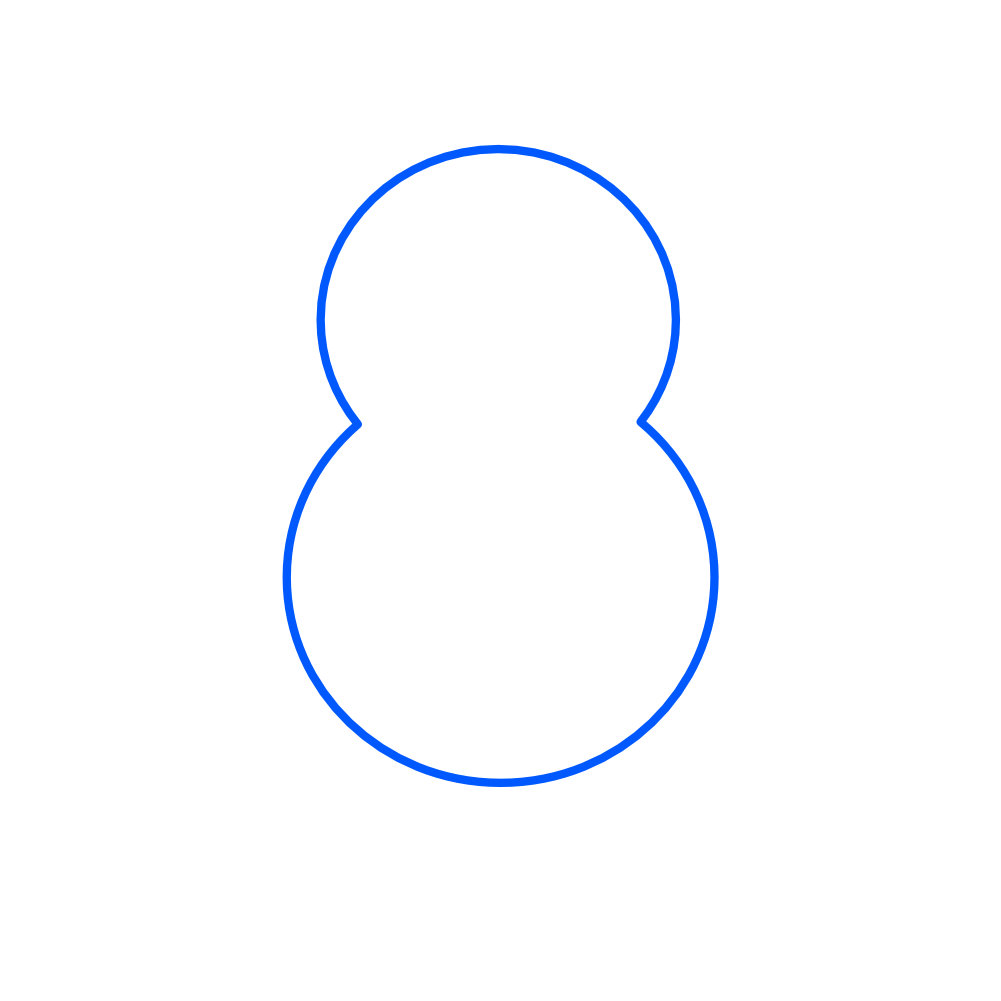
5. Select the Pen Tool [P] in Line Mode and draw the trunk.
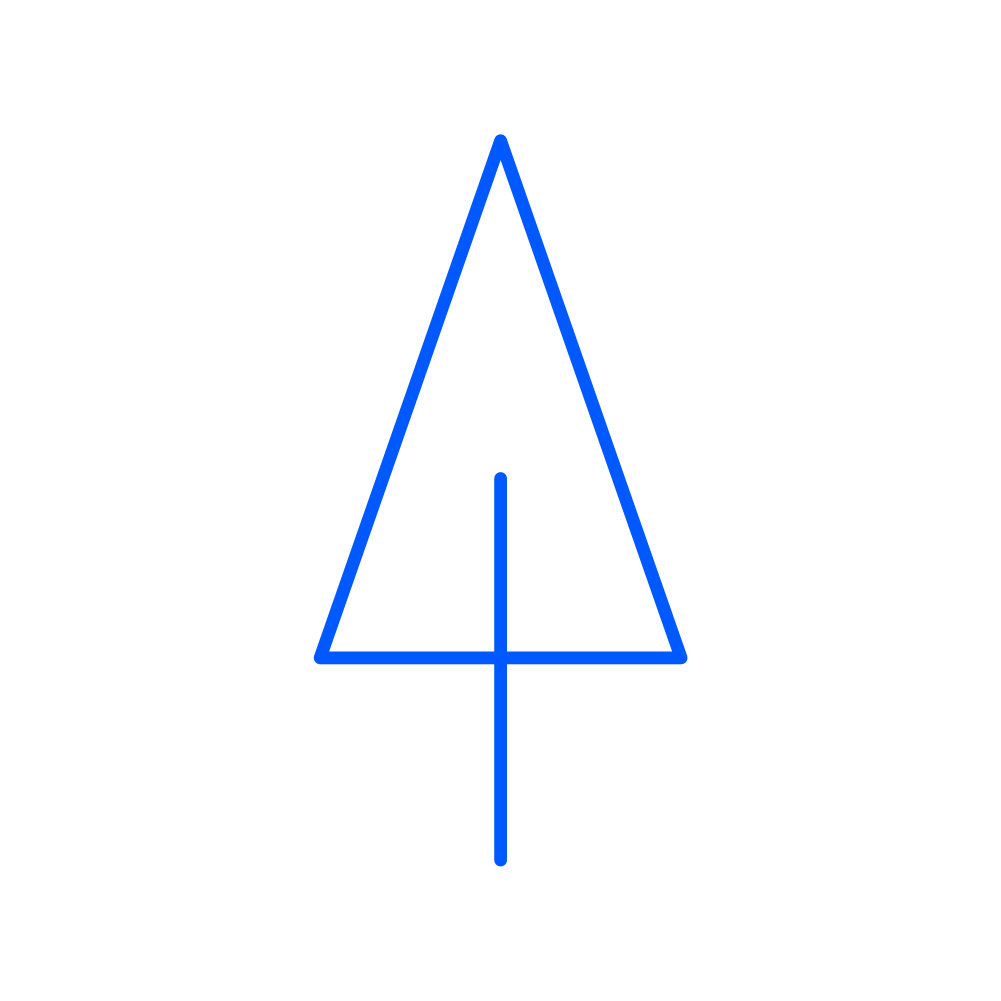
Tree 2 (Triangle Tree)
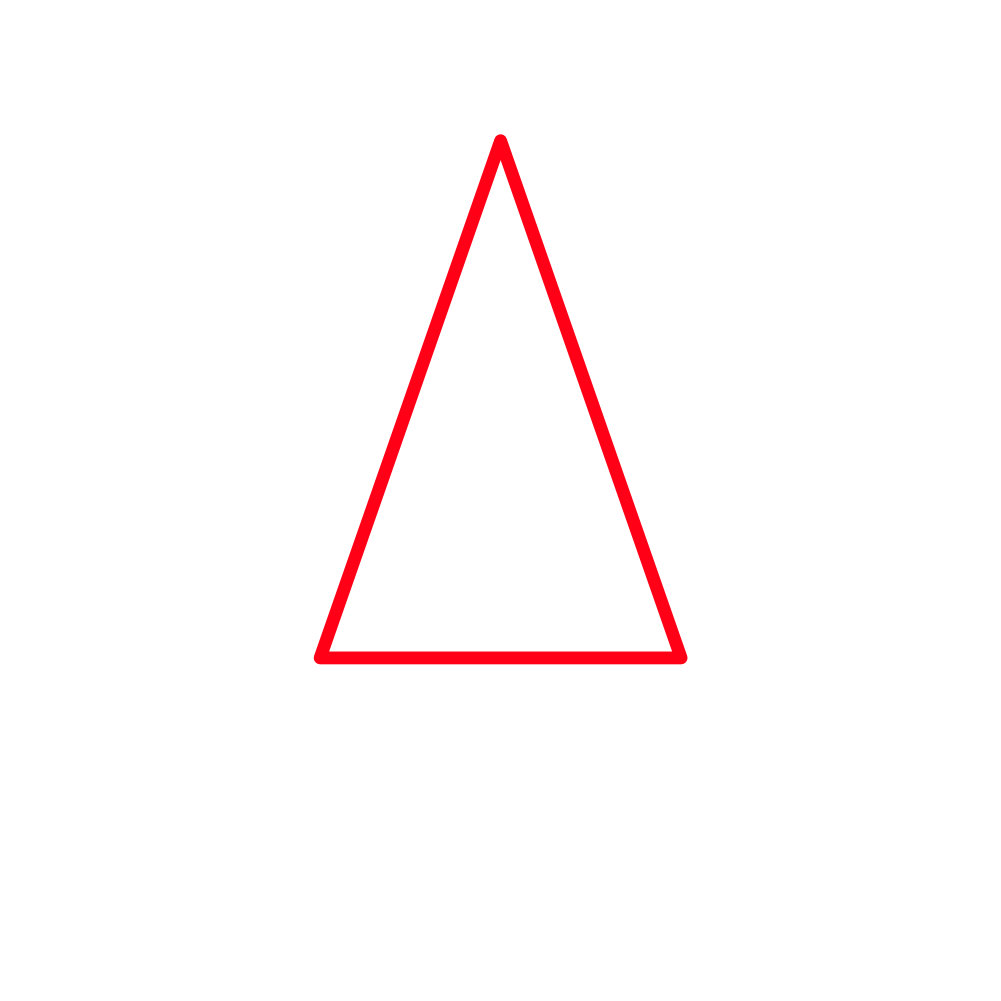
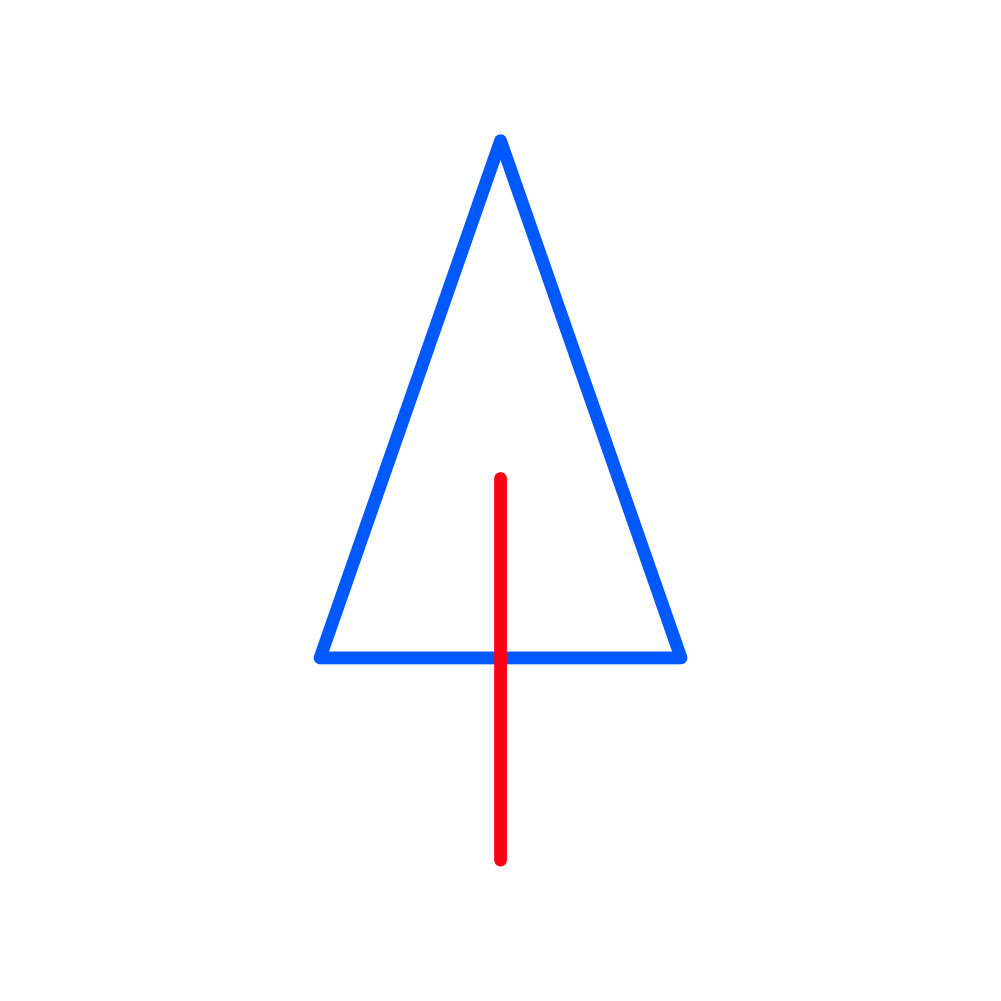
1. Select the Triangle Tool and draw: 361×517px.
2. Use the Pen Tool [P] in Line Mode to draw a trunk below the triangle.
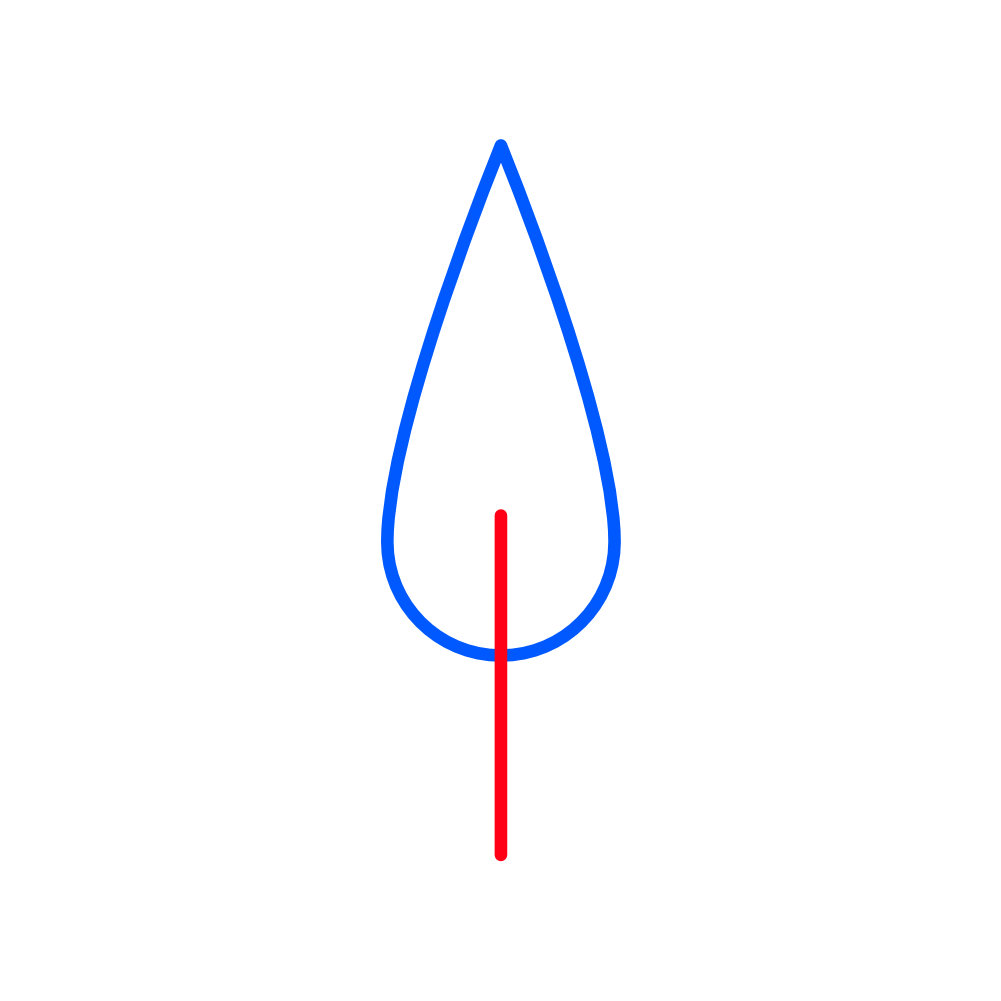
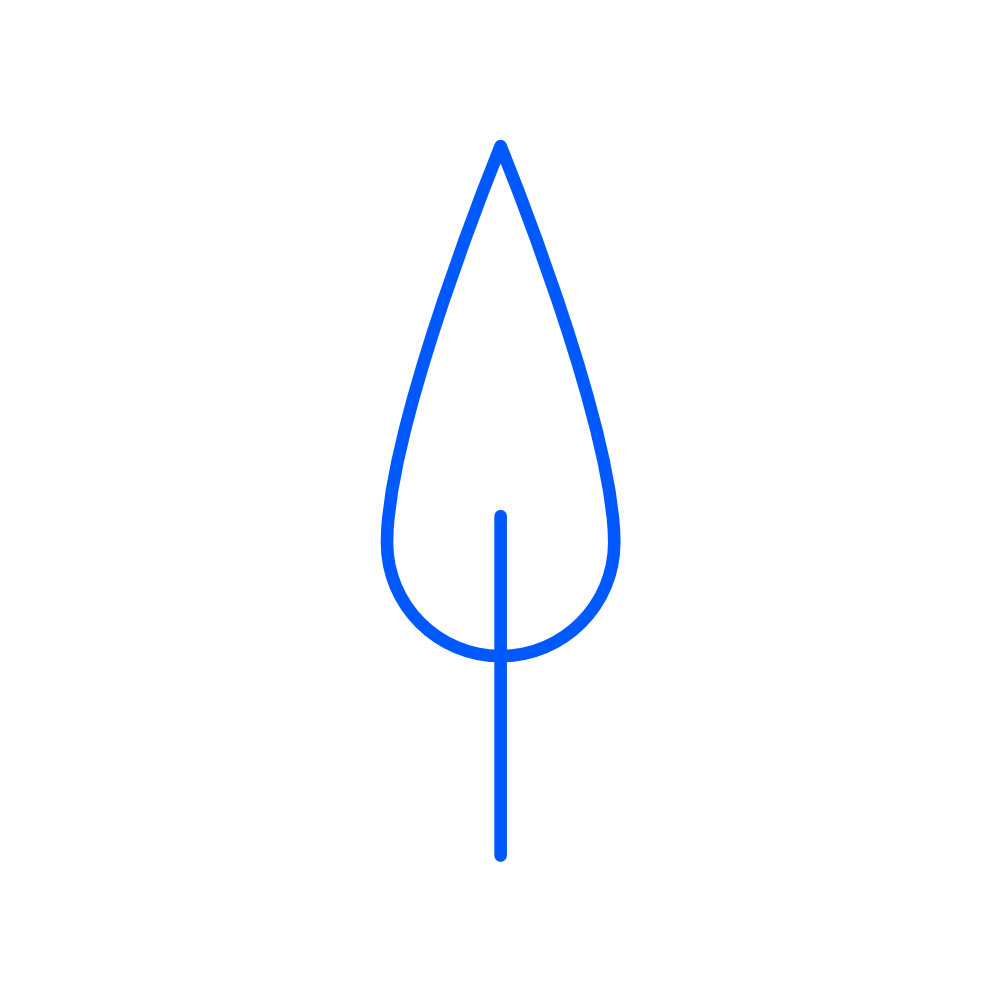
Tree 3 (Teardrop Tree)
1. Select the Teardrop Tool and draw: 227×510px.

2. Draw a line with the Pen Tool[P] for the trunk.
Clouds
1. Select the Ellipse Tool [U] and draw: 297×297px.

2. Duplicate the ellipse and move it right, resizing it to 428×428px.
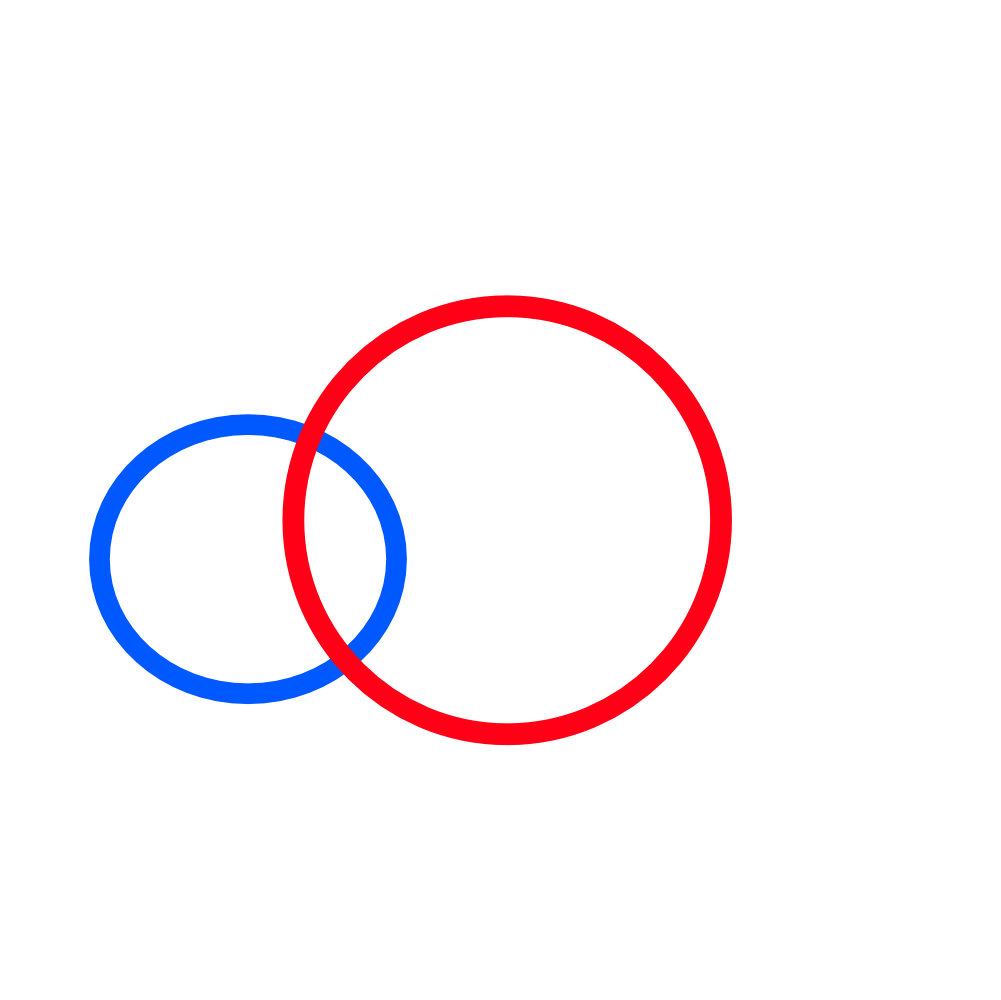
3. Duplicate the original ellipse again and place it on the left side.
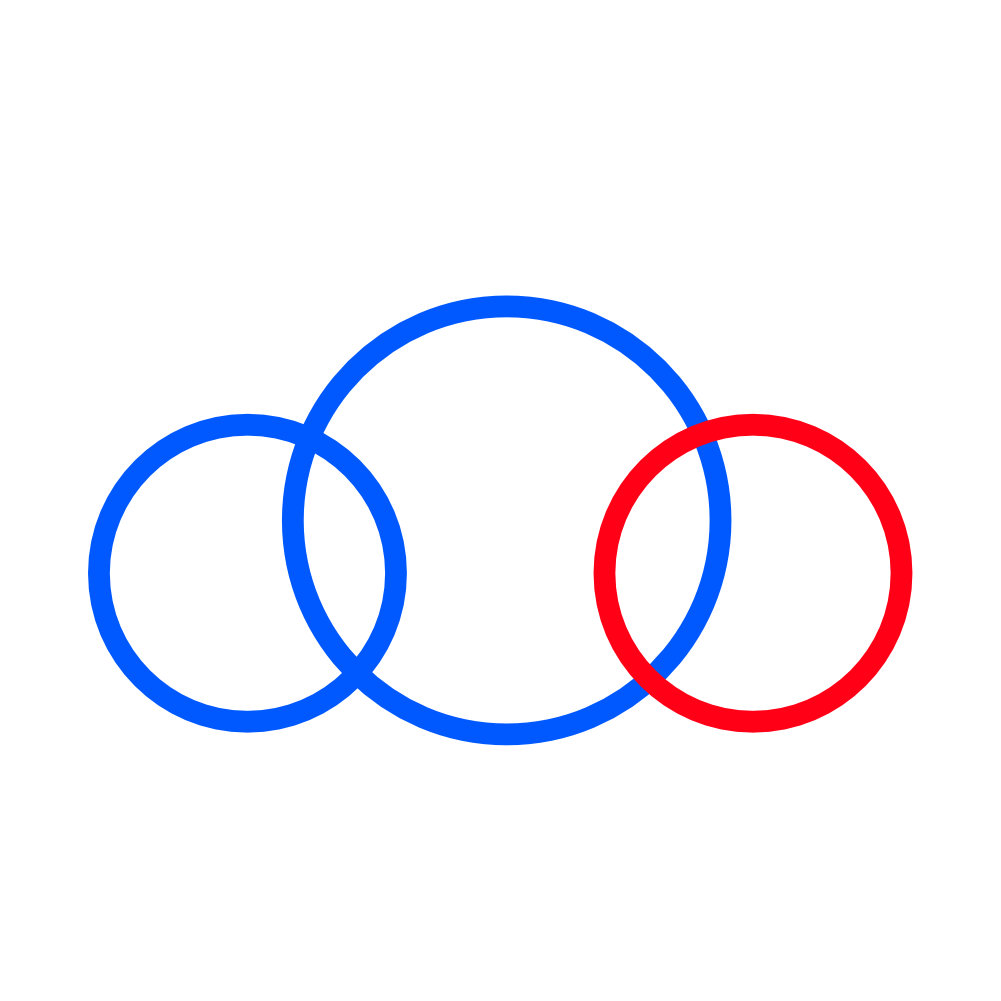
4. Select the Rectangle Tool, and draw a rectangle aligning the bottom with the ellipses.
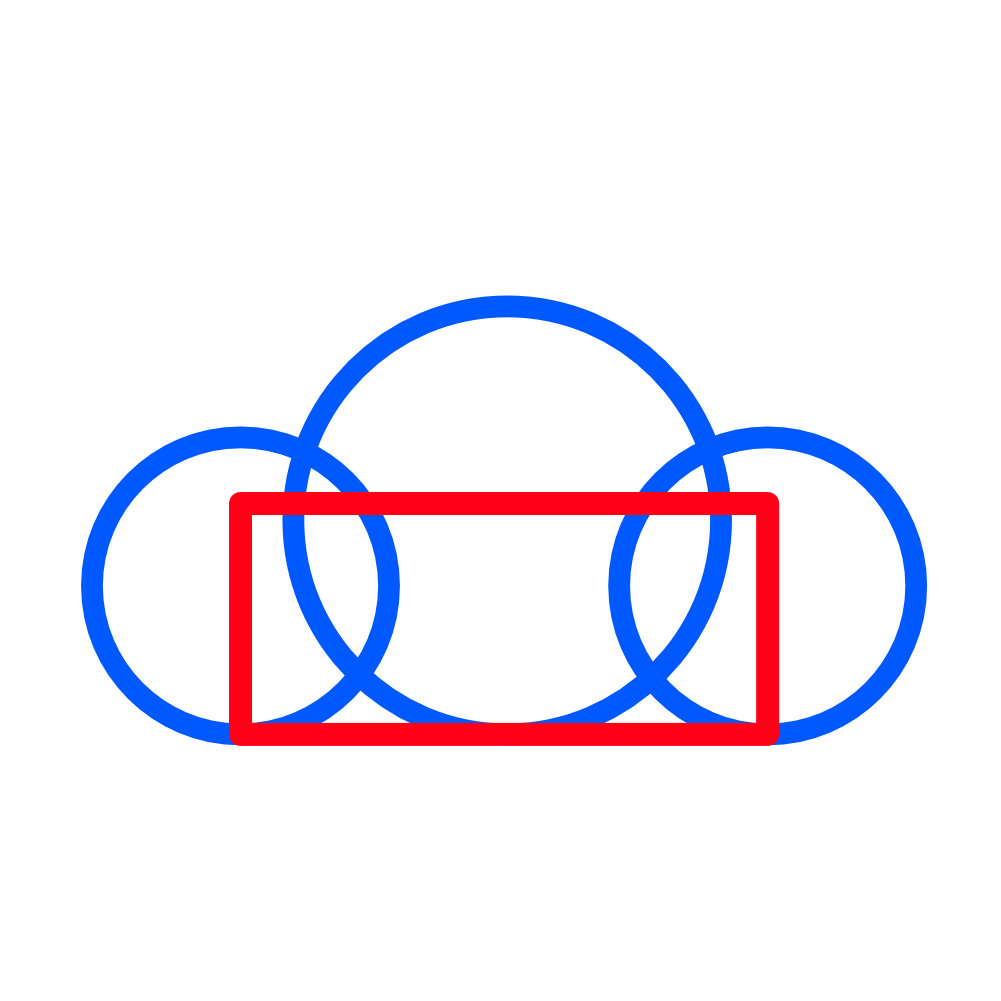
5. Select all → Boolean → Add to merge into one cloud shape.

Sun
1. Select the Ellipse Tool [U] and draw the sun:456×456px.

Put Everything Together.
1. Arrange all buildings, trees, clouds, and the sun within the red layout guide.

2. When you’re happy with the arrangement:
Select all → Vector → Expand Stroke.
Select all again → Boolean → Add.
3. This will merge your entire cityscape into a single, mono-line vector illustration.
You now have a clean, mono-line cityscape created entirely from simple shapes and lines in Affinity Vector Persona. This project is great practice for geometry tools, alignment, and stroke-based illustration. Once you master the basic workflow, you can customize the skyline, add more buildings, or even turn it into a full poster design.
Thank you for following along with this tutorial!
If you enjoyed this project and want more step-by-step Affinity Designer lessons, be sure to follow and subscribe so you never miss the latest tutorials. If you have any questions, or need help, feel free to reach out.
Eric
Help support my work.
I love creating free tutorials and sharing what I learn along the way.
If this post was useful, you can support my work by buying me a cup of coffee ☕
It helps keep everything free and ad-free for everyone.
Comments are disabled to keep the site focused and spam-free. If you have a question, please use the Contact page.