Affiliate Disclosure:
Some of the links in this post are affiliate links. This means I may earn a small commission at no extra cost to you if you choose to make a purchase. I only recommend tools and resources I personally use and trust. Your support helps keep these tutorials free.

In this intermediate-level tutorial we will be designing a Celtic Knot using Affinity Vector Studio. This tutorial is for those with a basic understanding of Affinity Designer, aiming to leverage basic shapes and the Shape Builder Tool to create intricate designs.
Program: Affinity: Vector Studio
Difficulty: Intermediate
Tools Required:
– Rectangle Tool
– Ellipse Tool
– Shape Builder Tool
Click here to download the follow along for this tutorial. Ive set the blend mode on the Celtic Knot layer to Multiply, and reduce the transparency to about 50%. Adjust the opacity if needed. Use the Follow Along layer to follow along.
Step 1:
Using the Rectangle Tool[U], draw a rectangle on your canvas.

Step 2:
Select the rectangle you’ve just created, and round the corners using the Corner Tool[C]. After rounding the corners, Convert to Curves.

Step 3:
Duplicate the rounded rectangle by selecting it and pressing Ctrl+J (or Cmd+J on a Mac). With the duplicate selected, choose the Contour Tool[O] and drag the duplicate inside the original rectangle. Convert to Curves as well, then select both rounded rectangles and group them together (Ctrl+G or Cmd+G).

Step 4:
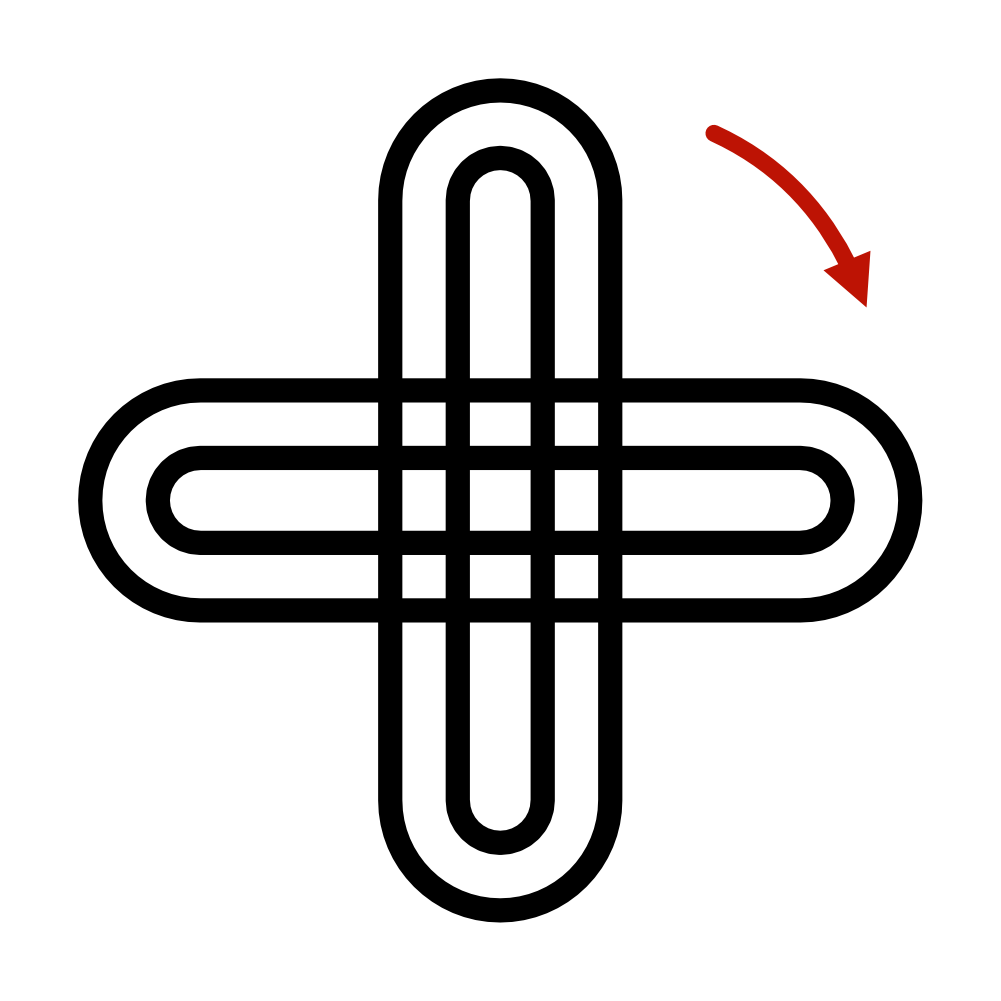
Take the grouped rounded rectangles and duplicate them. Rotate the duplicate by 90 degrees to the right, aligning it to form the base structure of our Celtic Knot.
Step 5:
Now, select the Ellipse Tool[U] and draw an ellipse. Convert to Curves.

Step 6:
Duplicate the ellipse, select the Contour Tool[O], and drag the duplicate inside the original ellipse. Convert to Curves, and group them together.

Step 7:
Select all the shapes we’ve created so far. Align the ellipses to the center of the rounded rectangles. Once aligned, ungroup all elements to prepare for the next step.

Step 8:
With everything selected, go to the top menu and choose “Layer” > “Expand Stroke” to ensure our shapes are ready for the final steps.
Step 9:
Select the Shape Builder Tool[S]. In the context toolbar, make sure to select the plus sign (+) and choose the freehand drag method. This will allow us to merge and subtract shapes freely. Make sure you select everything before you begin.
Step 10:
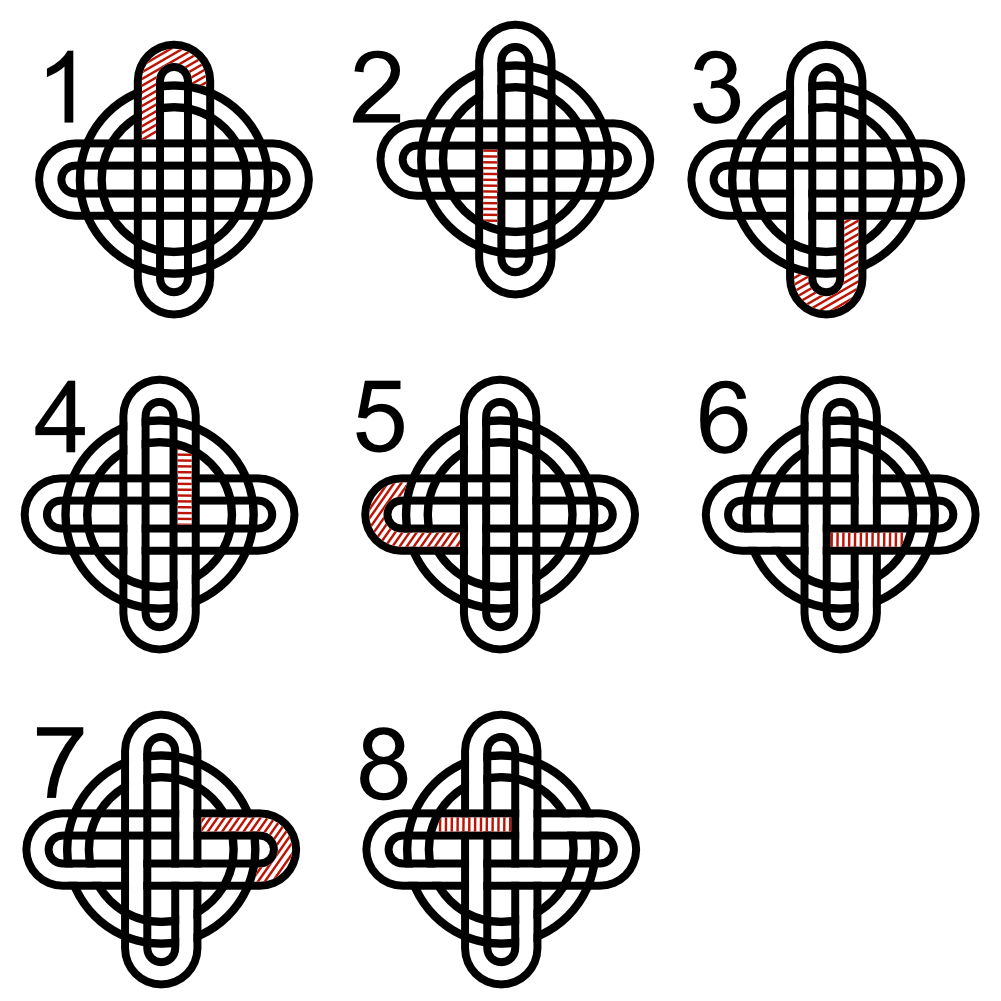
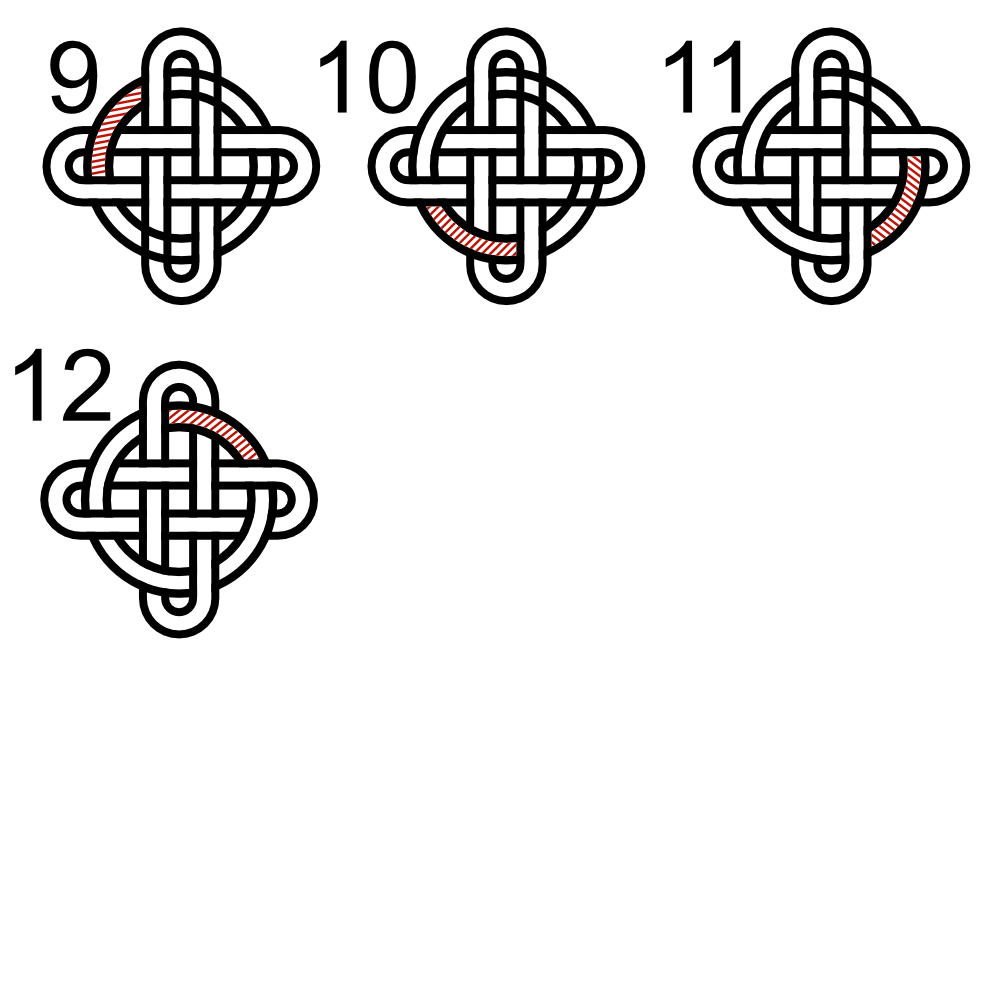
Referencing the photo, use the Shape Builder Tool[S] to drag across intersections and create the loops of the Celtic Knot. This step requires a bit of patience as you piece together the final design.
Thank you for following along with this tutorial on creating a Celtic Knot in Affinity Designer. I hope you found the process engaging and informative. If you enjoyed this tutorial, please consider liking, following, and subscribing to my newsletter and social media for more creative insights and tutorials. Should you have any questions or need further assistance, don’t hesitate to reach out. Your creative journey is just beginning, and I’m here to support you every step of the way.
Help support my work.
I love creating free tutorials and sharing what I learn along the way.
If this post was useful, you can support my work by buying me a cup of coffee ☕
It helps keep everything free and ad-free for everyone.
Comments are disabled to keep the site focused and spam-free. If you have a question, please use the Contact page.